Participating Frequently
November 22, 2018
Answered

Video Footage got distorted when added to a composition

  • November 22, 2018
  • 7 replies
  • 6726 views

Hi All,

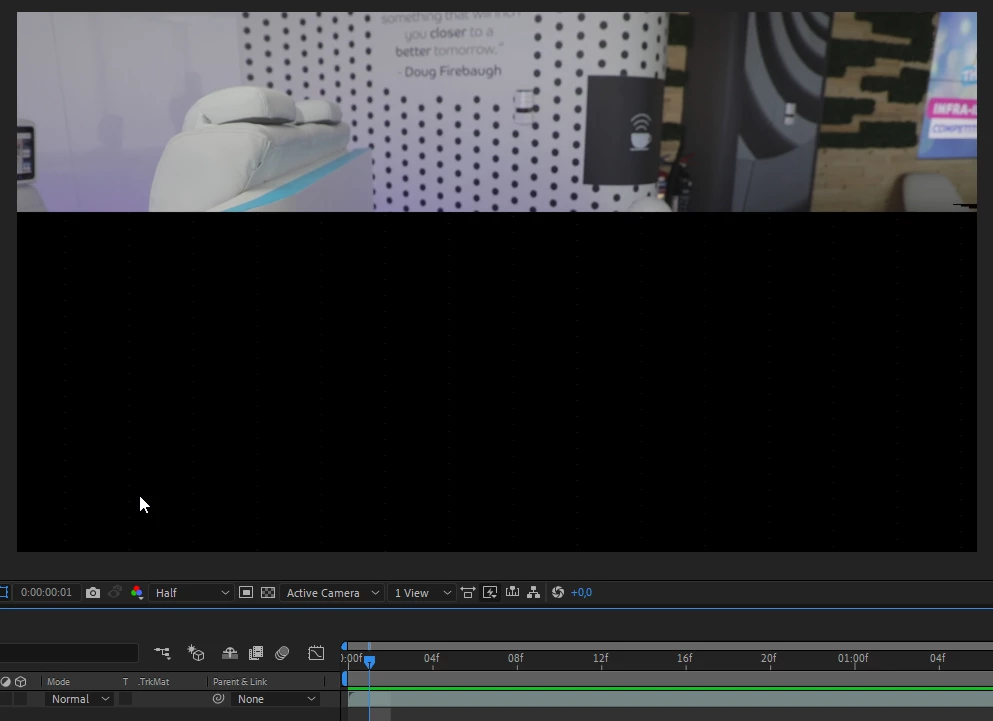
I'm trying to add a video clip to a composition in an AE template. both this video and the template have the same frame rate per seconds. when I play the footage clip from the project explorer it works fine crystal clear but when I add the same clip to the composition it got distorted and shaky bearing in mind there is no effect applied in the comp yet. I was thinking it might be from mismatch of frame rate of the video and the comp but i double checked both are the same (matching)

The footage clip I took with Canon 5D mark IV

Any idea what could possibly be the reason? and how to fix it?

Regards,
    This topic has been closed for replies.
    Correct answer imeilfx

    Ok. So ... now we know what is going on.
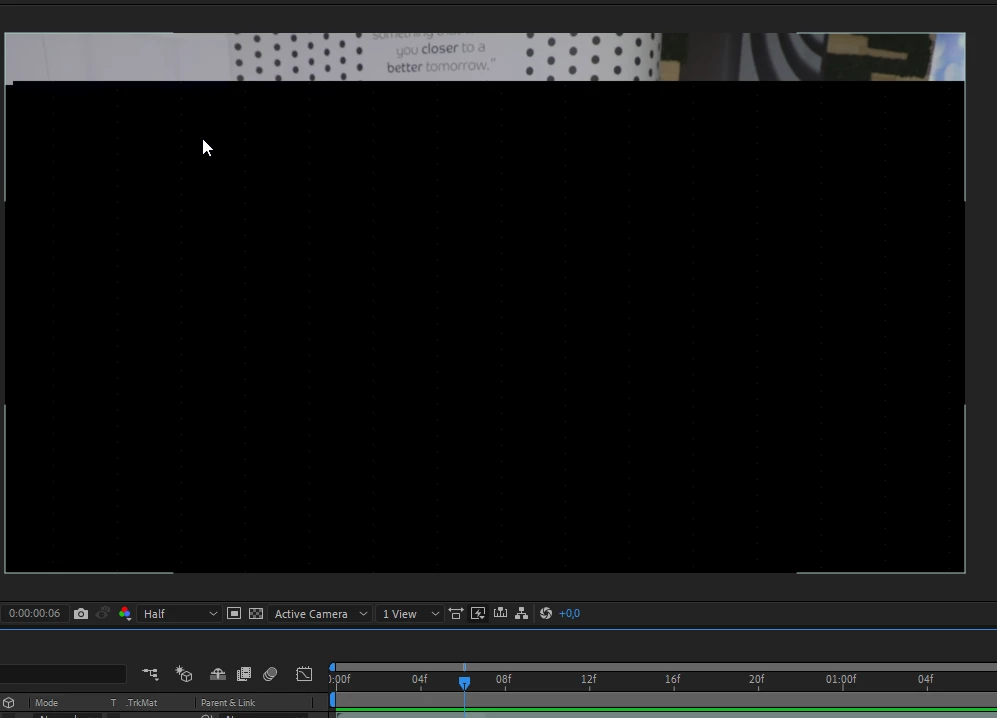
    You have some dropped/corrupted frames in your footage

    And when you see those jagged parts of footage - AE try to compensate and recount what can be on that frame.
    So - long story short - that is not AE fault - that is your footage.
    So go and check your original footage - if original footage is ok - that mean that software tahat you used for rerendering to 3 pieces did that. If that issue occures on original footage straight from camera - that is something wrong with your camera.

    7 replies

    Zar01neAuthor
    Participating Frequently
    November 24, 2018

    I have just done a quick test. I cut my clips using PPro and transferred them to AE. They worked perfectly as crystal clear as the original files.

    i will follow the same in my future projects.

    THANKS ALL

    OussK
    Community Expert
    Community Expert
    November 23, 2018

    as i told you in my first reply it's a .Mp4 issue, and to fix this just use the file you get it from your camera directly don't convert this file in third party software as .MP4 than use it in after effects. mp4 video file 90% of time it will not work inside after effects and the only way to solve this is to transcode this video file to some better codec file to able to use it inside after effects.

    i already transcode this video to ProRez, try to downloaded and test it Dropbox - BS2A8058_1.mov

    also try to stop the GPU accelerator, to do this, go to file/project settings/video rendering and effects/ use mercury software only

    Zar01neAuthor
    Participating Frequently
    November 24, 2018

      wrote

    as i told you in my first reply it's a .Mp4 issue, and to fix this just use the file you get it from your camera directly don't convert this file in third party software as .MP4 than use it in after effects. mp4 video file 90% of time it will not work inside after effects and the only way to solve this is to transcode this video file to some better codec file to able to use it inside after effects.

    i already transcode this video to ProRez, try to downloaded and test it Dropbox - BS2A8058_1.mov

    also try to stop the GPU accelerator, to do this, go to file/project settings/video rendering and effects/ use mercury software only

    NLE?

    imeilfx
    Inspiring
    November 24, 2018

    Zar01ne  napisał(-a)

    NLE?

    If you are asking what NLE means - the answer is:
    Non-Liniear Video Editing. That is current editing standard and NLE software as Premiere Pro, Vegas, Avid, Edius, DaVinci and many many more are the software to chose from when you wish to edit more or less complicated stuff.
    LE - Linear Editing is "od way" that was used in analogue video tapes days. But also til this day you have software that co that - f.eg. Virtual Dub

    Mo Moolla
    Legend
    November 23, 2018

    Thats definitely dropped frames. Those 2 images are one frame apart.

    imeilfx​ Check those luma and RGB value shifts. Could also be camera issue

    imeilfx
    Inspiring
    November 23, 2018

    Check those luma and RGB value shifts. Could also be camera issue

    As I said - there can be 2 reasons:
    a) software that he used to split the footage
    b) camera
    And in my honnest opinion that probably will be camera, but we will know when he will check original footage.

    Mo Moolla
    Legend
    November 23, 2018

    The other question I had was why did he shoot small sections at a time. I mean its all the same movement. He has his name his life harder by doing this. I feel he wanted to keep the shots a s steady as possible so did small chunks lol. What he doesn't understand is that will make it look choppier. Reminds of my EX1 days and how I learnt to shoot 60fps to get away with "smooth motion" since I couldn't afford a Steadicam

    Zar01neAuthor
    Participating Frequently
    November 23, 2018

    Thanks all for your comments...

    I have shared the footage files along with the project in this link:

    Dropbox - Distortion issue - Simplify your life

    in this shared dropbox folder you will also find a demo for the issue i recorded.

    thanks.

    imeilfx
    imeilfxCorrect answer
    Inspiring
    November 23, 2018

    Ok. So ... now we know what is going on.
    You have some dropped/corrupted frames in your footage

    And when you see those jagged parts of footage - AE try to compensate and recount what can be on that frame.
    So - long story short - that is not AE fault - that is your footage.
    So go and check your original footage - if original footage is ok - that mean that software tahat you used for rerendering to 3 pieces did that. If that issue occures on original footage straight from camera - that is something wrong with your camera.

    Zar01neAuthor
    Participating Frequently
    November 23, 2018

    imeilfx  wrote

    Ok. So ... now we know what is going on.
    You have some dropped/corrupted frames in your footage

    And when you see those jagged parts of footage - AE try to compensate and recount what can be on that frame.
    So - long story short - that is not AE fault - that is your footage.
    So go and check your original footage - if original footage is ok - that mean that software tahat you used for rerendering to 3 pieces did that. If that issue occures on original footage straight from camera - that is something wrong with your camera.

    Thanks Boss,

    Now I understood. The original file is working fine (no dropped frames).  That means it is most properly from the software that i used on splitting the long video into these small clips. I used this software:

    Bandicut from here:

    Bandicut Video Cutter, Joiner and Splitter Software

    last check, I have put the original file in the same dropbox shared folder. please check and compare. let's confirm it is the software that cuts the original.

    Also if you have recommendation for software that cuts perfectly let me know.

    thanks a lot for the support.

    OussK
    Community Expert
    Community Expert
    November 23, 2018

    As i see from your screenshoot this video file is .MP4 and may it's a codec issue, so try transcode your video to some better codec like ProRez or so, than tested. your an change the codec using the adobe media encoder.

    Zar01neAuthor
    Participating Frequently
    November 22, 2018

    issue still there. look to the quality of the clip when i play it from the comp. however when i play the clip outside AE it is clear.

    Mo Moolla
    Legend
    November 22, 2018

    Kyle can you wetransfer that  footage to me so I can check it. Just one of the files

    Mohammad.Harb
    Community Expert
    Community Expert
    November 22, 2018

    Check the “shy” switch to show if there is any hidden layer

    like an adjutment layer that has an effect applied on

    Mo Moolla
    Legend
    November 22, 2018

    Most templates "hide" the layers that non experienced end users shouldn't have access to. As Mohammed mentioned the shy switch is there to do this. There are quite a few variables on this depending on the complexity of the template. I am almost certain there is some sort of effect that's being applied to your footage inside a precomp or on a layer that the video is sitting under. You won't be able to see it until you dig deep into the precomp the video file lives in. Look at the effect controls as you select each layer inside the precomp to see what the culprit is and then turn it off, This might however not give you the final effect that you were hoping for from the template.

    Let me know how it goes

    Mo

    Zar01neAuthor
    Participating Frequently
    November 22, 2018

    thanks i will check the shy switch and let you know the result.