Andres007
New Participant
January 21, 2018
Answered

Washed out colors on After Effects when rendering - Using macOS High Sierra

  • January 21, 2018
  • 25 replies
  • 366058 views

I have found an issue that is driving me crazy when rendering any video in After Effects.

I am not sure if it is related to the last version of After Effects (I am using CC 2018), the last version of my Mac Book Pro, which is High Sierra, or both together. The truth is that is has never happened to me before.

When I render a video, no matter which format I choose it renders the video with washed out colours, or as if something had happened with the saturation of the picture.

This is the original illustration inside After Effects :

This is the results when I open the video on QuickTime (or importing the video to Photoshop in order to get the frames apart):

Note: thumbnails of Illustrator look the same on my desktop (washed out) + If I open the video in VLC colours are displayed correctly.

There must be something wrong with either CC or Mac.

If someone knows how to solve it, please let me know, I need to deliver a few projects and I haven't managed to find a solution,

Thanks,
Correct answer Andres007

After checking the issue I found out something that may be basic knowledge for experienced animators and designers in After Effects. For me is wasn't. And I also didn't find any forum where this issue was approached and explained using simple terms.

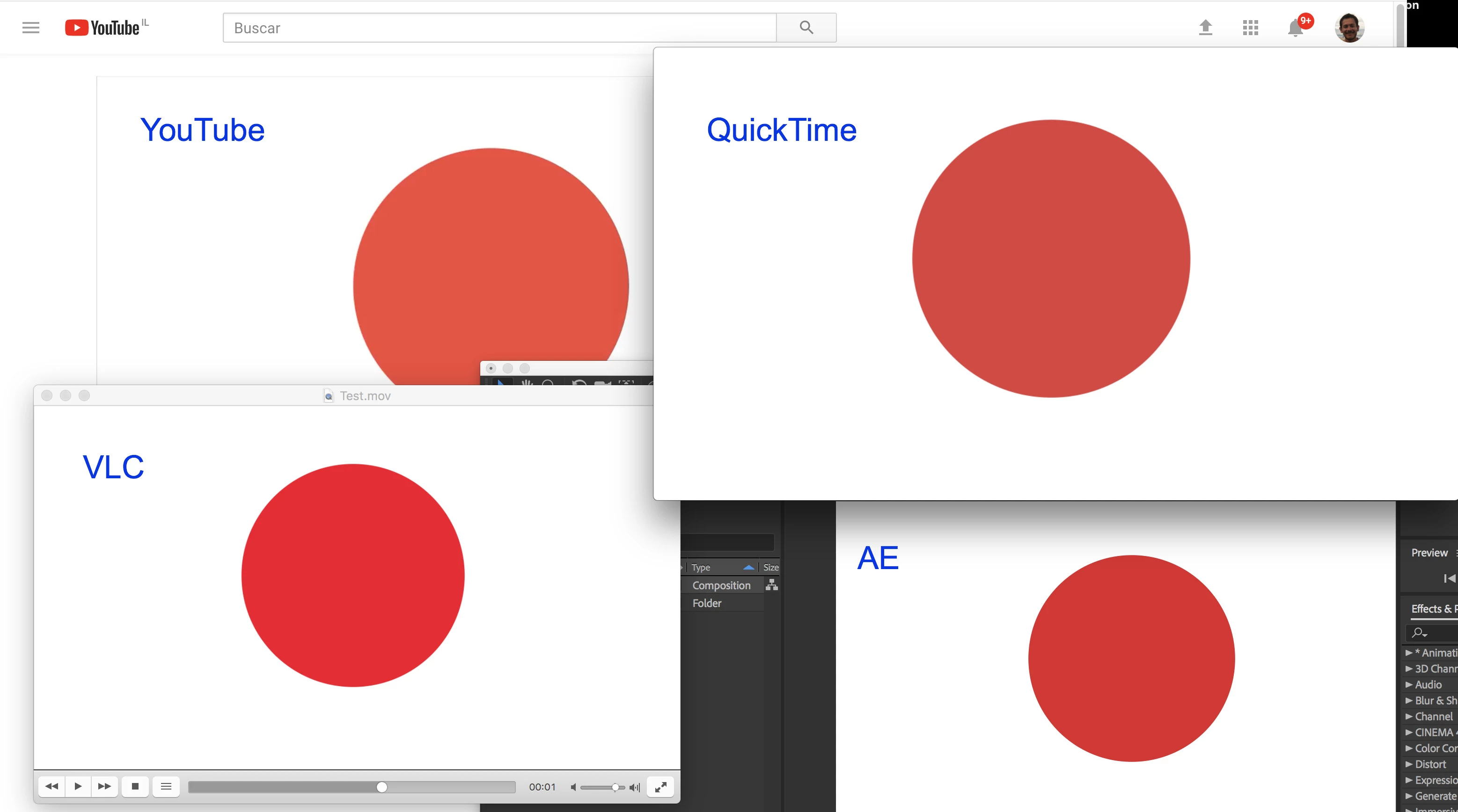
What I found is that colors may vary according to the video player as it is shown below (YouTube, QuickTime, VLC):

It is something I didn't notice when working on Windows, but now that I am working on Mac it is more noticeable to me as the screen is better.

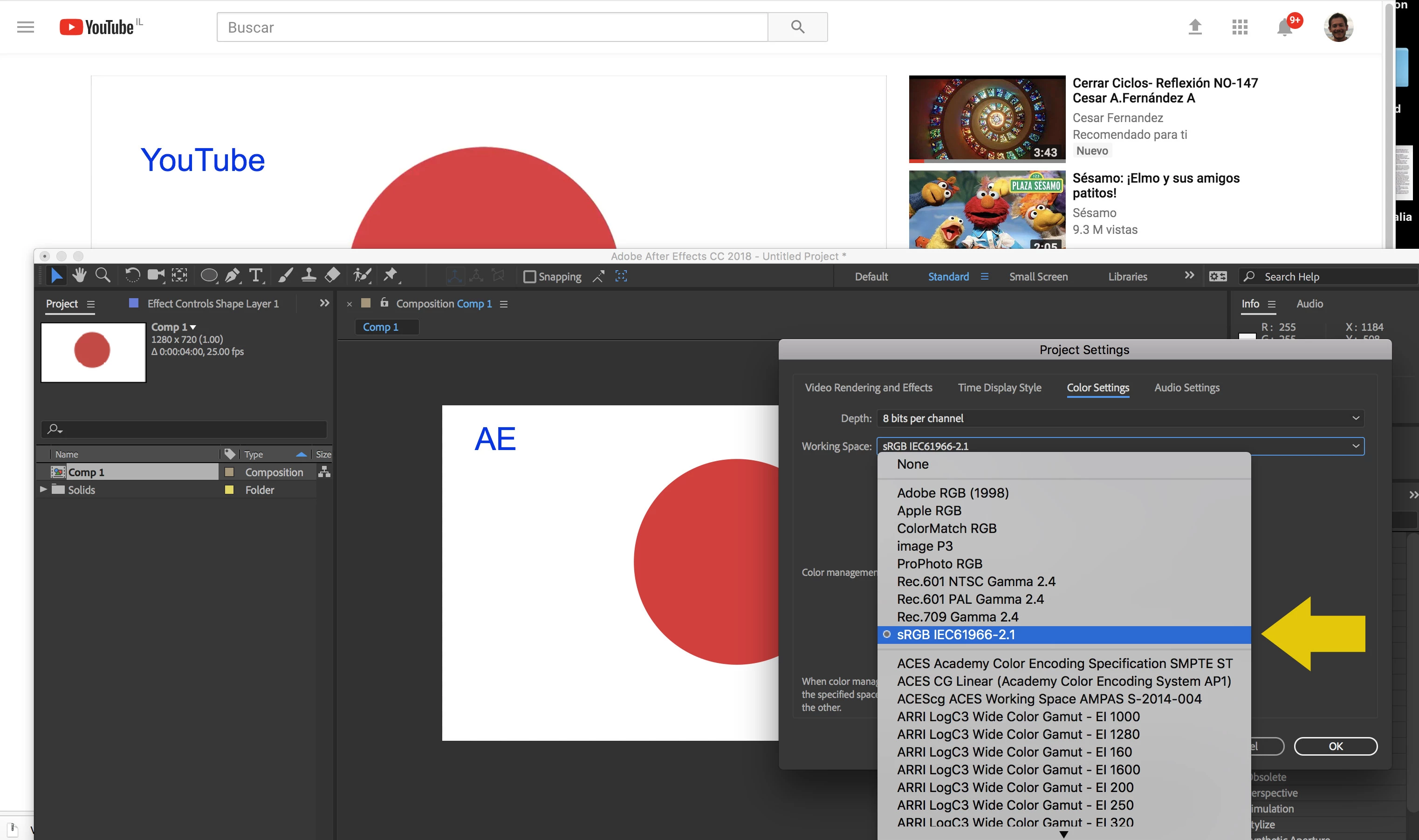
The solution is to change the color configuration of the projects in AE, in a way you choose an option as similar as possible to the final device in which the video will be played. In my case, I make animated videos to be published in YouTube so the choice that seemed to be closer to the color I see in YouTube was this one:

It is important to notice that the colors vary when you render the video inside AE or when you use the Adobe Media Encoder with the YouTube default compression.

So my recommendation is to do your tests before you start a big project, this way you won't be disappointed later on when you render your video to discover colors are not what you expected.

25 replies

New Participant
May 21, 2019

I am having this problem at the moment with bright green coming out like a mint green every time I render. I have tried after effects, media encoder and premier pro renders and still unsuccessful.

Here is my machine:

Any ideas of a work around would be highly appreciate.

New Participant
April 30, 2019

I'm having the same issue man... It's frustrating as hell. If I play my video file in Mac Media Player it displays correctly but if I hit spacebar and play through apple's finder player it's all pale coloring. Vimeo also shows the pale coloring. This isn't a display issue as the player on the same display shows different color information. I'm going to do some test exports and see if there's any fixes for this. Adobe should really address this problem.

Participating Frequently
January 24, 2018

I've been over multiple forums by now, and most say the problems that form within AE of Premiere should be solved by using Encoder and the right colour settings. however in my experience every step Dynamic link step seems to be part if the problem. as if  colour information is lost in the dynamic link, see my reference image below.

I get these washed out steps with every app - premiere, AE and Encoder.   I believe MacOS is to blame.  But who knows maybe Adobe should update their Dynamic Link algorithm to the new OS.  because it wasn't a problem in 2017.  or before high Sierra..

Changing the project colour management settings to sRGB didn't help. for me.  As you can see there's colour loss along the way of each step.

Hope this could be looked at by someone from Adobe..

New Participant
January 28, 2019

I have the same issue with a embedded vimeo video. The hex value from the website does not match a background color with the same hex value.

Andres007
Andres007AuthorCorrect answer
New Participant
January 22, 2018

After checking the issue I found out something that may be basic knowledge for experienced animators and designers in After Effects. For me is wasn't. And I also didn't find any forum where this issue was approached and explained using simple terms.

What I found is that colors may vary according to the video player as it is shown below (YouTube, QuickTime, VLC):

It is something I didn't notice when working on Windows, but now that I am working on Mac it is more noticeable to me as the screen is better.

The solution is to change the color configuration of the projects in AE, in a way you choose an option as similar as possible to the final device in which the video will be played. In my case, I make animated videos to be published in YouTube so the choice that seemed to be closer to the color I see in YouTube was this one:

It is important to notice that the colors vary when you render the video inside AE or when you use the Adobe Media Encoder with the YouTube default compression.

So my recommendation is to do your tests before you start a big project, this way you won't be disappointed later on when you render your video to discover colors are not what you expected.

New Participant
August 10, 2019

Same issue. Really frustrated loosing so much colors and contrast when i export. By Default, my Project Setting Color Working Space was set to none. Colors were completely washed out after exporting. 1. Changing to sRGB 16 bits added a bit more saturation and contrast but still way not enough compared to my colors in After Effect.

I found this workaround that seems to works but would be nice having a better solution/answer from Adobe. It's not normal having such a color/contrast shift after exporting.

Top : After Effect/Project Setting/Colors set to sRGB 16 bits. (colors good)

Left : Exported .mp4 opened with Quicktime with After Effect/Project Setting/Colors set to none 8 bits. (colors not good)

Right : Exported .mp4 opened with Quicktime : After Effect/Project Setting/Colors set to sRGB 16 bits + an adjustment layer WITH Image Contrast - Saturation Effect applied. 40/50% on your Adjustment Layer. I toggled my Adjustment Layer before rendering only. In After Effect, my colors looks over saturated and contrasted when the adjustment layer is on but after rendering this adjustment layer did a really good job to compensate the color loss. (colors good)

New Participant
August 11, 2019

sRGB is not a valid profile for H.264 video. Internally, the frames are not stored as RGB values, but as YUV. In theory YUV data covers the full range of sRGB, but there limits on extremes. Rec.709 (the standard for HD footage in H.264) only uses the 16-235 "video" range for brightness, so if a playback application is expecting 0-255 "data" levels it will get it completely wrong. There's also rec.2020, which is used for high dynamic range video and cinema. Unless you know what you're doing, avoid it - hardly any consumer displays can handle it properly, neither can playback apps.

Unless you're exporting footage with luminosity outside the broadcast range (e.g. pixels at 255/255/255 white or 0/0/0 black), the exported footage should look visually close to the original when viewed in a color-managed display (i.e. re-imported back into After Effects). You'll sometimes notice the whites are a bit dull, and pixel-peeping will reveal some very minor shifts in hue cause by the RGB<>YUV conversions, but it's not a major problem for video playback on consumer devices where the range of badly-adjusted brightness and contrast settings your audience will have is many times more significant. If you re-import the footage and it looks completely different, and you've checked that it is being read correctly (footage item > interpret footage > color) then there's something fundamentally wrong with your workflow, and we'll need to look at your settings in detail - the project color window, the export options window and the headers of the exported file.

Judging whether the video is "right" using QuickTime Player is just pointless. It is broken, always has been, always will be. Professionals don't touch it with a mucky stick. For desktop playback tests, try VLC (it understands display color profiles and if you change the video output mode to OpenGL it should exactly match the preview windows in AE). If you want a "known good" playback tester separate to After Effects and don't want to install VLC, then import your video into Premiere Pro. If your file works in VLC, then tell the client to use VLC. If they insist on using broken software, they get broken results. What would your mechanic say if you walked in and demanded "I refuse to put oil in this car, but you have to make it work!"

You say this video is destined for a 'digital wall', but unless the wall hardware is calibrated (and it's usually not) then what you actually see on the final screen will be anyone's guess. If a client wants perfect color matching then you have to work with the wall provider to create an end-to-end managed workflow, where they calibrate each panel with a spectrometer and specify a LUT or output transform to use as a virtual "preview filter" when editing. It's not as simple as throwing them an MP4 file and assuming that your RGB 909090 text will appear on the wall as RGB 909090. I guarantee it won't.

If you want to convince clients why "exact color" is a pointless demand when you're producing video, try playing them the same file in different browsers (IE,Chrome,Safari,Firefox) and on YouTube vs Vimeo. Then put it on a USB stick and play it on a TV. Pretty much every instance will look different, but the general public aren't complaining. They just don't notice. If people could tell that their TVs and monitors were all whacked, everyone would be buying calibration pucks. They're not. Although rare these days, walk into any store selling TVs and try to find two that look the same. The salesdroid will tell you the bright blue over-saturated colors are a "special movie enhanced mode" and charge you more for it!


You're right Dave. I did other tests and comparaison between Quicktime Player and VLC and Quicktime does a crappy job for Colors and Contrast. VLC was way much closer to my original composition. On the left it's After Effect composition. On the right is a .mp4 exported with Rec. 709 Colour Setting in my AE Project Setting. I can still see some loss in contrast in saturation and contrast but much better that my first tests and can totally live with that if it's gonna be displayed like that. Maybe the fact that the reimported .mp4 is now compressed compare the original composition. I just wish the Digital Wall network don't use Quicktime ;-p but now i now the difference between both i assume they will not. Thanks for time and comments Dave ;-)

Mylenium
Brainiac
January 21, 2018

Same old, same old: Color management - lack thereof or crooked settings. You need to read up on that. A good place to start might be your system's color and monitor settings panel. Perhaps it's enough to set the Gamma to a different value to make it work again. in the long run, though, only consistent calibration al lacross the baord can save your bacon, including that color issue with teh native AI files.

Mylenium

Andres007
Andres007Author
New Participant
January 21, 2018

Hi, but how can you explain that it suddenly started happening? I have worked on AE for a few years, and on this machine for a few months. Can it be that the OS update messed the monitor settings?

Mylenium
Brainiac
January 21, 2018

Totally possible, so start by checking your system panel whether or not something has changed there. Perhaps the update simply reset something or introduced a new color profile that you don't want. Could be as easy as that.

Mylenium