jannaloeffler
Participating Frequently
July 31, 2018
Answered

Bit Depth for Export Audio of Selected Range Markers

  • July 31, 2018
  • 2 replies
  • 2814 views

When exporting audio of selected range markers to separate files in Audition there are a number of export options.  For sample type, I need 44100 Hz Mono, 16-bit.  However, Audition always changes the Bit Depth to 32-bit (float).  Does anyone else have this issue with bit depth changing on export?  All my files are set up and saved at 16-bit. 

This topic has been closed for replies.
Correct answer SteveG_AudioMasters_

Well I know what's confusing you...

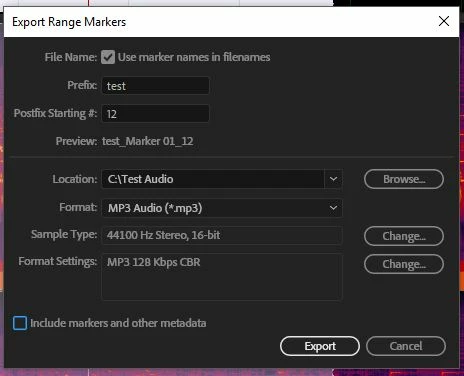
Here are the settings:

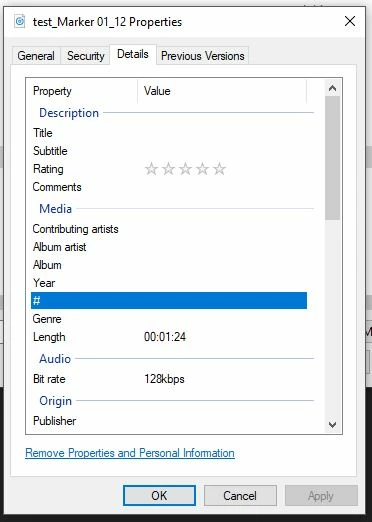
And here's the proof that it's correct:

But - and it's an important but - if you open that MP3 file in Audition, it will show as a 44.1k 32-bit file. And that's because it is, when opened by Audition. Audition decodes all MP3 files as 32-bit, as everything has to get decoded into Audition's native format to open at all. Audition is emphatically not an MP3 editor! So if you want to do this, you have to trust Audition to get it right, I'm afraid, or use some other method of checking, like the file properties above - on the General tab it confirms that it's an MP3, and the details confirm the bit rate.

2 replies

jannaloeffler
Participating Frequently
August 1, 2018

SteveG, I noticed you kept the file as a WAV format.  When I did that the export worked.  I did a complete program removal and a clean install to make sure there weren't any odd settings.  Here's what I'm trying to do:

  • Exisitng WAV file at 41/16 with range markers
  • Export selected range markers to separate files
  • Export files will be 128 Mp3 at 41/16

Could you show what settings you use to accomplish this?  I have someone who needs the files at these settings.  Thanks so much.

SteveG_AudioMasters_
SteveG_AudioMasters_Correct answer
Community Expert
August 1, 2018

Well I know what's confusing you...

Here are the settings:

And here's the proof that it's correct:

But - and it's an important but - if you open that MP3 file in Audition, it will show as a 44.1k 32-bit file. And that's because it is, when opened by Audition. Audition decodes all MP3 files as 32-bit, as everything has to get decoded into Audition's native format to open at all. Audition is emphatically not an MP3 editor! So if you want to do this, you have to trust Audition to get it right, I'm afraid, or use some other method of checking, like the file properties above - on the General tab it confirms that it's an MP3, and the details confirm the bit rate.

jannaloeffler
Participating Frequently
August 1, 2018

Thanks, SteveG.  Yes, you're correct that opening the Mp3 file in Audition was fooling me by showing 32-bit.  I'll just trust the export is sending files out in the correct format I select.  Much appreciated.

ryclark
Participating Frequently
July 31, 2018

You should really keep all your files as 32 bit float until such time as you make them available for distribution. 32 bit float is Audition's native bit depth and allows you to edit and change levels of your audio without any losses. Saving as only 16 bit and then re-editing can cause loss of audio fidelity.

jannaloeffler
Participating Frequently
July 31, 2018

Thanks for the advice.  However, when there's a recording that's split into 20+ range markers and Audition will only export them as 32-bit files, that's 20+ files that need to be individually adjusted.  Audition should export at the bit depth I select.

SteveG_AudioMasters_
Community Expert
July 31, 2018

supermancourt  wrote

Thanks for the advice.  However, when there's a recording that's split into 20+ range markers and Audition will only export them as 32-bit files, that's 20+ files that need to be individually adjusted.  Audition should export at the bit depth I select.

And it does - if you select the correct options:

If you click on 'Change' at the end of the Sample Type entry, you get the box on the right, which gives you all the options you need. In that screengrab it's still 32-bit but if you click on the down-arrow you get the complete range of options, and also you can set the dither options as well, which you might well need if you're exporting as 16-bit files.