ArialBurnz
New Participant
November 19, 2013
Answered

How to Prevent Echo During Noise Reduction

  • November 19, 2013
  • 7 replies
  • 55494 views

I had a dickens of the time trying to find out how to reduce the echo that is left after background noise is removed. However, I didn't give up and after playing with some of the settings, I believe I've figured it out! I'm using Adobe Audition CC (6.0). You'll want to follow the steps below as your method of noise reduction, not after the fact. So we're preventing the echo during noise removal, not getting rid of it...if that makes sense. So start with your original audio with the noise, then...

  1. Perform the usual procedures of selecting the background noise and sampling it (SHIFT + P)
  2. Select all the audio (CTRL + A)
  3. Get ready to apply noise reduction: Effects > Noise Reduction/Restoration > Noise Reduction (process) OR CTRL + SHIFT + P
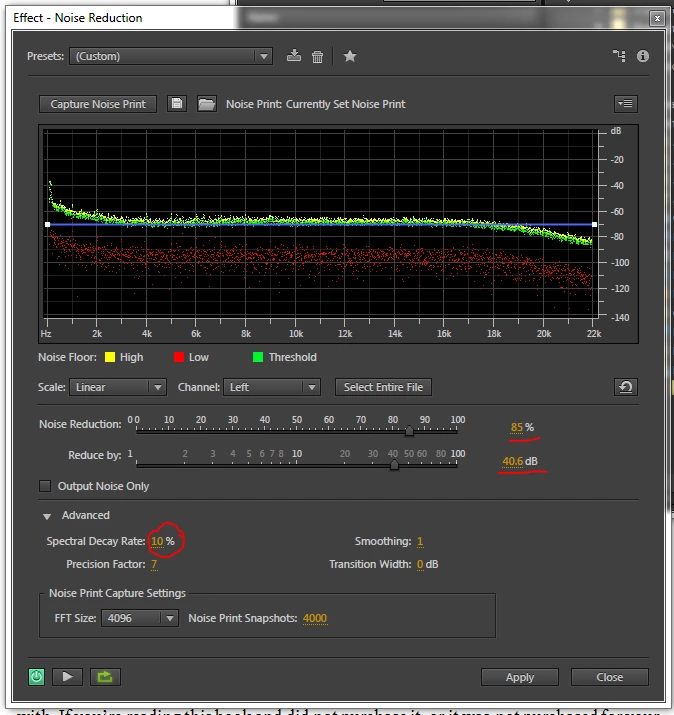
  4. In the window that appears, I played around with three settings (see image below):
    • Noise Reduction slider (85%)
    • Reduce by slider (about 40 dB)
    • Under the "Advanced" section (you may have to click on the little triangle/arrow to expand it), the Spectral Decay Rate (10%). It was this final setting that made a HUGE difference!
  5. Put the audio on loop if it's a short clip and click the play button to hear a sampling of the noise reduction applied.
  6. Adjust the three settings mentioned above until you have the desired effect.
  7. Click "Apply".

I hope that helps!!

This topic has been closed for replies.
Correct answer SteveG_AudioMasters_

What about Smoothing?

Precision Factor?

Transition Width?

I know it varies per noise type/frequency but where would you say they should generally be?


danielah46570744  wrote

What about Smoothing? Precision Factor? Transition Width?

I know it varies per noise type/frequency but where would you say they should generally be?

For all of these, the default settings are good. You should generally leave the precision factor at an odd number setting, for symmetrical processing. With smoothing, it's suggested that raising the value to 2 (out of 1024 or whatever!) will reduce the incidence of bubbly noise, but in reality that's not a good way to do it - use the methods mentioned earlier in the thread. You have to be a bit careful with transition width - reducing this can cause 'jumps' between FFT-processed chunks, and this is could easily be audible - so keep it away from zero, but how much difference it makes depends heavily on a lot of other factors. You didn't mention Spectral Decay, but this is generally okay at 60-70%, although in program material with silent pauses, you may well hear what's going on at the start of the pause, and want to alter this - it's up to you.

But as I said, the default settings are generally good, and altering these will make far less difference than the earlier steps mentioned  - especially the one about taking several smaller bites at it rather than fewer larger ones.

7 replies

Irisvideo
Inspiring
August 14, 2020

Arial - THANKS!! perfect advice for me

New Participant
April 8, 2017

2017 and this thread is still wildly helpful.  This was driving me nuts - thank you!

Charles VW
Inspiring
June 11, 2015

Everyone else here has great advice. I'll just add, to your original post, that you're properly using the Spectral Decay Rate parameter here.  Kudos to you for figuring out how this affects your audio, and more importantly for sharing with the community.  The benefit is compounded by the rest of the posts in this thread.

New Participant
May 19, 2015

Thankyou very much to everyone for this invaluable advice.

Arial you did so very well to work that out yourself as a newbie! Far better than I did, when I was trying to fix a similar issue. SteveG you are a wealth of very professional knowledge- keep it coming!!

The techniques above work a lot better than what I was doing previously (basically just trying every damn thing I could think of and comparing results), and now I'm in a better position to understand the program and make my own discoveries which I'm very excited about! Thankyou and good karma to all those creatives who share their techniques

Participating Frequently
August 9, 2023

The techniques above work a lot better than what I was doing previously (basically just trying every damn thing I could think of and comparing results), and now I'm in a better position to understand the program and make my own discoveries which I'm very excited about! Thankyou and good karma to all those creatives who share their techniques


I COULDN'T HAVE SAID IT BETTER MYSELF.

New Participant
June 18, 2014

Thank you so much! This is great as I am new to Audition and this helped me out immensely!

Kevin-Monahan
Community Manager
Community Manager
May 21, 2015

Thank you so much! This is great as I am new to Audition and this helped me out immensely!

Wonderful post!

Thanks,

Kevin

Kevin Monahan - Sr. Community & Engagement Strategist – Pro Video and Audio
SteveG_AudioMasters_
Community Expert
November 19, 2013

ArialBurnz wrote:

I had a dickens of the time trying to find out how to reduce the echo that is left after background noise is removed.

Ah, well if you'd have asked us in the first place, we'd have told you immediately what to do! And it's not overkill - it doesn't take long and works miles better.

ArialBurnz
New Participant
November 19, 2013

I'm game to learn! What do I do?

New Participant
February 21, 2018

Right, if you want a quick fix then before you take your noise sample, alter the FFT setting to the highest it will go. Then take your noise sample. Now you will find that you have a lot more lattitude to play with before strange noises get in the way. The other thing that sometimes helps (although I don't think it will in your example above) is to shape the amount of NR - that's what the blue line is for. You can add points to it and drag it up and down. This will give you the opportunity to listen to where the most obtrusive noise is, and shape the response so that it attenuates more of that, and less where it isn't so significant. This also reduces the chances of artefact noise just to the band where you're taking most out. Because you've reduced the artefact noise anyway, you'll get away with a higher (longer) spectral decay rate, which should reduce any abrupt cut-offs - more important with speech than anything else.

The other thing that's sometimes worth checking is the 'output noise only' box during preview - this will rapidly show you when you're removing wanted signal as well as noise - but remember to remove the check before doing your actual processing - or you end up with only noise!

And also remember Bob's advice - take at least two swipes at it, using the highest FFT setting for one, and a lower one for the other. It doesn't matter which order you do them in, but you'll have to take a separate noise sample for each, because they are FFT-size specific.


What about Smoothing?

Precision Factor?

Transition Width?

I know it varies per noise type/frequency but where would you say they should generally be?

Bob Howes
Inspiring
November 19, 2013

May I make a suggestion?  Although you're experiments were useful, trying to find a one size fits all "one pass" solution probably won't yield the best results.  Basically if you can hear NR artifacts (the echoey quality you refer to) at any point, you've done too much noise reduction in one go.

Generally, you're better off doing 3 or 4 passes of very light noise reduction, grabbing a new noise sample each time.  For most "normal" noise, it can also be very worthwhile to increase the FFT size (on the advanced menu) a preset or so before grabbing each of those sequential noise samples.

SteveG_AudioMasters_
Community Expert
November 19, 2013

In fact, you generally don't want to take off very much at all at FFT4096. You can get way better results from much higher settings, almost regardless of what sort of noise it is. Since the FFT size essentially determines the window width, lower settings are really only much use on low frequency noise, and they are the ones responsible for most of the strange sounds you hear in the rest of the frequency range. The reason for this is that you get many samples of higher frequency sound within the wider window, and the processing simply can't do anything with it. The higher FFT sizes mean that signal slices with HF in get dealt with much more accurately, hence less 'bubbly' noise. The downside of course is that processing takes significantly longer.

So thanks for posting, ArialBurnz, but I'm afraid you've only just scraped the surface! Bob's method of doing multiple passes at different rates is definitely the way to do with Audition's NR, but you will always get better results in terms of remaining artefacts from higher FFT settings.

ArialBurnz
New Participant
November 19, 2013

Confession: I'm brand new to Audition. I just learned to use it about 3-4 weeks ago. I'm recording a podcast and audiobooks (I'll post links later once they're live), and what I've heard so far with the experiment I had last night seemed to definitely serve my purposes. The whole "FFT" thing is Greek to me! LOL I'm a total newb at this.

Sounds like what you guys are talking about might be overkill for what I'm doing and I'm really pressed for time, so multiple passes and tweaking at such a minute level might be more than I need. I'm not knocking the advice at all, though! I appreciate the additional clarification.

Cheers!

Arial