


Known Participant
October 17, 2017
Question

I'm having trouble selecting audio in Audition. Why?

  • October 17, 2017
  • 1 reply
  • 3608 views

Hi all.

Before I file bug reports, I thought I'd ask if some basic functionality has perhaps been buried in obscure UI.

In what I would think is a fairly common scenario, I've selected a problematic section of an audio file and pressed the M key to create a region (or range as Audition calls it). What I want to do is overwrite an accidentally-spoken syllable with room tone from a nearby portion of the file. The length of the file can't change at all.
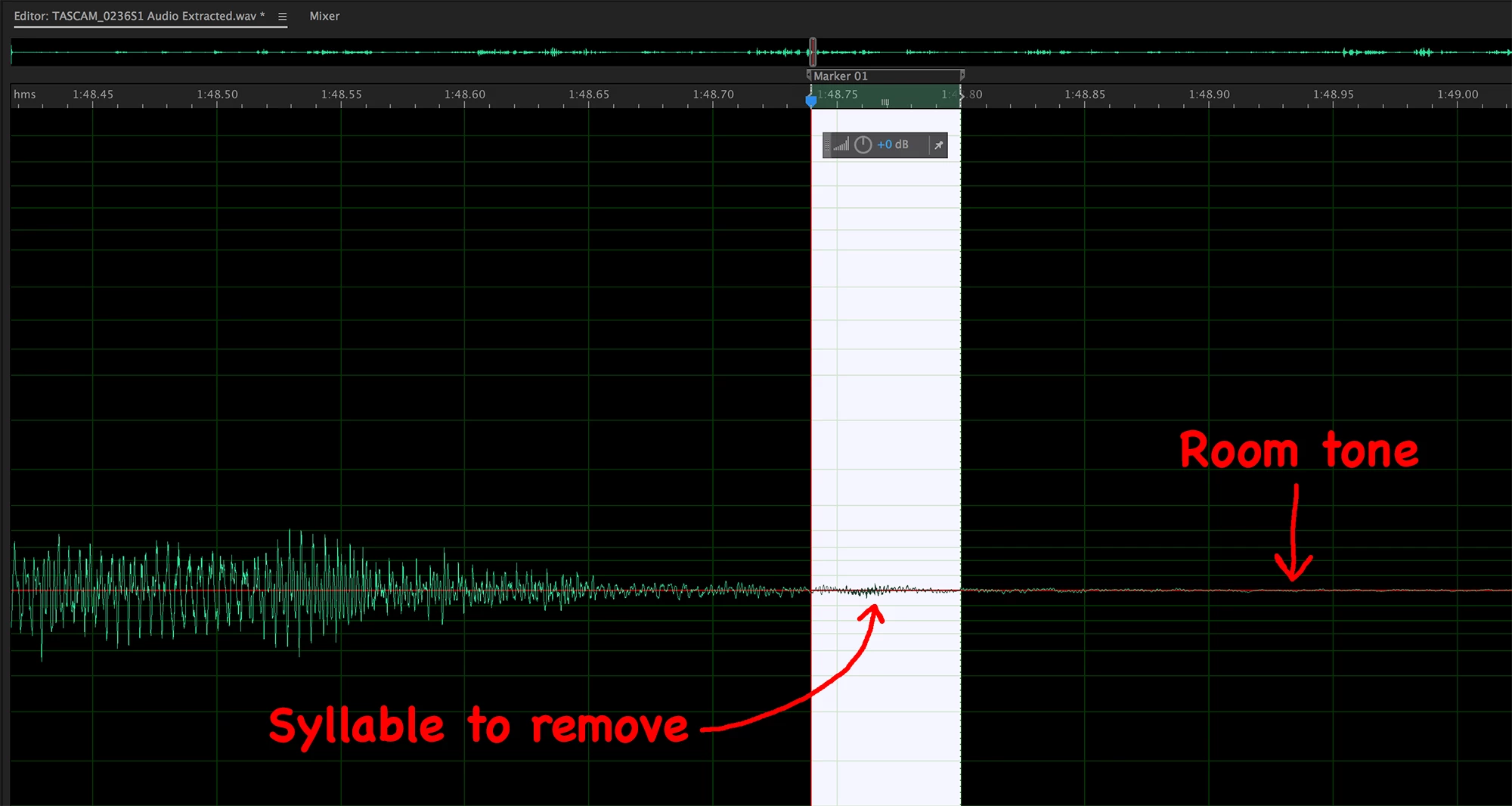
These are the problems I encountered:

1.  Double-clicking within the region doesn't select the audio between the markers. This is unexpected and inconvenient. Isn't that one of the major purposes of setting up a range, to make it readily selectable?

2.  Although there are hotkeys to move the playhead to the previous or next marker, holding the Shift key while doing so doesn't extend the selection (as a workaround for problem #1).

3.  Related to #2, using Shift to extend the selection seems to be broken for all keyboard navigation.  For example, if you press and hold Shift while pressing the right arrow, the selection isn't extended as the playhead moves.  This seems like a pretty glaring bug, doesn't it?  I hope it's a bug, because otherwise this would defy decades of GUI convention and pointlessly hobble users.

4.  I can't find any way to move the selection.  I'm talking about the selection highlight itself, not the audio within it.  In this example, I want to drag the selection to the right, in order to copy exactly enough room tone to overwrite the unwanted syllable.

5.  I can't find any way to paste-overwrite the selection; pasted material isn't confined to the current selection.  This prevents me from simply copying an ample (but inexact) amount of room tone and pasting it into the selected range (as a workaround for #4), because any paste operation changes the file length.

This topic has been closed for replies.

1 reply

SteveG_AudioMasters_
Community Expert
Community Expert
October 17, 2017

https://forums.adobe.com/people/Mobius+Strip  wrote

Hi all.

Before I file bug reports, I thought I'd ask if some basic functionality has perhaps been buried in obscure UI.

These are the problems I encountered:

1.  Double-clicking within the region doesn't select the audio between the markers. This is unexpected and inconvenient. Isn't that one of the major purposes of setting up a range, to make it readily selectable?

It isn't easy to find the information about this, I grant you, but everything is working correctly in Audition - if you use it the way it's intended to be used! I do have a short video clip showing how to make selections, extend them, etc but the damn forum software won't let me post it. Suffice it to say that everything to do with manipulation is above the waveform display, and not on it:

If you click on either of the grey handles on the marked selection (or in the item in the Markers window) it will select the range. You can extend it in either direction by pulling the handles below (surrounding the green selected area), and if you position the cursor in there so a hand is showing, you can drag the whole selection in either direction.

The cut and paste options are comprehensive, and if you use the spectral display, you can restrict your cutting and pasting to selected spectral areas as well.

The whole thing works pretty well, but don't expect it to follow the conventions that some other software you might be familiar uses - it's never been like that.

ryclark
Participating Frequently
October 17, 2017

I was a bit puzzled by your comments as I have been doing what you want to do to replace unwanted audio with roomtone for many years when restoring film soundtracks where it is vital to keep the audio in sync with picture. Then I realised that I always work in the Spectral Frequency Display when undertaking such operations.

So if you work in the Spectral Frequency view then you can have direct on display grab and move the selected area using your mouse which, as you have discovered, doesn't work directly on the Waveform view. Also it is not necessary to use markers for selecting the audio, unless you wish to come back to that exact selection in the future. You should also find it is a lot easier to distinguish between the wanted and unwanted audio for this type of editing. Hopefully you will find it much quicker editing your audio in this way.

Known Participant
October 20, 2017

1. No because by default Shift+ Right Arrow is used to move the In point of a selection to the right.. But it does if you use Ctrl+Shift right arrow. However there is nothing stopping you from editing the custom keyboard shortcuts so that Shift+Right Arrow does as you wish.

2. Yes that works on a PC. But you need to use Ctrl+Arrow to navigate between Markers and then Shift+Control Right Arrow to extend the selection.

3. As described above you use Shift+Arrow to move the In point and Shift+Ctrl+Arrow to move the Out point. But all configurable in the Keyboard Shortcut page. A text file is somewhat different from an audio file and just because Microsoft do it in Word doesn't mean that an audio editing app has to do exactly the same. But as before it is all customisable in Audition if you want it different from the default.

However I do agree that being able to click within a selection in the Waveform view to be able to pick it up and move it would be desirable. So why not make a feature request. But, somehow, I do seem to have managed without that facility for over 20 years.


Thanks Ry!

I did submit requests to address all of this.

Selection extension could work as is standard on the platform (Shift + arrow, honoring the correct "end" of the selection) while maintaining current functionality. The only change necessary would be to use a different modifier key instead of Shift to manipulate the In and Out points separately. So on the Mac, Ctrl-arrow would move the In point, and Command-Ctrl-arrow to move the Out point. Not sure what the appropriate key would be on Windows (since Ctrl jumps between markers there), but you get the point.

I don't think it's possible to address the Shift-based selection extension with keyboard mapping, because of the aforementioned ignorance of the correct "end" of the selection.

Also, extending the selection between markers doesn't work on the Mac, so that seems to be a platform-specific problem.

Adobe has been great about responding to my feature request, which is refreshing. To me the biggest deal is being able to select a region between markers by double-clicking in the waveform. That is, for me, the single biggest impediment to working in Audition; and could be easily fixed.