


SSP
Known Participant
August 6, 2020
Question

Multitrack and Waveform Buttons have disappeared

  • August 6, 2020
  • 3 replies
  • 2909 views

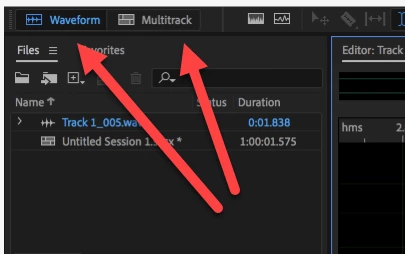
I somehow deleted the Multitrack and Waveform buttons in the top left corner. I have tried about 20 different "missing buttons" search terms on Google and cannot find a way to restore them. Please advise how I can get them back, thanks in advance!
 

3 replies

New Participant
February 7, 2023

You seemed to have disabled the "Tools" asset. Just go to the "Window" dropdown menu and make sure there's a checkmark next to "Tools." If it's checked and you still can't see it, you may have collapsed that asset, in which case you need to do as the other responder suggested and click on the black line at the top of the screen and pull down to make it reappear.

February 7, 2023

Thank you for pointing that out. I was wondering which option to choose in the Window tab to get those to reappear.

January 26, 2023

I've done this too many times. Here's what you do. Go to the top left of your session with your mouse cursor and you'll see a hand icon. Left-click, hold it down and drag the hand icon down until you see the Waveform and Multitrack icons reappear. It's that simple! Done. No need to restart anything!

SteveG_AudioMasters_
Community Expert
August 6, 2020

So where did you get the screen-grab from? they look fine in there... 😉


Either delete all your preferences and restart Audition - the easy way to do this is to close Audition, and restart it with the Shift key held down - or simply uninstall and reinstall Audition. If a reinstall on its own doesn't work, then definitely you've got a preferences fault, so go for the preference deletion.

SSP
SSPAuthor
Known Participant
August 7, 2020

SteveG,


Excellent, your instruction "Restart Audition with Shift Key Held Down" fixed it perfectly.


Thanks so much, this was driving me crazy!


Sat


New Participant
March 28, 2025

coming back here 5 years later, this is the fix for me aswell, thanks