

Answered
Save a Custom Sine Wave to a File
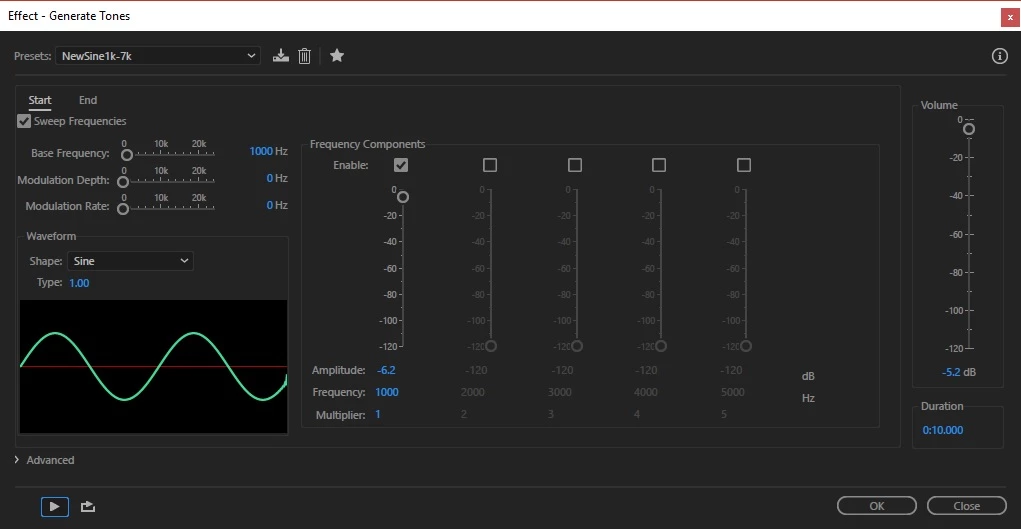
I am trying to generate a specific sine wave to play on other devices. All I seem to be able to do is generate an effect or a filter. :-

I am trying to generate a specific sine wave to play on other devices. All I seem to be able to do is generate an effect or a filter. :-
I don't see an asterick.
GregNH wrote:
I had Audition years ago and was able to generate all kinds of noise files for acoustic testing purposes. I wish I had that today. This is useless for me
It does and you do. 
You have to click the OK button for Audition to actually create the sine wave according to the specifications that you have set and the duration of the audio required. Then Audition will revert to the Waveform edit view with your newly created sinewave showing in it. The chosen File name will show at the top left, with the * when you haven't saved it.
Already have an account? Login
Enter your E-mail address. We'll send you an e-mail with instructions to reset your password.
 AdChoices