Inspiring
March 10, 2018
Answered

How to Auto-Stop when "Red"

  • March 10, 2018
  • 1 reply
  • 2856 views

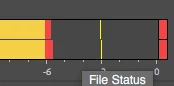
Hi guys, I'm using Audition to mix a 3 hours playlist for my friend's coffeeshop. I'm using the Multitrack editor, and whenever the levels goes above "red" (db>0, sorry I don't know how it's called – if someone can tell me the right terminology I'd appreciate), I want Audition to automatically stop so I can go fix it. Here are some screen caps, I hope I explain my issue clearly.

In summary, I want Audition to auto-stop when the levels go red.

    This topic has been closed for replies.
    Correct answer Bob Howes

    I don't believe there's any way to auto stop when levels get into clipping.  However, a few thoughts that might help.

    First, if you're working in 32 bit Floating Point, you can lower the levels later (using things like Dynamics Processing and/or Normalise) and you won't get any clipping.

    Second, since the overall level increases proportionately each time you add another clip, lower ALL levels before you start, then use Normalise/Dynamics Processing  to raise the final mix to your desired level.

    Finally, if the clipping (red) comes from your source material, not within Audition, there's nothing Audition can do to fix it,  Especially with MP3 recordings, this is all too common, trying to push the level as high as possible.  Usually, despite the red, the clipping isn't too bad but the main suggesting is to lower the level at the recording stage.

    1 reply

    Bob Howes
    Bob HowesCorrect answer
    Inspiring
    March 10, 2018

    I don't believe there's any way to auto stop when levels get into clipping.  However, a few thoughts that might help.

    First, if you're working in 32 bit Floating Point, you can lower the levels later (using things like Dynamics Processing and/or Normalise) and you won't get any clipping.

    Second, since the overall level increases proportionately each time you add another clip, lower ALL levels before you start, then use Normalise/Dynamics Processing  to raise the final mix to your desired level.

    Finally, if the clipping (red) comes from your source material, not within Audition, there's nothing Audition can do to fix it,  Especially with MP3 recordings, this is all too common, trying to push the level as high as possible.  Usually, despite the red, the clipping isn't too bad but the main suggesting is to lower the level at the recording stage.

    Inspiring
    March 10, 2018

    Thank you very much Bob for you time. That's unfortunate there's no auto-stop available for clipping. I just have a few claps and snares here and there that push the levels into clipping, and I'd rather adjust manually instance-by-instance. The playlist I'm working on use a wide range of music genres, from jazz to classical to hiphop of differing eras. It's been hard to raise the perceptive loudness of say, the quieter part of a classical track, so that it's not so contrastingly low in volume comparing to the more steady hiphop samples.

    SteveG_AudioMasters_
    Community Expert
    Community Expert
    March 10, 2018

    wuts23143389  wrote

    Thank you very much Bob for you time. That's unfortunate there's no auto-stop available for clipping. I just have a few claps and snares here and there that push the levels into clipping, and I'd rather adjust manually instance-by-instance. The playlist I'm working on use a wide range of music genres, from jazz to classical to hiphop of differing eras. It's been hard to raise the perceptive loudness of say, the quieter part of a classical track, so that it's not so contrastingly low in volume comparing to the more steady hiphop samples.

    The problem here, as Bob has alluded to, is that 32-bit Floating Point mixing doesn't actually 'clip' as such. What is actually clipping is your sound device, which can only handle integer feeds, and not Audition. Audition's dynamic range is massive; about 1500dB, and whatever happens within that range can be corrected by simply rescaling the audio at that point, so the concept simply doesn't arise.

    What it comes down to for you is that you need to get all the relative levels correct in whatever it is you're creating, and then finally normalize it so that the loudest part of it doesn't clip after it's mixed down. If you have problems with peaks and a low mean level in some pieces, then you have to apply something like the multi-channel compressor to them to even out the levels without it being particularly noticeable, and then insert them into your mix. You don't even have to get the levels correct before mixing - you can do the normalizing in Waveform view, all the time the signals remain as 32-bit FP.