Inspiring
October 30, 2022
Question

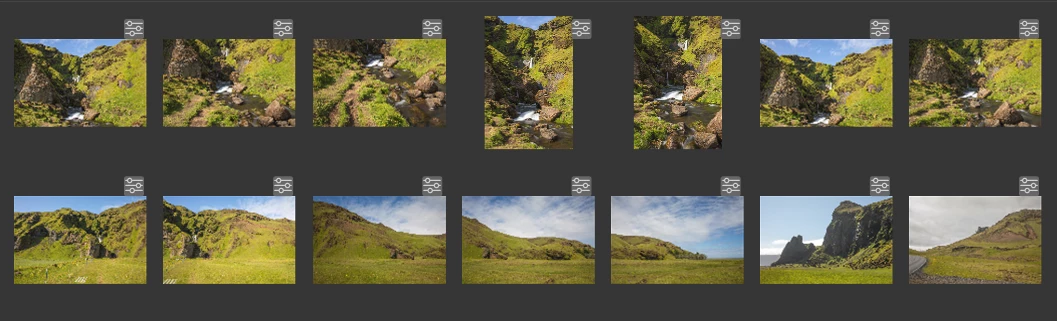
How do I hide "camera raw changes" small icon from my images?
  • October 30, 2022
  • 3 replies
  • 2038 views

Hi,
How do I hide this "camera raw changes" small icon from my images?
ctlr+T doesn't hide it anymore. Why Adobe makes things only for worse with each update?


This topic has been closed for replies.

3 replies

Mohit Goyal
Community Manager
Community Manager
March 7, 2023

Hi all,


We're happy to announce the release of Adobe Bridge Beta (13.0.3.686). This update includes the fix for this issue. To see the list of all fixed issues in this Beta release, click here


Please update or install Bridge Beta via the Creative Cloud Desktop app.


Steps to install/update


InstallGo to the Creative Cloud desktop app and select Beta apps in the left sidebar of the Apps panel. Then select install for your beta app.


Update: Go to the Creative Cloud desktop app, click on Update in the left sidebar of the Apps panel and Check for updates. Then click update for your beta app.


Let us know if this Beta release resolves the problem for those affected, and share your feedback.


Thanks,

Mohit

Known Participant
March 7, 2023

Hi Mohit.

I whet to my Creative Cloud Desktop app and installed Adobe Bridge Beta app. However it installed Adobe Bridge beta 13.02.630. This version still has the same problem.

gary_sc
Community Expert
Community Expert
March 7, 2023

Hi, @peterm34359157, please try again, I've downloaded the correct one and it does work as Mohit said. If you click on thumbnails only, the only icon you'll see is if there is a stack (you'll see the number of images in the stack only).


Please try again.

Known Participant
February 20, 2023

I know I'm resurrecting an old thread, but found this when I was searching for a solution. When I grade student photography assignments I temporarily make Bridge image background white, hit Ctrl+T (Cmd+T) and I then do a screen grab of the thumbnails to paste onto my grading sheet. I've used the same technique to easily create a simple grid of thumbnails to paste on a CD case cover sheet (remember CD’s <g>). This has worked since the very earliest versions of Bridge.


Now when I hit Ctrl+T I still see those adjustment tags at the top right of each thumbnail, and in some cases the icons cover part of the thumbnail itself.


Like in Photoshop where Ctrl+H will hide ALL the “Extras”, I would expect Ctrl+T in Bridge to do the same.

I hope this is not someone’s idea if “an improvement” and it will be corrected. Please add me to the list of those who are not happy with this change/feature/bug.


R

gary_sc
Community Expert
Community Expert
October 30, 2022

Hi @Jacek Pilarski First, I do not have an answer for you, but I am curious: why would you want to hide the indicator that shows you what images you have processed via ACR from those you've not processed yet?


Again, this is just a curiosity question. How does your workflow make this indicator a bad thing?

PECourtejoie
Community Expert
Community Expert
November 3, 2022

Hi, @gary_sc We are facing a regression here: the previous version did hide that element with CTRL+T. 

gary_sc
Community Expert
Community Expert
November 3, 2022

@PECourtejoie A big THANKS. In all the years of using Bridge since <v.1, I never knew that. Partly because it never occurred to me that such a thing would be important, but @peterm34359157 did a great job explaining why it's important to him. Seeing those icons was important to know that those with them had been adjusted and those without had not. 


Hopefully, Adobe will see this thread and reinstitute Command/Control-t.