martinl47003580
Participant
February 6, 2017
Answered

Wildcard search for Batch file rename - is it possible?

  • February 6, 2017
  • 3 replies
  • 5487 views

Hi everyone

I'm trying to use Batch File Rename in Adobe Bridge to strip out characters left behind by the photographic stage.

eg.

F1 IDO60-BLK.jpg

F2 IDO80-GRY.jpg

I want to search with a wildcard to eliminate the F1, F2 etc and space and leave the IDO60... etc intact

Is this possible? I tried using F* but it doesn't work.

Cheers

    This topic has been closed for replies.
    Correct answer Stephen Marsh

    Hi martinl47003580, you need to use a regular expression based string substitution search/replace:

    Find: ^\w*\d*\s

    Replace: (blank)

    The above regex will look for zero or more letters and zero or more numbers and then a single space at the beginning of the filename.

    I have tried to make this expression a little more versatile/robust than your sample filenames which could have used a very simple/explicit expression:

    F\d\s or ^F\d\s

    However what if you ever had files that started with a different character than an uppercase F? Or what if you ever had two or more digits following the letter before the space? This is why I went with a more flexible/robust expression.
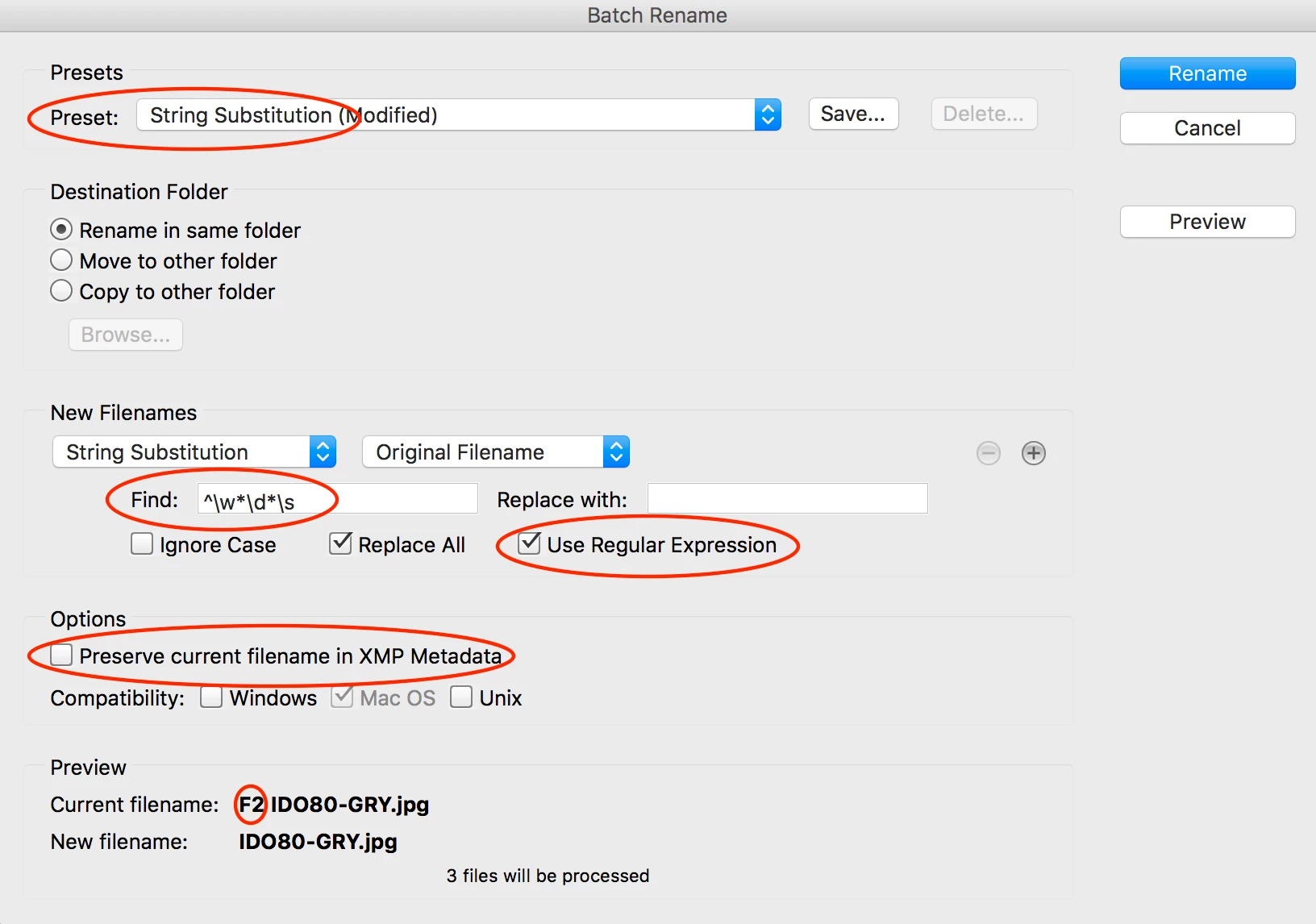
    It is usually a good idea to tick the “Preserve current filename in XMP Metadata” when batch renaming, so that you can easily recover the original filenames if required.

    EDIT: Looking at this a second time, an equivalent result and perhaps “technically better” would also be achieved with ^\w[0-9]+\s or how about ^\w+\d+\s or perhaps even ^\w+?\d+?\s etc. This is the great thing about regex, there are many ways to get to the same result (some verbose, some more elegant) – it all depends upon the context/use and how flexible the pattern recognition needs to be! Some other variations could be F.+?\s or ^.+?\s

    P.S. You can save this search/replace as a preset using the save button at the top of the interface.


    3 replies

    Legend
    June 1, 2018

    You can find a hugely useful reference at Regular-Expressions.info - Regex Tutorial, Examples and Reference - Regexp Patterns

    Keep in mind that different programs implement regex in slightly different way6s, but the core workings are pretty standard.

    Participant
    June 1, 2018

    Thanks for this, really useful

    Stephen Marsh
    Community Expert
    Stephen MarshCommunity ExpertCorrect answer
    Community Expert
    February 6, 2017

    Hi martinl47003580, you need to use a regular expression based string substitution search/replace:

    Find: ^\w*\d*\s

    Replace: (blank)

    The above regex will look for zero or more letters and zero or more numbers and then a single space at the beginning of the filename.

    I have tried to make this expression a little more versatile/robust than your sample filenames which could have used a very simple/explicit expression:

    F\d\s or ^F\d\s

    However what if you ever had files that started with a different character than an uppercase F? Or what if you ever had two or more digits following the letter before the space? This is why I went with a more flexible/robust expression.

    It is usually a good idea to tick the “Preserve current filename in XMP Metadata” when batch renaming, so that you can easily recover the original filenames if required.

    EDIT: Looking at this a second time, an equivalent result and perhaps “technically better” would also be achieved with ^\w[0-9]+\s or how about ^\w+\d+\s or perhaps even ^\w+?\d+?\s etc. This is the great thing about regex, there are many ways to get to the same result (some verbose, some more elegant) – it all depends upon the context/use and how flexible the pattern recognition needs to be! Some other variations could be F.+?\s or ^.+?\s

    P.S. You can save this search/replace as a preset using the save button at the top of the interface.

    marketingc39907871
    Participant
    February 14, 2017

    Thanks Stephen. Very helpful. I ran a few batches using your search string and it worked perfectly.

    Regards,

    Martin