Participant
February 23, 2021
Answered

360 slides display black screen in Chrome and Edge

  • February 23, 2021
  • 2 replies
  • 2175 views

Hello,


I am excited to get my captivate 2019 software installed and just finished my project. However, when I publish the project, I got a black screen when browsing in both Chrome and Edge. Can you pls help? If so, that would be great. Your help is greatly appreciated.


  1. The project can display in Captivate and preview.


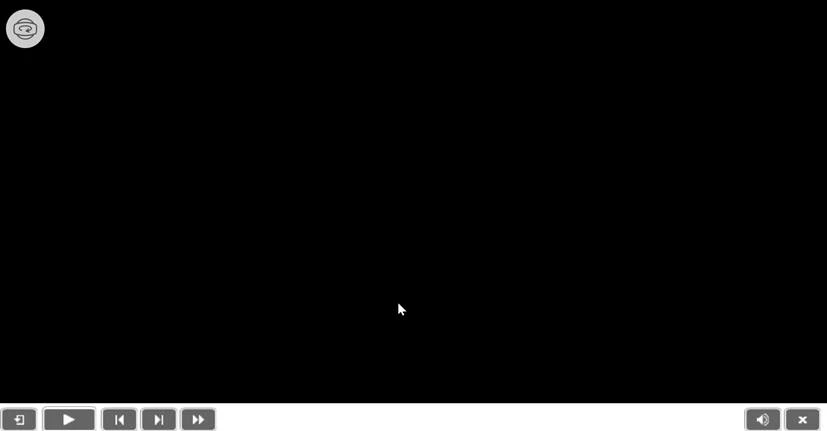
  1. I published the project. When double clicking on index.html to review the project, I got a black screen.


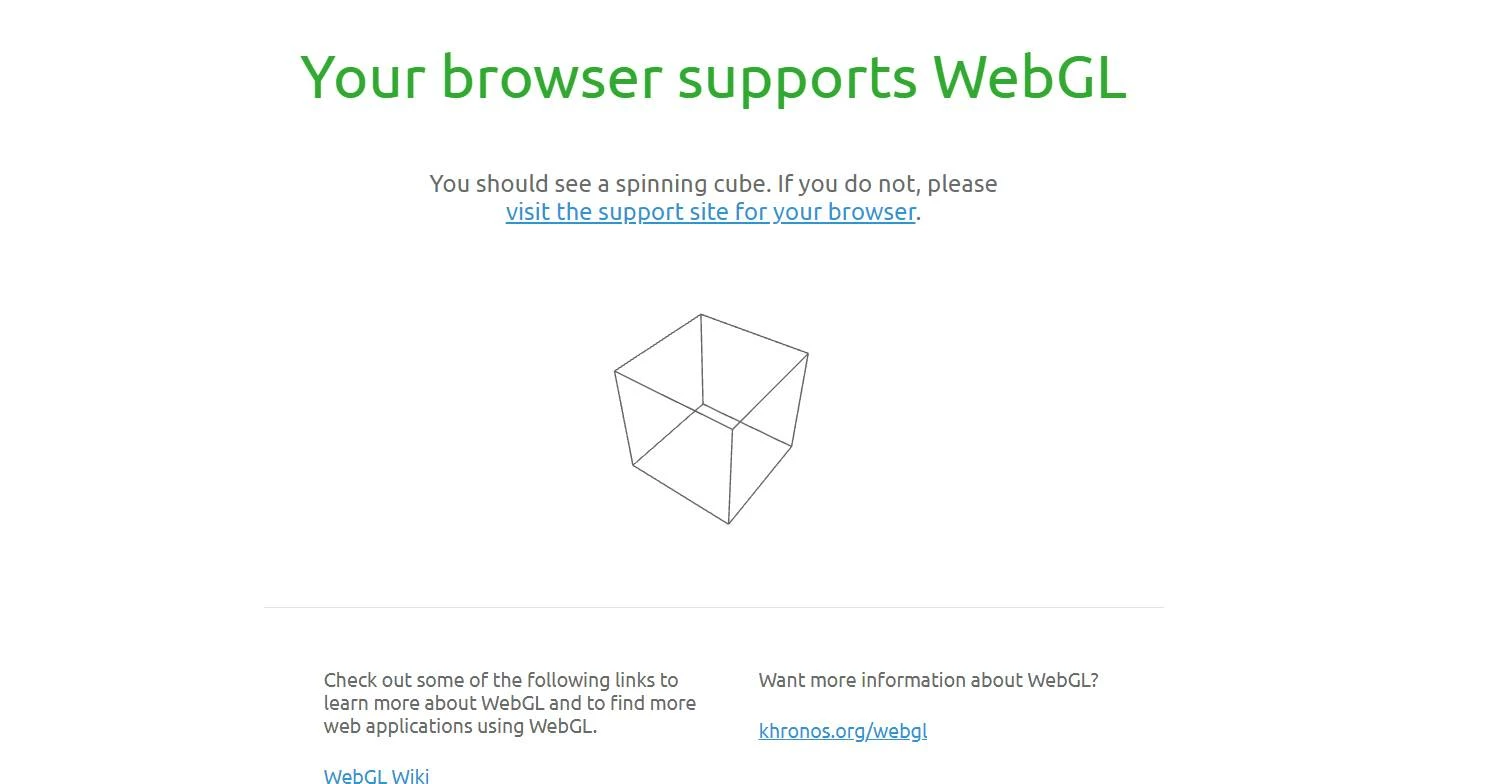
  1. The browser is supporting WebGL.


  1. I published the project as HTML5.


Thank you so much for your advice in advance!

    This topic has been closed for replies.
    Correct answer Lilybiri

    Try to upload to a webserver?

    2 replies

    Participant
    January 25, 2022

    @Lilybiri Hi there, i am having a similar issue, where the black screen shown in this post occurs on apple devices only. Can you advise me how i might fix this..? Preview works fine but when puplished in HTML5 and uploaded to LMS on apple devices the 360 slides show the above black screen and hostpots dont work.. thanks so much 🙂 

    Lilybiri
    Legend
    January 26, 2022

    As Apple device I only have an iPad, and 360 slides in a Captivate project do play fine. 

    Do you have the same problem when checking out with one of the included 360 projects in Captivate? If those play fine, you need to check the 360 assets. If not, you need to check what is used to display 360° images/video on that device. 

    fordmar
    Participating Frequently
    July 21, 2023

    Most HTML output is always meant to be viewed when uploaded to a webserver (or a LMS if you have enabled Reporting). Do not expect it to be functional when trying to double-click the index.html file in the output folder. The only moment where this is fully functional is immediately after publishing when you get the invitation to view the output. Please upload the output folder to a webserver and check using its URL.


    Thank you for being extraordinarily patient with my newbie issues!

    Lilybiri
    LilybiriCorrect answer
    Legend
    February 23, 2021

    Try to upload to a webserver?

    Participant
    February 24, 2021

    Thank you so much for the advice! I appreciate it. I tried it today on the LMS, it's working well.

    Lilybiri
    Legend
    February 24, 2021

    Please, mark the answer as being correct!