


Known Participant
January 13, 2016
Answered

Access to responses in quiz

  • January 13, 2016
  • 2 replies
  • 448 views

I need to customize each and every response in a quiz. You know, the "Sorry, try again" or "You must answer this question before proceeding" etc...

My template has all the answers stacked on top of each other, as they should be because you don't want the answers to show in different parts of the page.

How do you get access to edit them WITHOUT moving them. Moving and putting them back is very, VERY tedious.

Thank you
This topic has been closed for replies.
Correct answer RodWard

I agree with both of you that having the quiz feedback captions all on top of one another makes editing tedious. 

Here's what I do:

  1. Open to one of the quiz slides and select the uppermost feedback caption, and move the caption until it does not obscure those underneath and you can now edit the text in both captions.
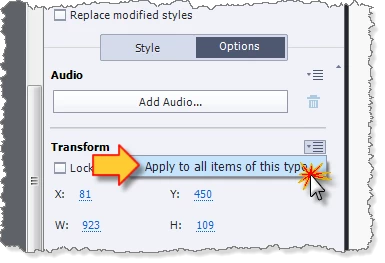
  2. Select this caption (e.g. Success) and in the Properties tab > Options > Transform section use the small drop-down menu to select Apply to All Items of This Type.

    Now all captions of that type in all quiz questions will have moved to the same position. 
  3. Do this for the other captions that would have been stacked on top of each other until you can now edit all captions on each slide.  Don't worry that they may be currently obscuring other items on the slides for now.
  4. When all edits have been performed and approved.  Use the same process above to move all captions back where they came from.  You just move one of the captions on one of the slides and use the Apply to All Items of This Type trick to move them all back in one go.

2 replies

Known Participant
January 13, 2016

Hi -

No, I would need each slide individually. I know about the template canned answers, but those are one size fits all solution. What do you do if you want a custom answer (interaction) for each quiz question?

RodWard
Community Expert
RodWardCommunity ExpertCorrect answer
Community Expert
January 14, 2016

I agree with both of you that having the quiz feedback captions all on top of one another makes editing tedious. 

Here's what I do:

  1. Open to one of the quiz slides and select the uppermost feedback caption, and move the caption until it does not obscure those underneath and you can now edit the text in both captions.
  2. Select this caption (e.g. Success) and in the Properties tab > Options > Transform section use the small drop-down menu to select Apply to All Items of This Type.

    Now all captions of that type in all quiz questions will have moved to the same position. 
  3. Do this for the other captions that would have been stacked on top of each other until you can now edit all captions on each slide.  Don't worry that they may be currently obscuring other items on the slides for now.
  4. When all edits have been performed and approved.  Use the same process above to move all captions back where they came from.  You just move one of the captions on one of the slides and use the Apply to All Items of This Type trick to move them all back in one go.
Known Participant
January 14, 2016

"Select this caption (e.g. Success) and in the Properties tab > Options > Transform section use the small drop-down menu to select Apply to All Items of This Type.

Now all captions of that type in all quiz questions will have moved to the same position."

This doesn't seem to work for me. Nothing happens. No matter which one I select, be it the moved one or the one that stayed in place, nothing happens when I press "Apply to all items of this type"

Tried it in the Master slide view for the quiz as well as on a quiz question in the filmstrip.

I don't think it sees it as the same object type.

Lilybiri
Legend
January 13, 2016

I know, very tedious, if you want to do it on the quiz slide itself. But  you talk about 'template', I think you mean the theme, master slides are part of the theme? Did you know that all the Default Labels are in Quiz, Preferences, Default Labels? If you do indeed have to change the answer on the master slide, and not on the individual slides, change it in the Preferences.