


Inspiring
December 15, 2015
Answered

Blank space around HTML Media

  • December 15, 2015
  • 1 reply
  • 2021 views

Captivate 8

When I add HTML 5 media to a project, it comes with a large area around it that is not in the original file (see attached).
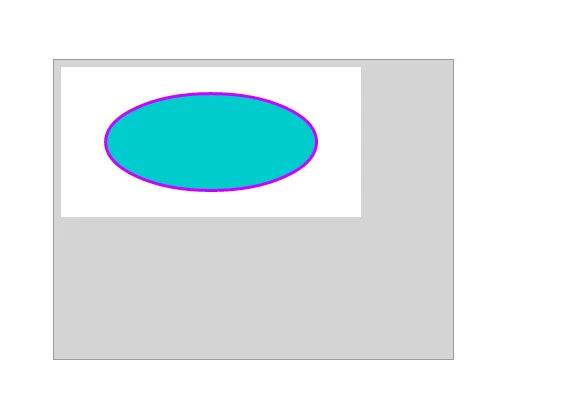
The grey area is added by Captivate.  The blue bit and the white around it is the original image (a button built in Flash, although Edge Animate does the same thing, other images and shapes do the same).

The grey box is 400x300 pixels.

How can I make it go away?  I only want the object, not all the spillover.  How can I trim it off?  It also appears to have a small grey border around the entire animation.  I have not found a setting for this.

Any thoughts?
    This topic has been closed for replies.
    Correct answer Jordster1

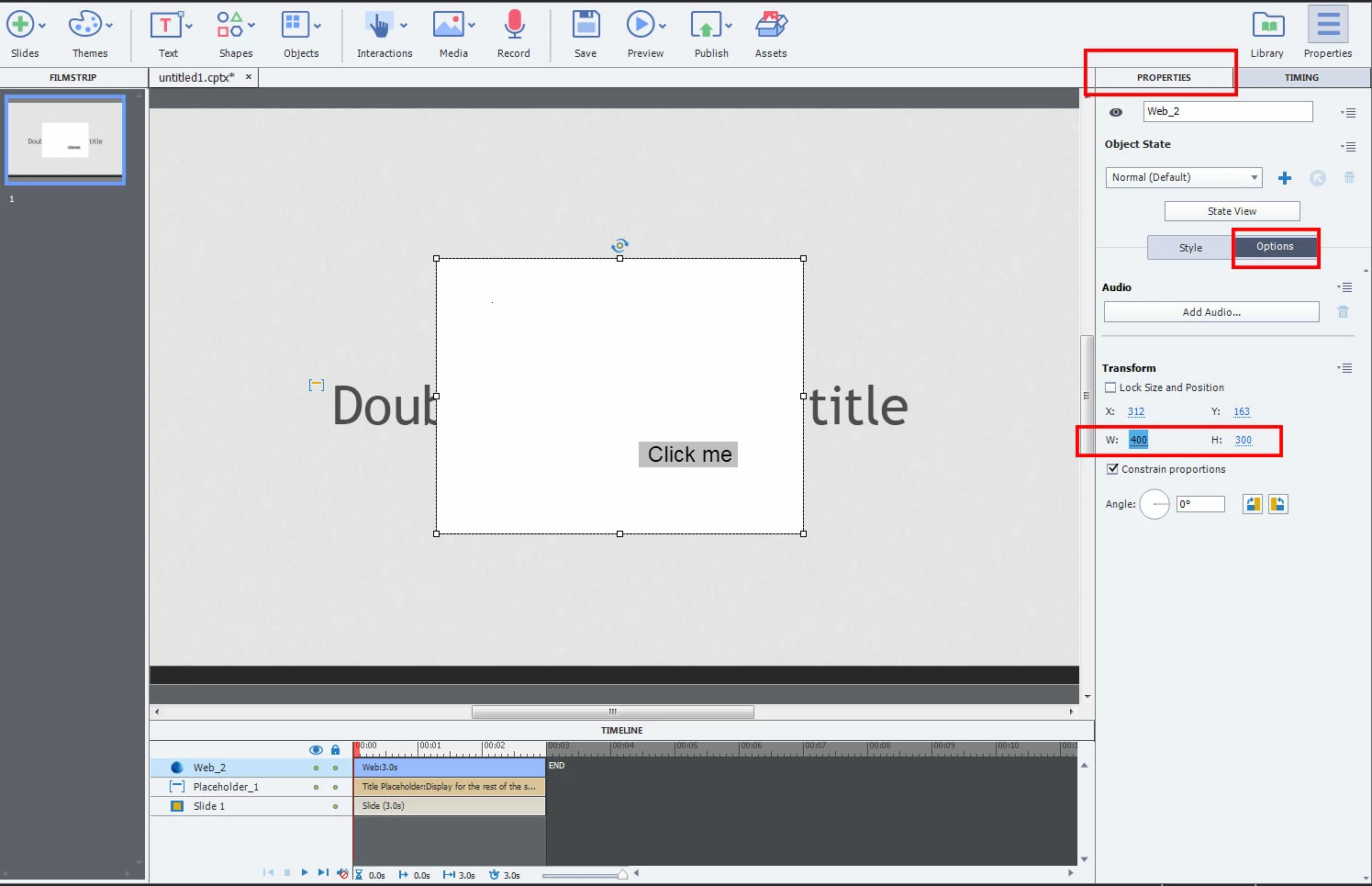
    400x300 is the default size for the imported media. If you select the media item and then click the Options tab in the Properties window, you'll find width and height fields that you can change. Just click inside them and set the width and height to the actual dimensions of your imported media. (Screencap below is from Cap 9 but its similar in Cap 8).

    To get rid of the border, select the Style tab next to Options and uncheck the box next to the Border option.

    -Jord

    1 reply

    Jordster1
    Jordster1Correct answer
    Participating Frequently
    December 15, 2015

    400x300 is the default size for the imported media. If you select the media item and then click the Options tab in the Properties window, you'll find width and height fields that you can change. Just click inside them and set the width and height to the actual dimensions of your imported media. (Screencap below is from Cap 9 but its similar in Cap 8).

    To get rid of the border, select the Style tab next to Options and uncheck the box next to the Border option.

    -Jord

    dcrouse10Author
    Inspiring
    December 15, 2015

    Curious.  It doesn't seem to work, it just scales the entire image.  That is until you mouseover it, whereupon it finally updates itself to the new size.  Yay!  Thank you.

    There is still the issue of the grey border around the image. Is there any way to get rid of that?  Or at least make it white?  Bottom and right side can be trimmed if you are careful, but the top and left side, not so much.

    Jordster1
    Participating Frequently
    December 15, 2015

    Hmm...is the Constrain Proportions box checked? Try un-checking that, its under where the width and height are. Also un-check the Lock Size and Position box above those value entries if its checked.

    That border in your screencap still looks suspiciously like the overflow.

    Alternatively, you can grab the editing handles that surround the object and trying squinching them in and out until the grey overflow goes away.

    -Jord