
Participating Frequently
December 31, 2021
Question

Branching Scenario quiz with interactive conversation/dialogue. Is this possible?

  • December 31, 2021
  • 2 replies
  • 3085 views

Here is a branching scenario that I have been tasked with building out in Captivate. I haven't been able to find any instruction on how to create a quiz in this flowchart style, where the user chooses a response and that choice dictates where they go next in the dialogue/quiz. Is something like this even possible?


I found these examples that I believe were created using Storyline. So it seems that the concept has been done before. Does anyone have any recommendations on how to achieve this in Captivate?
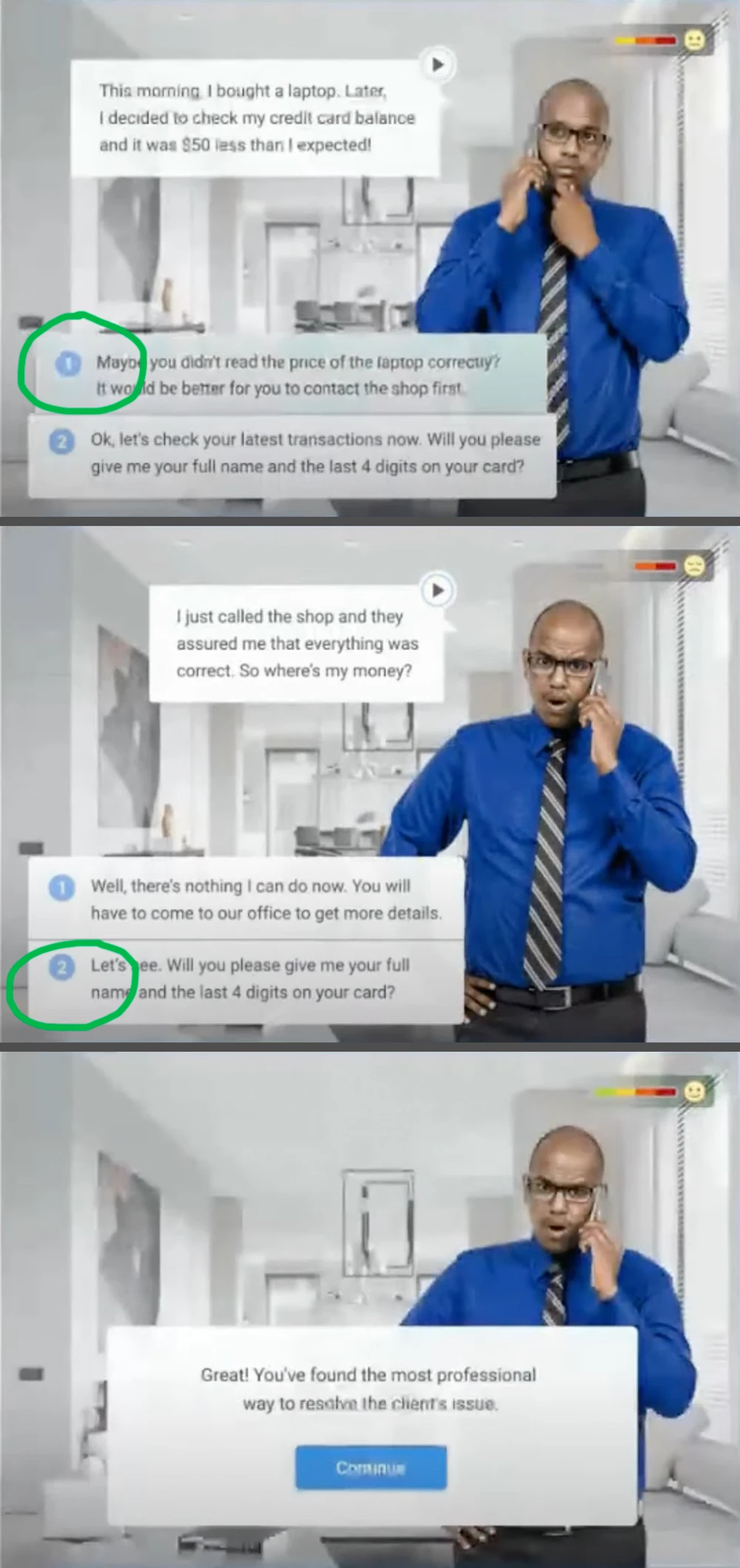
 

Thanks in advance!

Kat V

This topic has been closed for replies.

2 replies

Lilybiri
Legend
January 1, 2022

Any eLearning authoring tool can do this, if you know the tool. Sorry, but the screenshot of the flowchart is too small to read to give proper instructions.

Something very important is missing in your question: do you need to transfer the results to the gradebook of a LMS or not? This looks more like scenario-based learning, not like a real quiz where you need to transfer the score to a LMS.  

There are many ways to set this up. I would create custom master slides to start with, either based on the default quiz slide (MCQ) or as a start for custom question slides. The last type gives you more control but take more work.

For the branching you can use:

  • In case of quiz master slide based question, the Success or Last Attempt event. 
  • For custom question slides: use shapes as text container and convert them to interactive objects. You can use its Success event to trigger the actions.

You can assign advanced or shared actions. In this use case I would personally prefer shared actions, because they allow reusing with different parameters.

katvsvAuthor
Participating Frequently
January 1, 2022

The flowchart is the google doc link at the beginning of my post. Sorry for any confusion! You'll have to zoom in to see the details. If you have any problems accessing that link, I have attached a PDF version here (see Branch Mockup.pdf attached).


Yes, I will be reporting to an LMS!

Paul Wilson CTDP
Community Expert
Community Expert
January 2, 2022

Sorry for frustrating you. I am not an independent contractor--my marketing agency accepted the job and I'm the designer that has been tasked with producing the course. I've spent sleepless nights trying to learn how to use this software in a very short amount of time and i've spent money on a LinkedIn Learning account so I could watch as many training videos as possible.


I just needed to know if this "flowchart" style of quizzing was possible to build in Captivate. I can change how the point system is--it doesn't just have to be negative scoring. I can change it to positive for the correct answers.


The slides I sent are just screenshots of my captivate file. The course works when I preview the html file in my browser.


Your project reminds me of one of my eLearning heroes and a project they did quite a few years back. Check out how Cathy Moore was able to build a similar project for the US Military.
https://blog.cathy-moore.com/2010/05/elearning-example-branching-scenario/ 


I personally think you've done an excellent job of preparing to build what would be considered a superior elearning project, considering your have little experience with this style of learning or any eLearning for that matter.

The key thing you need to do is hide the playbar so that the learner will only use the navigation buttons that you provide on slide and instead of negative scoring you will want to use positive scoring on the correct answer buttons. If you need help with this and have little time I'm sure you can find a fellow contractor who you could sub-contract to help you finish this in time.

Paul Wilson, CTDP
Participating Frequently
December 31, 2021

Use actions with calls to diferents slide for each decision. You can view the structure with Branching panel (Window > Branching View)