


Button Consistency - New Version of Captivate
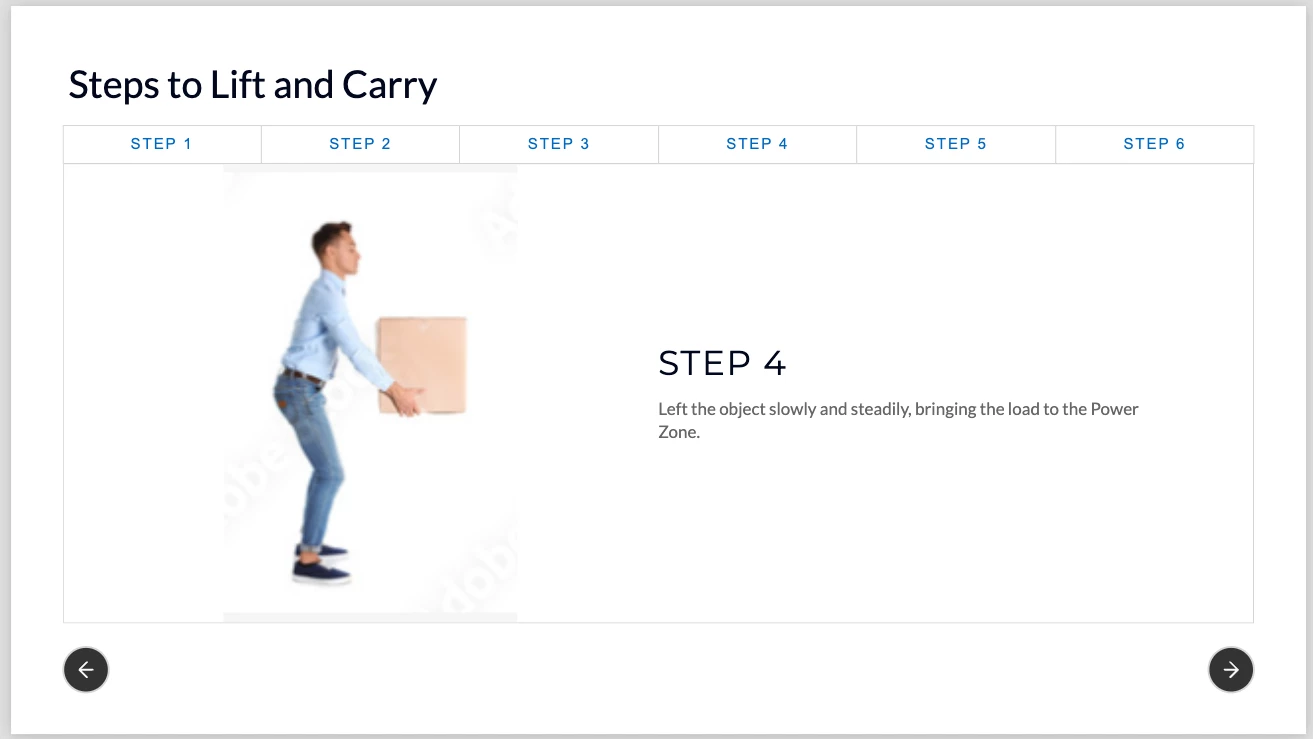
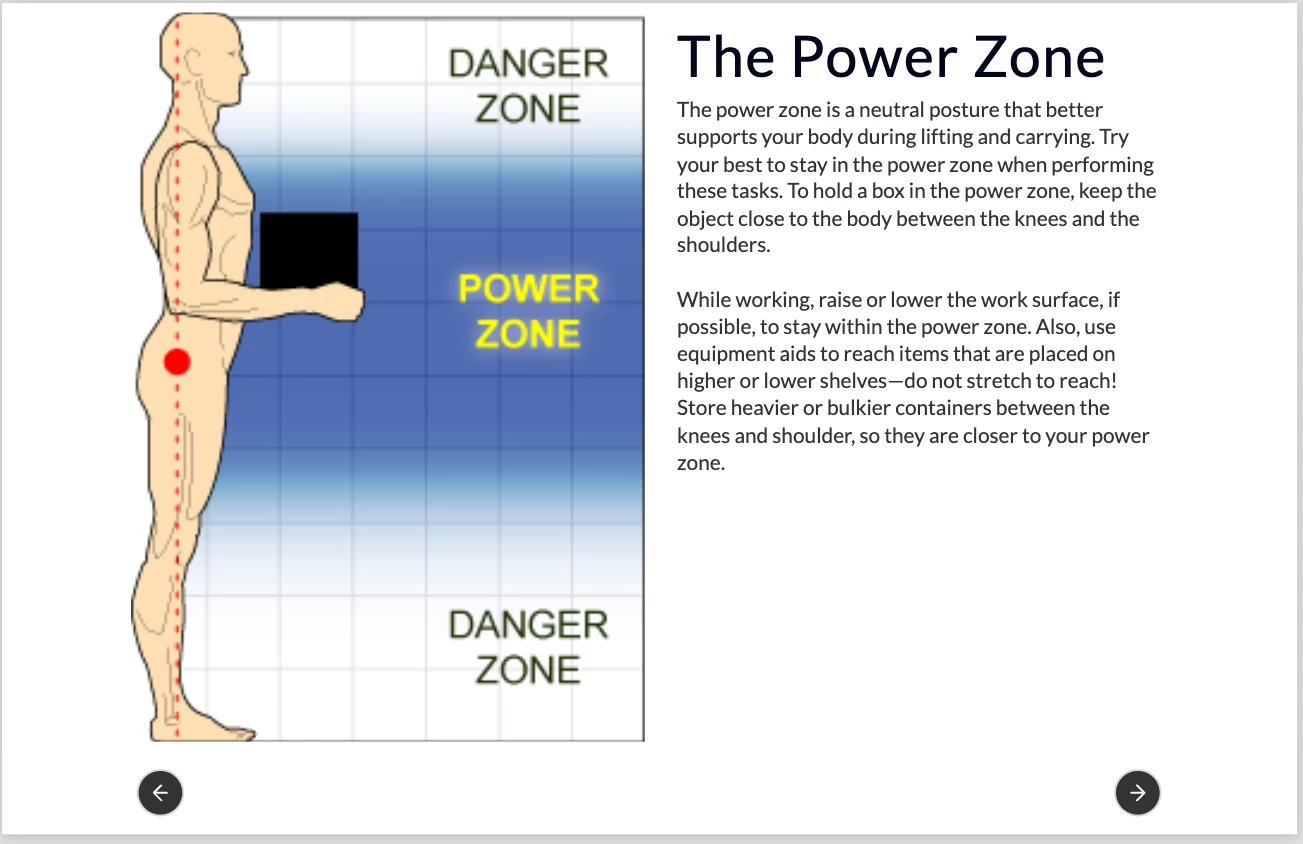
I am using the new version of Adobe Captivate and have an issue with getting a consistent look and feel with my buttons. I am trying to get a similar look and feel to the buttons in the below screenshot. The main reason I need the rest of the training to mirror this page is because the ability to force users to go through each step is tied to the buttons shown here, not the buttons in the play bar.
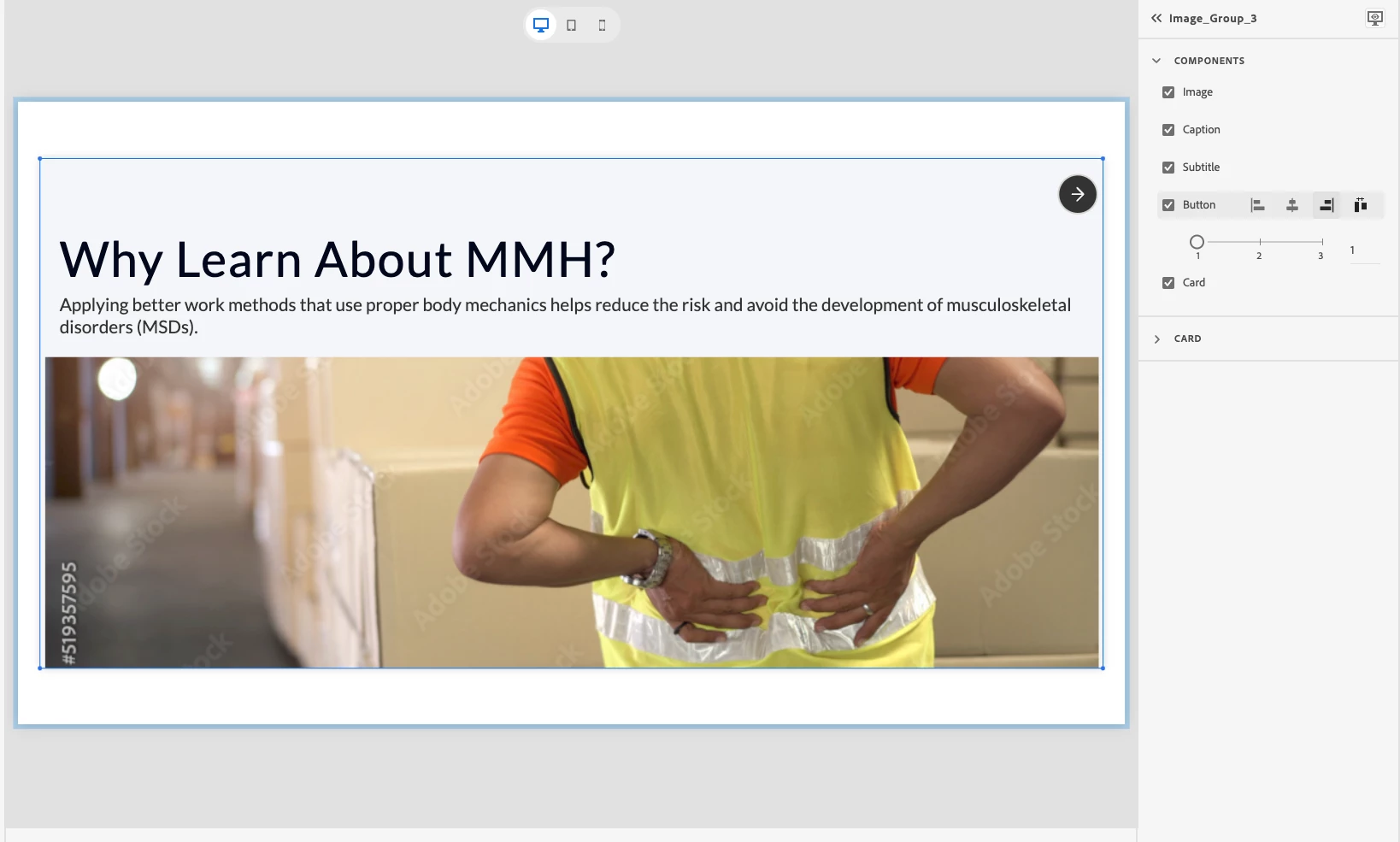
However, when I use other slide templates—like the one below—the button is at the top of the screen, and I can't change the position. If the button locations are always changing, that's a problem for usability. Consistency is important from a design perspective and to make it user-friendly.
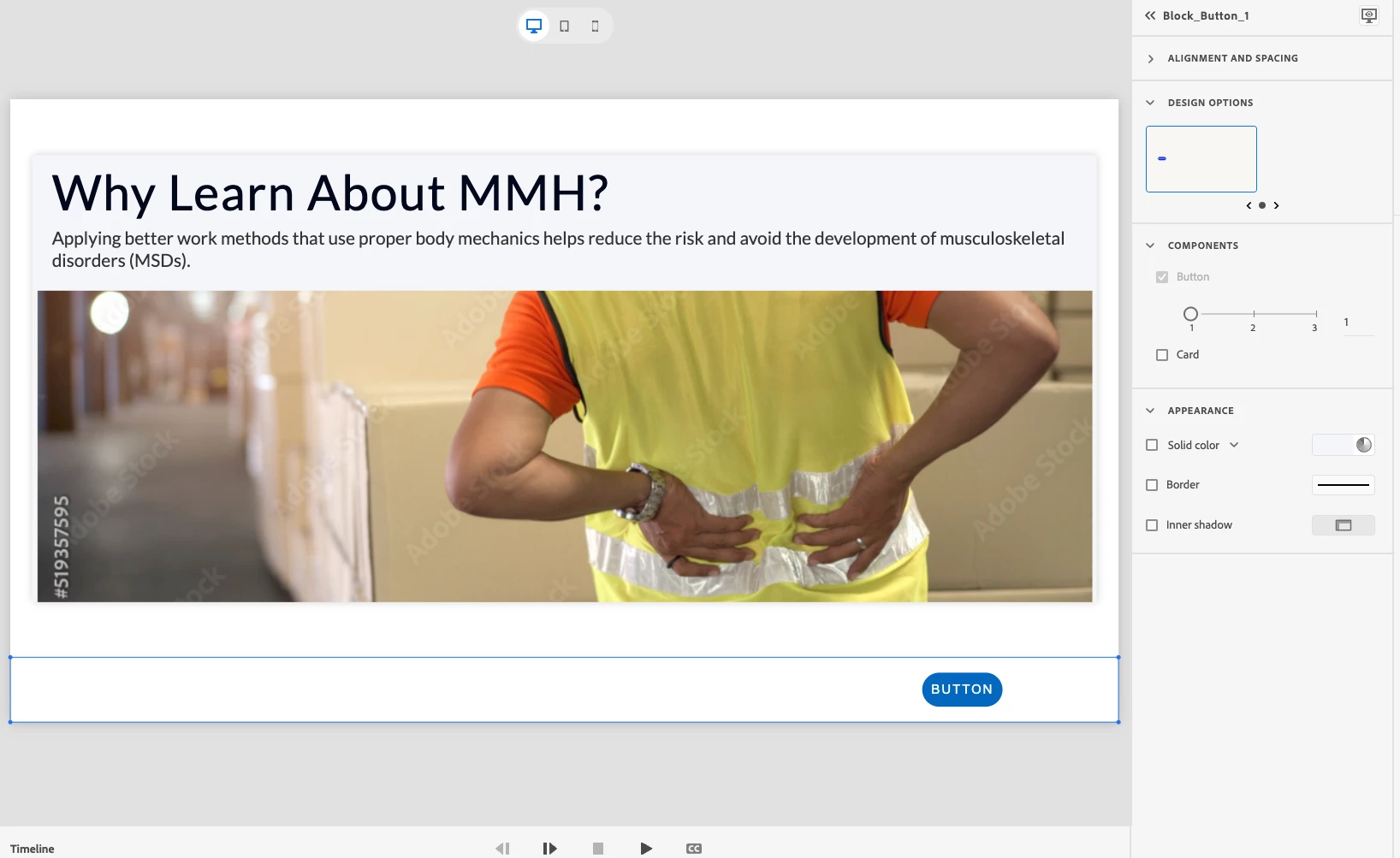
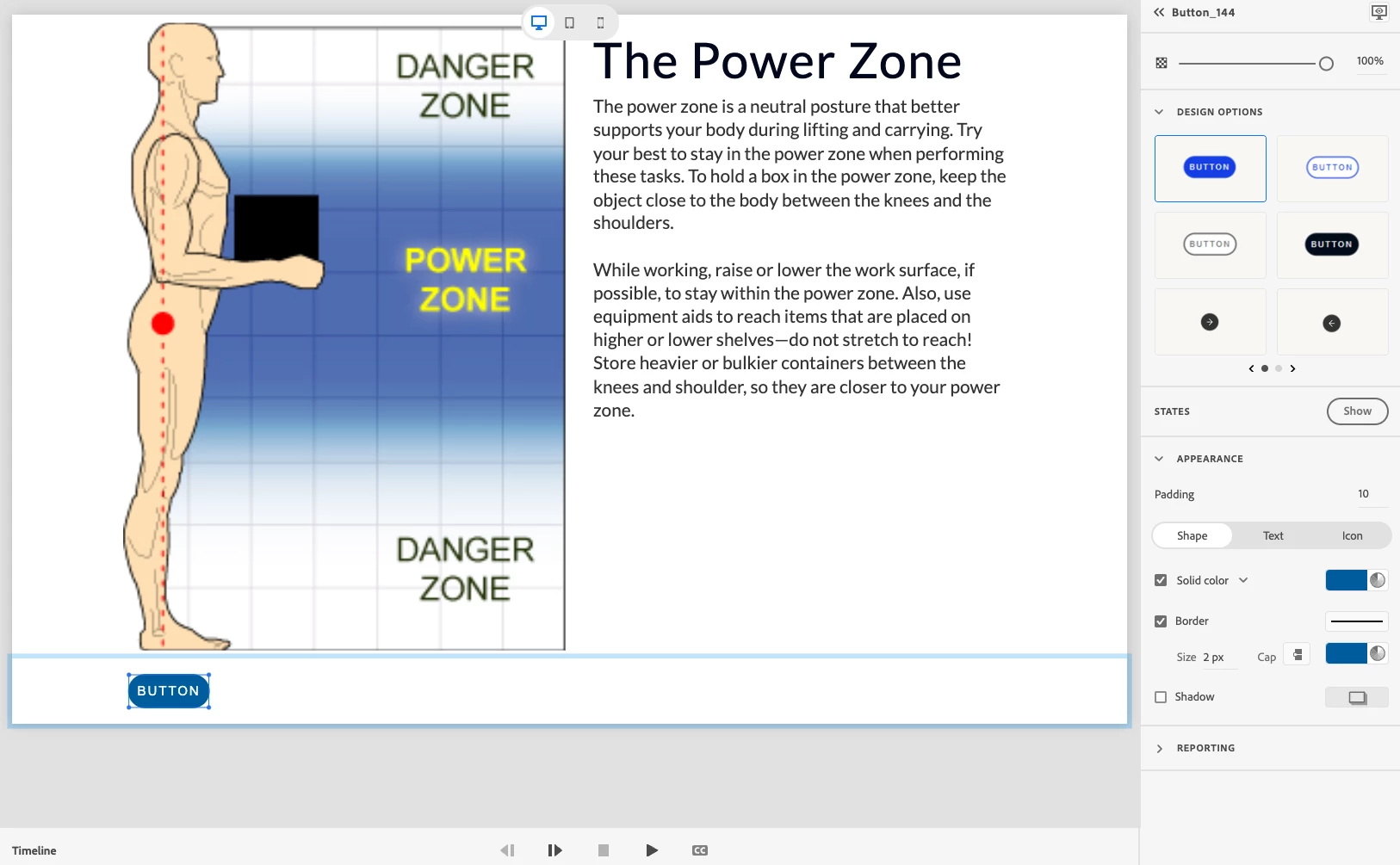
Then I thought I'd try to insert an interactive button block below the main block, but there are two issues with this approach. 1) The most important being there is only one design style for the button!! The buttons with circles and arrows are not an option on this page (see below). 2) If the content of the page is taller in height it pushes the button below the fold (not shown on the screenshot below but it's happening on other screens). Unless the entire training has a ton of content below the fold, the user will get stuck here unsure of how to move forward. I've seen it in user testing many times.
So, my question is - how do I get a consistent look and feel for buttons so my user knows what to expect?
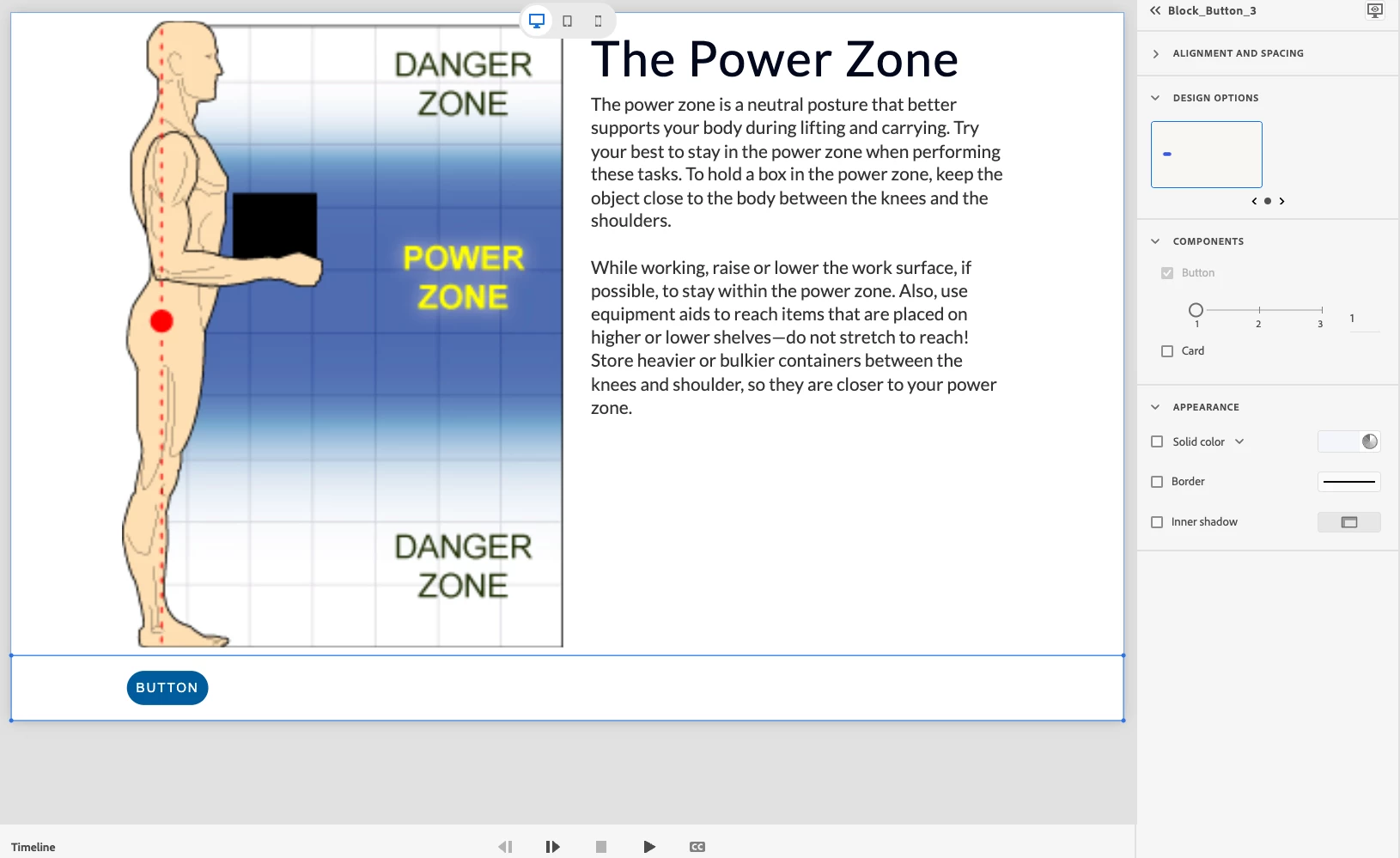
 This still doesn't solve the issue of buttons going below the fold, but I don't believe that won't be solved until they let you customize padding and margins.
  AdChoices