Tejas Dandekar
Inspiring
February 22, 2022
Answered

Captivate 2019 - Adding text to speech

  • February 22, 2022
  • 1 reply
  • 1625 views

Hi,

I have an eLearning video and I want to convert text-to-speech using an add-on/plug-in. How can one do it in Captivate?

Any suggestions on the best way to do it?

This topic has been closed for replies.
Correct answer Lilybiri

Text to Speech will always be bit 'robotic'. Personally I prefer to record my voice.

The workflow for TTS (one possibility) which I use:
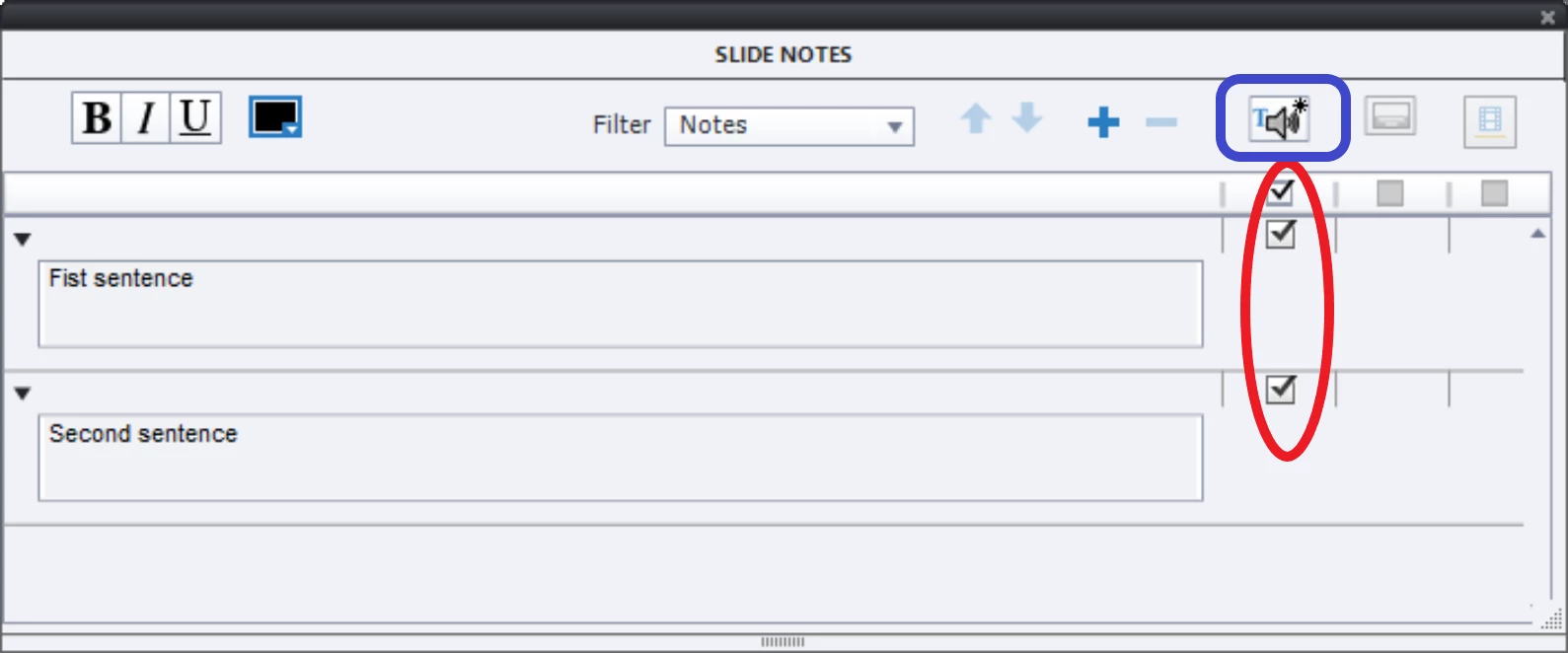
  • Open the Slide Notes panel (from Window menu).
  • Add each sentence in the slide notes as a separate note.
  • Click the TTS indicator next to each sentence (or on top - see screenshot red ellipse).
  • Click the icon button 'TTS on top (blue rectangle) to open the TTS editor.
  • Choose the wanted voice, you can choose a different voice for each sentence
  • Click the button 'Generate Audio' at the bottom
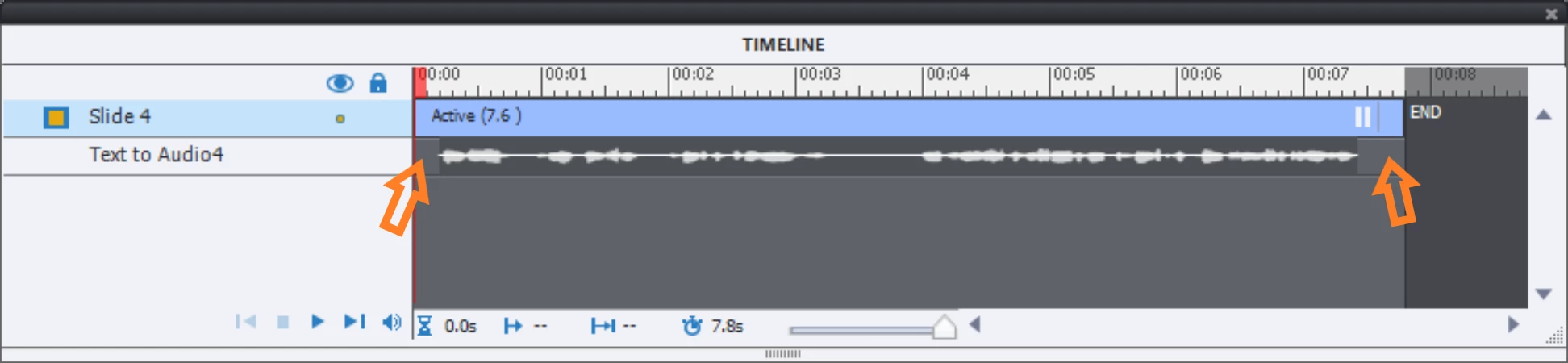
  • Audio clip will be created and added as slide audio under the slide timeline. The slide  duration will be increased to fit the audio. That clip will also appear in the project Library.
  • I recommend to move the audio timeline (under the slide timeline) to leave a slight gap before and after the audio timeline.

1 reply

Lilybiri
Brainiac
February 22, 2022

Terminology issues. Are you talking about a video inserted in a Captivate project or about an interactive cptx file?

Tejas Dandekar
Inspiring
February 22, 2022

Right. I have an interactive eLearning module/.cptx file and I want to add human voice/audio to each slide. What is the best way to go about?

Lilybiri
LilybiriCorrect answer
Brainiac
February 22, 2022

Text to Speech will always be bit 'robotic'. Personally I prefer to record my voice.

The workflow for TTS (one possibility) which I use:
  • Open the Slide Notes panel (from Window menu).
  • Add each sentence in the slide notes as a separate note.
  • Click the TTS indicator next to each sentence (or on top - see screenshot red ellipse).
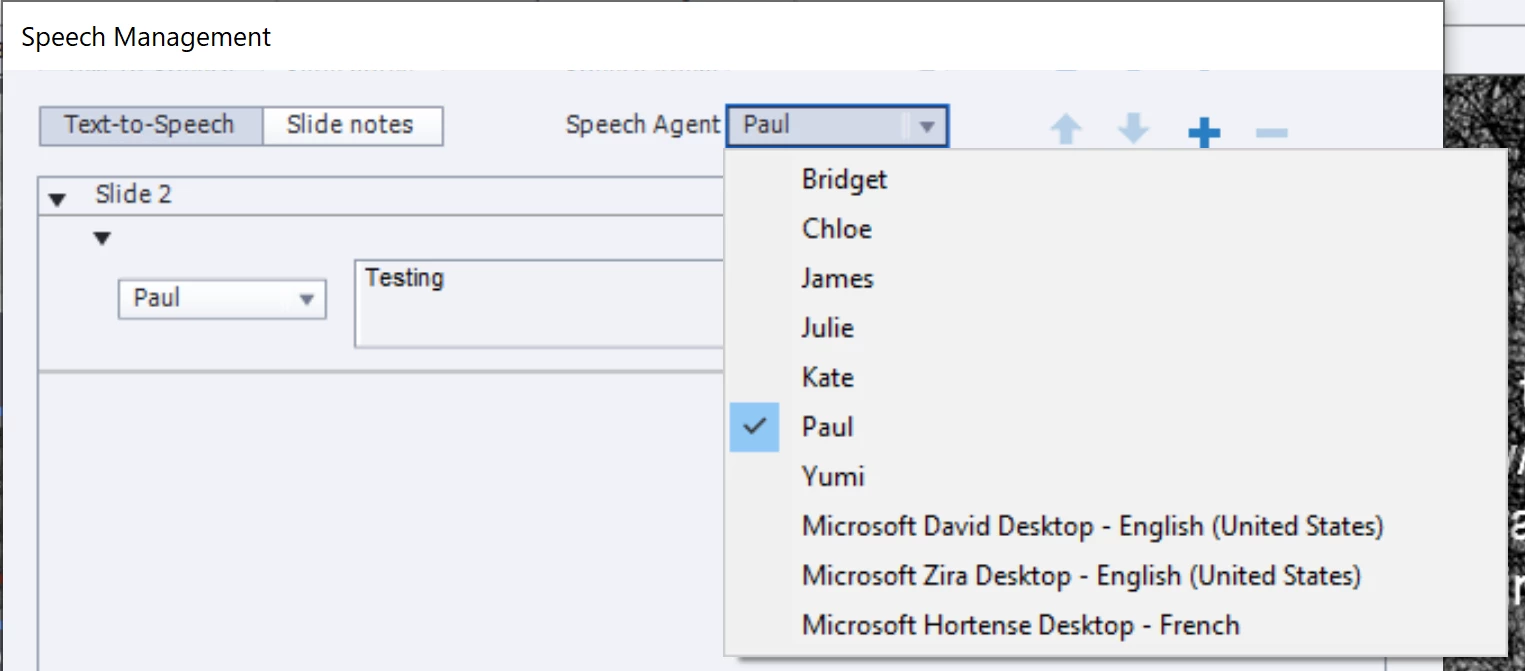
  • Click the icon button 'TTS on top (blue rectangle) to open the TTS editor.
  • Choose the wanted voice, you can choose a different voice for each sentence
  • Click the button 'Generate Audio' at the bottom
  • Audio clip will be created and added as slide audio under the slide timeline. The slide  duration will be increased to fit the audio. That clip will also appear in the project Library.
  • I recommend to move the audio timeline (under the slide timeline) to leave a slight gap before and after the audio timeline.