


Inspiring
August 24, 2012
Question

Captivate 6 Audio file won't distribute across multiple slides

  • August 24, 2012
  • 7 replies
  • 19420 views

In Captivate 6, I want to drag an audio file onto a slide, then choose the second radio button option to "Distribute the audio file over several slides". 
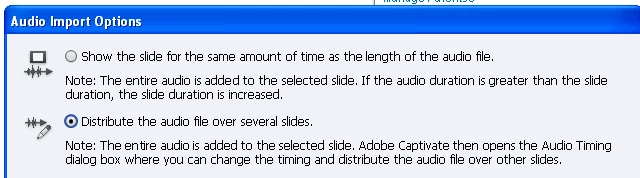
According to the note on this dialog box, I should be able to change the timing and distribute the audio file over the other slides, but the Audio Timing dialog box doesn't allow me to do this.    Instead, the timing of the slide I dropped the audio onto changes to cover the entire audio length, and if I try to move the slide timing to the left, the message displays:  "You have reached the Minimum Display time for Slide 1."
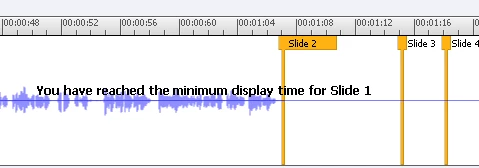
This used to work in previous versions of Captivate.  What is the problem, and how can I fix it?  Thanks!

This topic has been closed for replies.

7 replies

Participant
October 2, 2013

After fighting with Captivate for the better part of a day, I've discovered a workaround.  I was having the exact same problem as the poster and NOTHING worked.  Frustrating me more was that the Adobe moderators didn't seem to understand what we were up against.  Well, here's what finally worked for me.  Import your audio files by using the nav bar on the right hand side (under the "library" tab).  Don't bother linking them to any specific slides just yet. 

Once you have an audio file uploaded in your library, now figure out which slides you'll want to split that audio out across.  For example, will you split it across slides 6-23?  Now, go to the audio tab at the top ribbon and resist the impulse to click the "import to" option.  Instead, click the "Record to" option and click "Slides" instead of "slide" under the options that appear.  Now select the slide numbers that correspond to the slides across which you want to split your audio (for example, slides 6-23).  An audio recording box will pop up, and you'll be in the "Add/Replace" tab by default.  Click on the "Edit" tab instead.  From here, you can right click to import audio, click F6, or click the import audio button below.  Now select the audio file you want to add in here and voila, it will appear. 

At this point, go back up to those pesky slide markers you couldn't move before and give them another shot.  Somehow, this method bypasses the glitch that causes Adobe to resize your initial slide to a static length of your audio file.  Even better, once you save and close, you can come back in using the "Audio, Edit, Project" path and you can still slide the markers around to your heart's content if you need to make more changes. 

Participating Frequently
November 15, 2013

Can I just say Rdsam many thanks for this, it has saved me a lot of time!! Your solution works for me.  In fact I didnt need to import the sound files to start with.  I just followed your suggestion from "Record to slides", then imported the sound files using F6 and you can move the slide markers to where ever you want.

As a test I have just gone back and tried to do it the way you are suppose to do it by importing and then disstribting over several slides, and as ever I got the message "you have reached the minimum display time for slide......" the first time I tried it.  I then tried it using Rdsam's "record to" suggestion and worked a treat.  Adobe, could you fix this bug or possibly employ Rdsam as he or she has saved me here which means my captivate projects look and sound a lot better. 

Inspiring
November 20, 2013

I second to motion to get this fixed.  I too ran into this frustrating issue.  Thank you VERY much Rdsam!  Your workaround did me up right too.  Thank You.

September 17, 2013

I want to add triple frown faces and this fact to the discussion: After doing a demo recording of some 90 slides about the 6th take we now have to go through and elminate slide mistakes by the software and some humans (usually the software) which involves numerous activites to adjust the audio and this is ABSOLUTE TORTURE. There seems to be lots of discussion about importing and distributing audio and so forth, but if you record live it seems like it may be worse. I am very diappointed to be using software that appears to have such a major bug -- can't edit audio -- and it has existed for so long. I have used many other video an audio editing programs and not this problem. This appears to have taken a 1-2 hour preject, the audio edit portion I mean) and we are now in hour 10 and still working. Horrible.

September 15, 2013

By the way, I can't believe it's been more than a year and Adobe still hasn't fixed the issue. I'm having it with Captivate 6. For the money we pay for this software, this particular feature is CRITICAL, so it's very disappointing that nothing has been done.

Known Participant
May 2, 2013

As of 2. May 2013 Still no patch/update to this issue, VERY fustrating as I have had this working in a previous version. VERY time consuming cutting and pasting audio manually fra slide to slide.

DO SOMETHING ADOBE

Sankaram
Adobe Employee
Adobe Employee
May 2, 2013

Hi CaptivateVesco/Lisa,

         "You have reached minimum display time for Slide" happens when you have concrete object on the slide and you cannot reduce slide timing less than that. This is true for the slide in Timeline also. This is the same behavior in Cp5.5. 

Thanks,

Sankaram

Captivate Team.

Known Participant
May 2, 2013

You misunderstand the issue here Sankaram. - we have a presentation with e.g. 20 slides with the length of 3 seconds a piece, with NO object other than a software simulation and mouse movement (repeat 3 second slides.) We then import audio to first slide (F6) which is e.g. 17 seconds, we and choose the second option "ditribute the ausio over several slides" which should import the audio to 1 slide and let us edit the audio timing accross slides with markers (ctrl+S). Captivate DOES indeed open the Edit option, the Marker tool is available BUT it does not work....what happens is that Captivate expands the timeline of the first slide to match the audio lenght AND when trying to place or move the slide marker the message "you have reach the minimum length for this slide" appears over the audio (wave image). This wasd NOT an issue 3 months ago and we DO know how to use the slide length and audio import, this is a BUG and it needs fixing. If you want, I will record a simulation for you and show you the problem, as we have a huge project going on the next 3 months and I have not calculated extra timing for cutting and pasting audio manually.

Participating Frequently
April 2, 2013

I've got the same problem. It's very frustrating.

I tend to use the solution that Vikram suggested. I figure out my slide timings by putting markers in the audio, then I manually set these in Captivate. I then import the audio, distributing it over several slides and leaving the timing unaltered.

The reason that I do this is that I often have slide changes mid-narration, which is very difficult to get glitch-free using the cut-and-paste solution.

This is a bug that has appeared in previous versions of Captivate and been fixed before, but obviously it made it through the testing and QA this time. It's such an essential feature in the software that it really should have been caught. It's not like this is a cheap product, so there should be the budget for proper testing prior to release.

Participating Frequently
December 25, 2012

Same problem here.

Still no fix?

And it's very much annoying with huge projects.

Btw, for me the solution is not to use built-in captivate audio editor. Have to export audio track, cut manually in third-party software in billion pieces, and then import back.

Inspiring
December 27, 2012

The problem file has been sent to Adobe, but I haven't heard that the bug has been fixed.  However, there is a good workaround.  Edit the audio file in Captivate, and then use cut and paste to move sections of audio from one slide to another, instead of trying to move the slide marker bar.

Known Participant
March 11, 2013

Thanks for the workaround. Has anyone heard anything recently about this bug being fixed? I'm still encountering the problem in Captivate 6.

VikramGaur
Adobe Employee
Adobe Employee
August 24, 2012

Hello,

Welcome to Adobe Forums.

How long is you Audio and How long is you 1st slide ?

Thanks,

Vikram

Inspiring
August 24, 2012

The project includes 9 slides.  The audio track is 1min 7 seconds.  The length of the first slide should only be about 13 seconds.    The entire project is currently 1 minute 45 seconds.

Inspiring
August 24, 2012

Hello,

Did you tried this same Audio on a blank project ?

OR

A differnet audio on this same project ?

I tried diffferent workflow, different audio and different projects  at my side but I can't reproduce this issue on my computer.

Thanks,

Vikram


I just tried with a blank project with a half a dozen blank slides, and it does work.   However, I have a number of projects created with File > Record New software Simulation, and a number of audio files (.wav or .mp3) and the timing will NOT work with any of them.  Is there some setting that I am overlooking somewhere?

Did you record a new software simulation, then add a .wav or .mp3 audio file into your library, then drag and drop the audio file onto slide 1, to bring up the dialog box?