
Inspiring
August 8, 2014
Resuelto

Captivate 8 print widget does not print in landscape; prints full resolution of project and not just the certificate?

  • August 8, 2014
  • 1 respuesta
  • 5205 visualizaciones

I am new to Captivate and am tasked with learning how to use Captivate 8.  I need to add a certificate of completion to the end of my project and have many questions for which I cannot find any answers! Please, if anyone can answer these:

1) I do not want the certificate to be printed until the score of the quiz reaches a specific minimum - for example, you need a score of 80% or better to print a certificate.  How do I do this with the print widget?

2) I want the certificate to print out without the slide background and without the project's resolution - in other words, I only want the certificate image (with added text box for name) to print, IN LANDSCAPE, without the user having to make all the adjustments on their end (choosing landscape over portrait with their printer).  How is this accomplised?

3) I want a date entered on the certificate - how do I add this specific element? 

Without a certificate widget and the use of Flash with this version, I am confused as to how exactly Captivate provides the ability to print certificates?  I do not know HTML5, and am spotty with Javascript.  Why would a feature such as certificates and the ability to print them be such a clandestine thing?  No tutorials, no clear advice on how exactly to achieve this widely popular feature of training material development.  Seems to me that it should be MUCH easier to accomplish, but I'm stumped at this point.
Este tema ha sido cerrado para respuestas.
Mejor respuesta de CutlassKelley

The solution I found is this: 

Don't use the print widget in Captivate 8. It simply does not work the way it should be able to work.  Unless you are capable of scripting in Actionscript 2.0 and have access to an older version of Captivate, there is no way to get around this bug. 

The problem I discovered is that Captivate 8 will only allow you to use Actionscript 3.0 in Flash; you can open the widget in Flash, but you MUST open it through Captivate first if you intend to use it in Captivate.  So, once you open the widget for adjustments through Captivate, it automatically chooses AS 3.0 as the scripting language to use, no other choice is available.  IF you have Captivate 7 or lower, however, it allows you to script in AS 2.0.  I do not, so I cannot assist you in scripting the widget.

What I ended up doing was, I made my own certifcate in Photoshop, saved it as a .PNG, and added it to the last page. Using the internal coding of Captivate I told the program to only go to that slide upon success of the quiz. 

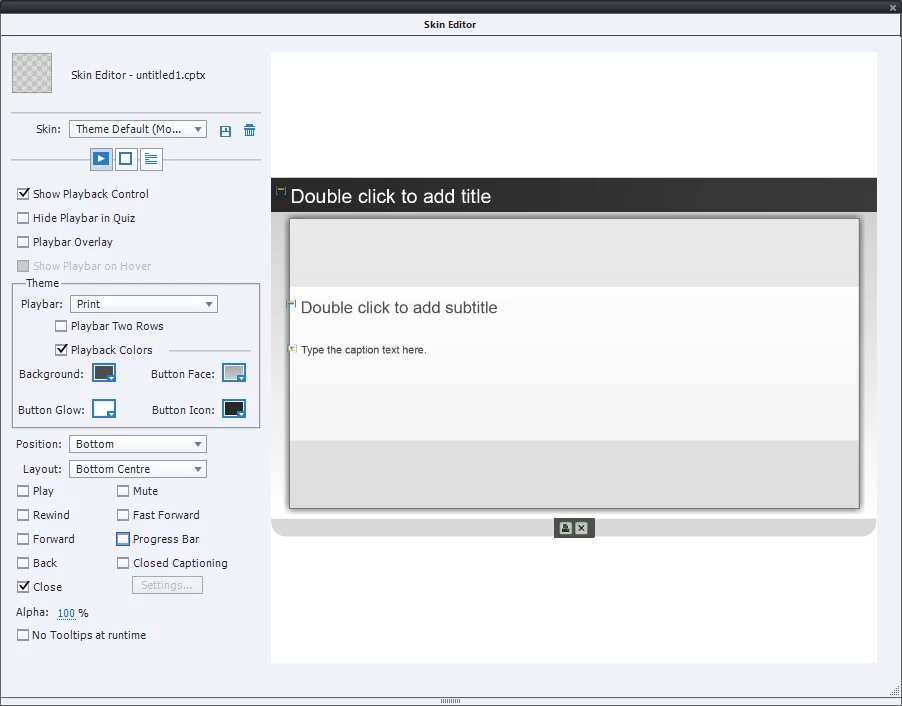
To Print:  go to Window > Skin Editor.  On the left are check boxes for playbar choices - check off 'Show Playback Control,' and then choose your theme. From the dropdown, choose "print."  If you don't want anything else on the playbar, then check those items off; Choose where you want the playbar to show (I chose bottom and bottom center). See below:

You can see the icons on the bottom, in the center.  The icon to the left is the Print button.  This works well, though you may have to make print choices from your local print dialog.  I have to tell it to print landscape, for instance, otherwise it prints portait and too small.  But this does work, and it solves the issue of non-working print widgets.

1 respuesta

Participating Frequently
October 3, 2014

Exactly what I want!! Anyone?

CutlassKelleyAutorRespuesta
Inspiring
November 4, 2014

The solution I found is this: 

Don't use the print widget in Captivate 8. It simply does not work the way it should be able to work.  Unless you are capable of scripting in Actionscript 2.0 and have access to an older version of Captivate, there is no way to get around this bug. 

The problem I discovered is that Captivate 8 will only allow you to use Actionscript 3.0 in Flash; you can open the widget in Flash, but you MUST open it through Captivate first if you intend to use it in Captivate.  So, once you open the widget for adjustments through Captivate, it automatically chooses AS 3.0 as the scripting language to use, no other choice is available.  IF you have Captivate 7 or lower, however, it allows you to script in AS 2.0.  I do not, so I cannot assist you in scripting the widget.

What I ended up doing was, I made my own certifcate in Photoshop, saved it as a .PNG, and added it to the last page. Using the internal coding of Captivate I told the program to only go to that slide upon success of the quiz. 

To Print:  go to Window > Skin Editor.  On the left are check boxes for playbar choices - check off 'Show Playback Control,' and then choose your theme. From the dropdown, choose "print."  If you don't want anything else on the playbar, then check those items off; Choose where you want the playbar to show (I chose bottom and bottom center). See below:

You can see the icons on the bottom, in the center.  The icon to the left is the Print button.  This works well, though you may have to make print choices from your local print dialog.  I have to tell it to print landscape, for instance, otherwise it prints portait and too small.  But this does work, and it solves the issue of non-working print widgets.

Lilybiri
Legend
January 7, 2015

Nice workaround Cutlass, I'm in the UK and the above variable shows USA date format. To show something similar to UK date format I had two text boxes with the variables

$$cpInfoCurrentMonth$$ AND $$cpInfoCurrentYear$$


Why not use cpInfoCurrentDateStringDDMMYYYY or cpInfoCurrentLocaleDateString?