


Known Participant
September 30, 2020
Answered

Catptivate 2019 has margins empty when importing Animate OAM file

  • September 30, 2020
  • 5 replies
  • 1121 views

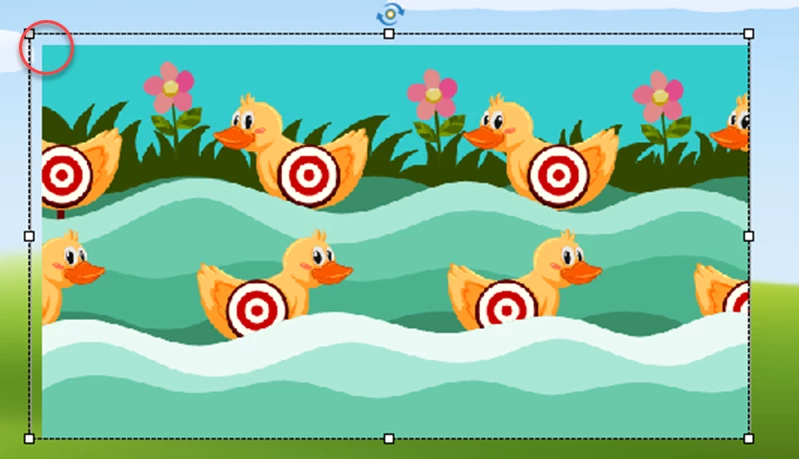
I am fairly new at learning Animate. A total noob. But I have manage to create a few small eLearning animations for a few silly games requested by our ISDs. When I create something in Animate (HTML canvas, sized as neede 640x360 px, center stage and responsive set to BOTH, and OAM is tranparent. stage has transparent background) then import as an HTML animation in Captivate, I consistently get a top and left magin that pushes the animation outside of the right and bottom edge of the frame. Does anyone know if there is a setting or some code I can edit to correct this? Or at least why and how it is happening. It looks like there is some padding added. My coding abilites are weak but I have a coworker who programs that can help if needed. But first I have to help find out why it is happening. 
Also is it true, that an .ini change to the CP code will allow us to layer the OAM file below a static graphic? Currently it always appears on top when viewed and published from CP. I just discovered this today and have yet to ask my progrmming collegue about this. Trying to do some perliminary research for her. Thanks for any input you can provide. 

    This topic has been closed for replies.
    Correct answer Lilybiri

    For the OAM, need more time to double-check.


    For your last question, this is the answer I mostly give:

    "Animations and web objects are always on top, whatever the stacking order in the timeline. You need to edit the captivate.ini file, and toggle the value of UseWidget7 to 1 in the file captivate.ini. You find it in the installation folder, need administrator rights."

    5 replies

    cazimierAuthor
    Known Participant
    December 7, 2020

    None of these worked. What I think happened is that I used a transparent background for scene 1. However I never set a shape object or symbol to the boundaries of the stage (820px X 830px). My theory is CP didn't recognize the stage size, but will recognize a size if a transparent symbol. I was able to stop the margin from jumping once I placed a shape (820px X 830px) the same size of the stage on scene 1 then turned its alpha to 0% as well.   

    AND, because I used maskes to assist with transparnecy in many of my OAM file, i had to scrap and  rethink everything - the mask caused the OAM to play WAY to slow, especially if there were a handfull of OAM in the CP.  😞  Noob mistake, but at least I learned something for my efforts. 🙂  I'll research that later.

    kdmemory
    Inspiring
    October 1, 2020

    Hi cazimier

    Maybe, just maybe: Did you check in Animate under Publish Settings the option Scale to fill visible area? Like this:

    Klaus

    cazimierAuthor
    Known Participant
    October 6, 2020

    Kdmemory, Scale to fill visible area does fill in the margin area, but it also "scales" the image up. Once enlarged, it is hard to layer on the page because of the size change. Even if I save out my images to accomodate the extra 8px size increase, it still makes precise placement difficult. What it is good for, as I suspected, is helping to scale the animation with better quality. But thank you for you input.  🙂

    TLCMediaDesign
    Inspiring
    October 1, 2020

    in the HTML file that is published from animate you'll need to add this CSS to the head section:


    <style>

    body{
    margin: 0px 0px
    }

    </style>

    cazimierAuthor
    Known Participant
    October 1, 2020

    Thank you. I hope the OAM issue is as easy as changing CSS. 🙂

    Lilybiri
    LilybiriCorrect answer
    Legend
    October 1, 2020

    For the OAM, need more time to double-check.


    For your last question, this is the answer I mostly give:

    "Animations and web objects are always on top, whatever the stacking order in the timeline. You need to edit the captivate.ini file, and toggle the value of UseWidget7 to 1 in the file captivate.ini. You find it in the installation folder, need administrator rights."

    cazimierAuthor
    Known Participant
    October 1, 2020

    Thank you. I'll get my collegue to help with this one. She isn't afraid of the CP .ini file.  🙂

    RodWard
    Community Expert
    Community Expert
    October 1, 2020

    Just one extra thing you need to be aware of with changing settings in the captivate.ini file.  Windows will likely prevent you from simply opening the file directly in Notepad and then just editing the value before saving and closing. 


    This is a file buried inside the Program Files folder and as such it will be protected.  So, even though you already have Administrator rights to your computer it will try to block you.


    The trick is to take a copy of the file and save it to another folder somewhere, then make the edits to that copy.  When finished, copy the edited file back to the original location, overwriting the previous version. You will still need to be an Admin to do this.

    RodWard
    Community Expert
    Community Expert
    October 1, 2020

    The required change to the AdobeCaptivate.ini file found in the Captivate install directory is as follows:

    UseWidget7 = 1

    cazimierAuthor
    Known Participant
    October 1, 2020

    Thank you. I'll have my collegue assist with editing the .ini file.