Inspiring
February 11, 2021
Answered

emdedding javascript and html

  • February 11, 2021
  • 4 replies
  • 2033 views

Good evening, I am looking to implement the HTML jsPDF code to enable me to create a PDF certificate of a course. I've got the print.html and jspdf.min.js files as mentioned in the post, but I cannot seem to embed the files.


Every time I publish the project the 2 files are getting deleted. How can I add the files so they don't get deleted when re-publishing the project?


Thanks

Phil.

    This topic has been closed for replies.
    Correct answer OH_CP_Lover_&_Hacker

    Ok, I spent about 30 mins writing only to have the page quit working…..so I’m going to try and make this a shorter version of what I was trying to say.


    First I just realized that you were trying to use the blog entry "New HTML5 'widget' for a print PDF certificate - As I promised a year ago." To make a project so I will reply to your question on the getting that type of project running.


    I went ahead and just made you an example project file (using the setup shared in the blog title you shared) so that you will have something working to look over. The demo project is barebones but has everything setup that you can study how it all works togher...


    Click here to download the project I made for you based on the blog entry you were using as a guide.


    FYI: The Captivate project version file I’m sharing is 11.5.4.613

    If you need this done in a lower version, I’d be happy to whip up another version for you.


    After downloading the project, please do the following to get things up and running:

    1. Unzip the file. – there should be two items in the zip:
      1. PrintCertExHelp.cptx
      2. Supporting_Files (folder containing your two files needed: Print.html and jspdf.min.js)
    2. Next copy the Supporting_Files folder to the assets folder that is located in your Captivate’s program/application folder:
      1. Path to copy the Supporting_Files folder to is: Your Adobe Captivate Application -> HTML -> assets
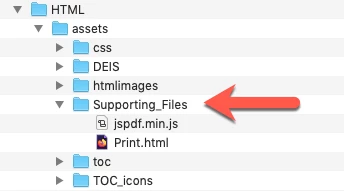
      2. This step is going to allow two things to happen:
        1.  Enables you the ability to preview your project and run it as if it were on a server without all the extra steps for moving files to a server to test. This allows for quicker and smoother development/trouble shooting times…especially when working with external files that are needing JavaScript to correctly run.
        2.  This step will also ensure that your files will be included when you publish your project as well…without having to remember to move files over manually after publishing the project.
      3. Now you should be able to run the Captivate project and it will allow you to input some info and generate your PDF file.


    After you have finished with your project that needs to have the certificate printed, I’d suggest you do the following things to keep your work space clean of un needed files during publication.

    1. Make sure you copy/move the Supporting_Files folder to where ever your finished Captivate project file is stored for later use and etc. This allows you or anyone else needing to work on the project in the future the necessary files to make your project work.
    2. After you have ensured your Captivate project and the Supporting_Files folder has been copied/moved to a place for safe storage – delete the Supporting_Files folder only in the Adobe Captivate’s application assets folder.  Doing this step keeps unnecessary files from being added to future published projects.


    I have used this method for working on complex project for years!  It has worked wonderfully and saved me a ton of time when needing to preview/troubleshoot/tweak projects being development. When I have student interns work for me, this method has been wonderful, as it allows my student interns to develop complex projects without giving them access to live servers.


    In my previous post I did share that you can also manually add the files to your published folder as well - either way its VERY important to make sure that you have any paths need to access the files correctly entered where needed.


    Make sure you have your print button setup with the correct path to the Print.html file! The following is the JavaScript that I used for the Print/Make PDF button: (its modeled exactly like the blog posting you are referencing)

    var nameOfCompany = cp.vm.getVariableValue('companyName');
    var coursetitle = cp.vm.getVariableValue('courseTitle');
    var studentname = cp.vm.getVariableValue('cpQuizInfoStudentName');
    var subjectname = cp.vm.getVariableValue('SubjectText');
    
    // NOTE: how I set the URL path to the Print.html file:
    var url = "assets/Supporting_Files/Print.html?&nameOfCompany=" + nameOfCompany +"&studentname=" + studentname + "&subjectname=" + subjectname + "&coursetitle=" + coursetitle;
    window.open(url,"_blank","width=800,height=600,menubar=no");


    Ok, I hope between the working demo projet file I setup for you as well as the instructions above...you will get your project on tract.  If you have any other questions just let all of us know!

    4 replies

    Inspiring
    April 8, 2021

    Hi Nav,

    I'm happy to hear, that you could use my PDF tutorial.

    I'll will take a look on a version 2.


    /Jacob

    OH_CP_Lover_&_Hacker
    OH_CP_Lover_&_HackerCorrect answer
    Inspiring
    February 12, 2021

    Ok, I spent about 30 mins writing only to have the page quit working…..so I’m going to try and make this a shorter version of what I was trying to say.


    First I just realized that you were trying to use the blog entry "New HTML5 'widget' for a print PDF certificate - As I promised a year ago." To make a project so I will reply to your question on the getting that type of project running.


    I went ahead and just made you an example project file (using the setup shared in the blog title you shared) so that you will have something working to look over. The demo project is barebones but has everything setup that you can study how it all works togher...


    Click here to download the project I made for you based on the blog entry you were using as a guide.


    FYI: The Captivate project version file I’m sharing is 11.5.4.613

    If you need this done in a lower version, I’d be happy to whip up another version for you.


    After downloading the project, please do the following to get things up and running:

    1. Unzip the file. – there should be two items in the zip:
      1. PrintCertExHelp.cptx
      2. Supporting_Files (folder containing your two files needed: Print.html and jspdf.min.js)
    2. Next copy the Supporting_Files folder to the assets folder that is located in your Captivate’s program/application folder:
      1. Path to copy the Supporting_Files folder to is: Your Adobe Captivate Application -> HTML -> assets
      2. This step is going to allow two things to happen:
        1.  Enables you the ability to preview your project and run it as if it were on a server without all the extra steps for moving files to a server to test. This allows for quicker and smoother development/trouble shooting times…especially when working with external files that are needing JavaScript to correctly run.
        2.  This step will also ensure that your files will be included when you publish your project as well…without having to remember to move files over manually after publishing the project.
      3. Now you should be able to run the Captivate project and it will allow you to input some info and generate your PDF file.


    After you have finished with your project that needs to have the certificate printed, I’d suggest you do the following things to keep your work space clean of un needed files during publication.

    1. Make sure you copy/move the Supporting_Files folder to where ever your finished Captivate project file is stored for later use and etc. This allows you or anyone else needing to work on the project in the future the necessary files to make your project work.
    2. After you have ensured your Captivate project and the Supporting_Files folder has been copied/moved to a place for safe storage – delete the Supporting_Files folder only in the Adobe Captivate’s application assets folder.  Doing this step keeps unnecessary files from being added to future published projects.


    I have used this method for working on complex project for years!  It has worked wonderfully and saved me a ton of time when needing to preview/troubleshoot/tweak projects being development. When I have student interns work for me, this method has been wonderful, as it allows my student interns to develop complex projects without giving them access to live servers.


    In my previous post I did share that you can also manually add the files to your published folder as well - either way its VERY important to make sure that you have any paths need to access the files correctly entered where needed.


    Make sure you have your print button setup with the correct path to the Print.html file! The following is the JavaScript that I used for the Print/Make PDF button: (its modeled exactly like the blog posting you are referencing)

    var nameOfCompany = cp.vm.getVariableValue('companyName');
    var coursetitle = cp.vm.getVariableValue('courseTitle');
    var studentname = cp.vm.getVariableValue('cpQuizInfoStudentName');
    var subjectname = cp.vm.getVariableValue('SubjectText');
    
    // NOTE: how I set the URL path to the Print.html file:
    var url = "assets/Supporting_Files/Print.html?&nameOfCompany=" + nameOfCompany +"&studentname=" + studentname + "&subjectname=" + subjectname + "&coursetitle=" + coursetitle;
    window.open(url,"_blank","width=800,height=600,menubar=no");


    Ok, I hope between the working demo projet file I setup for you as well as the instructions above...you will get your project on tract.  If you have any other questions just let all of us know!

    NavmasterAuthor
    Inspiring
    February 12, 2021

    Many thanks for this - I've downloaded it and quickly ran it and yours worked fine. I will see what you've done differently than mine. One thing from reading your email was that I had tried copying the 2 files in the "assets / js" folder after publishing and I wasn't getting any results.

    Again many thanks.

    Phil.

    NavmasterAuthor
    Inspiring
    February 12, 2021

    Sorry for lack of reply. I have managed to integrate the pdf creation in my project and have been working on creating the pdf. Many thanks for all your help it has been great.


    May I ask a question about Javascript. In the original widget we managed to on a single line of text have red text and then black, or normal and bold text. Would you know if this is possible via this library?


    I will take a look after the weekend, but thought I'd ask. If not, not a problem and will work around it.


    Thanks

    Phil.

    OH_CP_Lover_&_Hacker
    Inspiring
    February 11, 2021

    Hello there!

    I've made many CP projects that allow users to make/download PDFs on the fly.


    Before I share any solutions, would you mind letting me know how you are currently setting up the use of your html and JS files from your CP project currently? Once I know that I'll be able to get you right to on track.


    I'm looking forward to helping you out!!

    NavmasterAuthor
    Inspiring
    February 11, 2021

    Hi, Thanks for the reply. Currently I've just tried to place them in the "assets/js" folder. Was deleting them when publishing so been looking online on how to embed before coming here.


    I've added both files, but put them as .txt files. Remove the.txt to get original format. the Print.html is only basic just to get it working. Been looking at the guide from link:


    "New HTML5 'widget' for a print PDF certificate - As I promised a year ago."


    Thanks

    NavmasterAuthor
    Inspiring
    February 11, 2021

    For some reason cannot attach the print.html.

    TLCMediaDesign
    Inspiring
    February 11, 2021

    You need to zip the 2 files and insert as an HTML5 animation.

    NavmasterAuthor
    Inspiring
    February 11, 2021

    Thanks - interesting to know. Will see what comes off below.
