

StephanieBogDog
Known Participant
January 6, 2022
Question

Forward and back buttons disappear when previewing the quiz

  • January 6, 2022
  • 2 replies
  • 5813 views


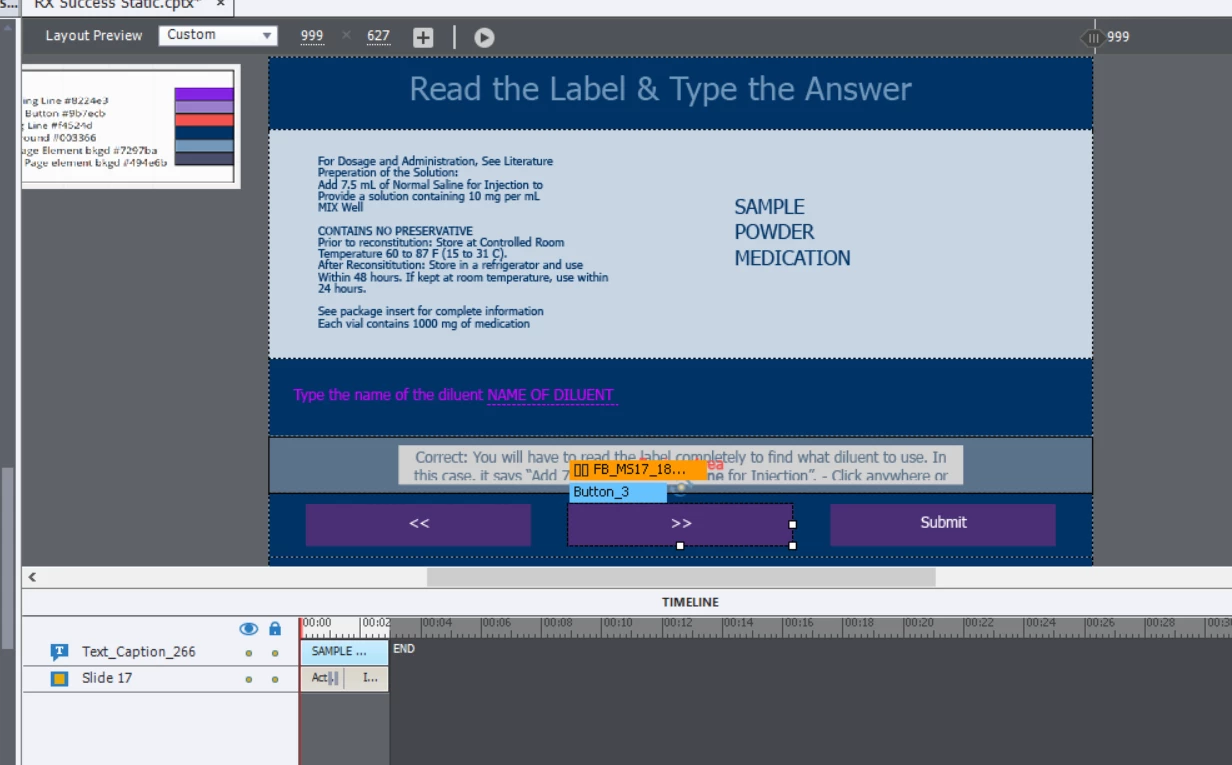
I'm using the built in fill in the blank Master Slides. When I am working in the editor there are forward and back buttons on each question but when I preview they disappear. In the quiz options section I can click "back" under buttons but I'd prefer to have these buttons that are already there show up. What can I do?
 

    This topic has been closed for replies.

    2 replies

    Paul Wilson CTDP
    Community Expert
    Community Expert
    January 19, 2022

    The arrow buttons are only when you are reviewing the quiz. If you wish to give your learners forward and next buttons that are available during the quiz you can check the Back and Skip options under the buttons section in the QUIZ panel. If you like the arrows instead of the words Back and Skip you can replace them the same arrows from the other buttons on the master slide.


    The delay in moving from the question slides your learners are on when they "Click anywhere or press 'y' key to continue" is caused by the default Actions for Success or Last Attempts. Change the Actions on the QUIZ panel for On Success from Continue to Go to the next slide. Similarly change the Last Attempt from Continue to Go to the next slide.

    This will make the "Click anywhere or press 'y' key to continue" action instantaneous. When it's set to Continue the slide plays the rest of the slide before moving on. While that's only 1.5 seconds, many learners think something isn't working correctly because of the delay.


    Paul Wilson, CTDP
    StephanieBogDog
    Known Participant
    January 21, 2022

    Thanks Paul, I tried to change the settings in the Question go to next slide and then I changed it to go to next slide in the global quiz preferances but they still aren't advancing. 

    Lilybiri
    Legend
    January 21, 2022

    Since I have seen the screenshot of the Timeline of the quiz slides, changing Continue to Go to Next slide (which Is also mentioned in the blog post I linked to) makes not much sense, since 1.5 secs is very short. Moreover it could cause issues when transferring data to a LMS over a slow connection, or when used by multiple users. If the quiz slide is longer (due to added slide audio) this could speed up the response but a safer solution in that case is to move the pausing point closer to the end of the quiz slide (not completely at the end for the same possible slow connection issue).  Also in that blog post.


    Lilybiri
    Legend
    January 6, 2022

    The buttons you are referring to are those who will appear during Review only, they are called the Review Mode Navigation buttons. At least if it has been set up that way under Quiz Preferences, Settings.

    When in quiz mode, you have the Submit button, which will release the play head after the second step in the Submit process. Forward button is not necessary. Having a Back button on a quiz slide can be chosen under Quiz Preferences, Settings. However I would not recommend to do so, because answers on a quiz dslide are blocked when the learner leaves the quiz slide. If you really want to give them free navigation throughout Quiz slides you need to choose the feature Submit All under Quiz Preferences, Settings.


    Understanding the Submit Process and how to set up Preferences is important when you are using any kind of quiz or Knowledge Check slides. I could offer some links to blog posts I wrote for basic quiz creation, but not sure if that is what you want?

    StephanieBogDog
    Known Participant
    January 19, 2022

    I'm having an issue where the user submits the answer and then the correct or incorrect message is shown but then when you click anywhere that message disappears and it doesn't advance to the next slide.

    Lilybiri
    Legend
    January 19, 2022

    Something has messed up the Submit process in that case.

    Did you delete any embedded object on the quizzing master slides or the quiz slides?  Embedded objects have no individual timelines, but deleting them can mess up the quizzing process. Some can be hidden by unchecking features, but you should never delete them manually.

    Please, read this blog post:

    Captivate's Quizzes (2): Submit Process - eLearning (adobe.com)

    After viewing the feedback messages, the actions specified in the Quiz Properties panel are executed.  By default they are set to 'Continue', which means the playhead will be released in the second step of the process. Did you change the Success and/or Last Attempt action? Do you have multiple attempts on question level?