

New Participant
September 3, 2012
Answered

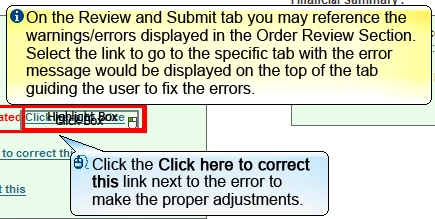
How can I add a default icon to caption boxes in Captivate 5?
  • September 3, 2012
  • 1 reply
  • 729 views

    This topic has been closed for replies.
    Correct answer Captiv8r

    Hi James

    When you look at Caption properties panel, note the little folder icon as shown below:
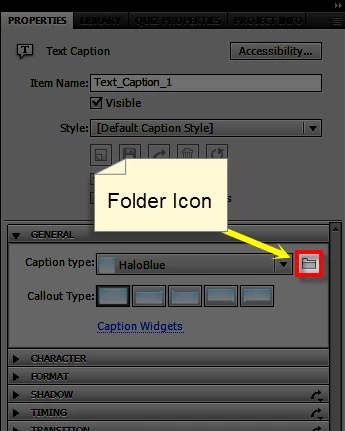
    When you click that icon, you are able to browse the file system and see the images used for the captions. Note the location of these images.

    You will need to either copy and edit one set of captions or create a totally new set of captions that include the icons you want. You won't be able to use Captivate other than to perhaps compose the image as you want it, then screen capture part of the slide and use that as the bitmap for the caption. Other than that, you will need an image editing application such as Potoshop, Gimp, Paint.Net or other.

    I suppose it would be nice if the Adobe Captivate developers offered us a way to customize these from right inside of Captivate. I'm thinking of a function similar to Captivate's ability to Merge images and stuff into the background of the slide. Perhaps a new function of "Merge into Caption"?

    You may want to suggest this. Link is in my sig.

    Cheers... Rick

    Helpful and Handy Links

    Captivate Wish Form/Bug Reporting Form

    Adobe Certified Captivate Training

    SorcerStone Blog

    Captivate eBooks

    1 reply

    Captiv8r
    Legend
    September 3, 2012

    Hi there

    The backgrounds for Text Caption objects are simple bitmapped images So you should be able to edit them and add the icons you want. The only issue is that once you make the change, only future projects will receive them. Current projects will remain unaffected. Unless, of course, you save the edited caption images using a new file name, then bring them into existing projects.

    Cheers... Rick

    Helpful and Handy Links

    Captivate Wish Form/Bug Reporting Form

    Adobe Certified Captivate Training

    SorcerStone Blog

    Captivate eBooks

    New Participant
    September 3, 2012

    Hi Rick,

    Thanks, I think I am seeing the light.

    Are you saying that I can change the "i" and "mouse" icons in Captivate or that I should do it in Photoshop? ... Because I can't figure out how to change the caption box background.

    Thanks much,

    James

    Captiv8r
    Captiv8rCorrect answer
    Legend
    September 3, 2012

    Hi James

    When you look at Caption properties panel, note the little folder icon as shown below:

    When you click that icon, you are able to browse the file system and see the images used for the captions. Note the location of these images.

    You will need to either copy and edit one set of captions or create a totally new set of captions that include the icons you want. You won't be able to use Captivate other than to perhaps compose the image as you want it, then screen capture part of the slide and use that as the bitmap for the caption. Other than that, you will need an image editing application such as Potoshop, Gimp, Paint.Net or other.

    I suppose it would be nice if the Adobe Captivate developers offered us a way to customize these from right inside of Captivate. I'm thinking of a function similar to Captivate's ability to Merge images and stuff into the background of the slide. Perhaps a new function of "Merge into Caption"?

    You may want to suggest this. Link is in my sig.

    Cheers... Rick

    Helpful and Handy Links

    Captivate Wish Form/Bug Reporting Form

    Adobe Certified Captivate Training

    SorcerStone Blog

    Captivate eBooks
