


Participating Frequently
March 26, 2019
Answered

How do I create a button that is customizable?

  • March 26, 2019
  • 2 replies
  • 776 views

For the life of me I can't figure out how to make a transparent button to lay over text or how to create a button that is a diferent color than my "Theme colors" which I can't change either. The only options available to me are changing the reflection and shadows, and the text color. Why is this so difficult to achieve?

    This topic has been closed for replies.
    Correct answer MichaelStephens

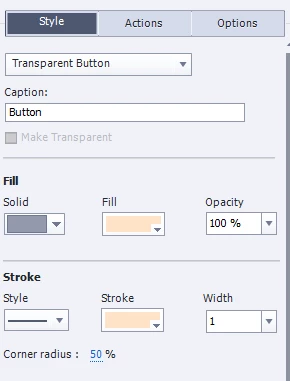
    You need to change the button from Text Button to Transparent Button.

    Then you'll be able to change the fill and stroke settings.

    2 replies

    Lilybiri
    Brainiac
    March 26, 2019

    Which version are you using, please? You are talking about 'Transparent button'n not about a Text buttons which is the most limited type, it takes on the look of your OS.

    I never use the old types of buttons, but use shape buttons. However Transparent buttons are the most flexible of the 3 old types. You can fil it with a solid color, with a gradient, with an image and with a texture. You tell that this is not possible in your case?

    Did you change the Theme Colors palette? In the color dialog box you always have the choice between a theme color, a color taken from the old swatches panel, a color defined using the color wheel, a hexadecimal code or RGB code, or use the color picker (not recommended by me). Do you not have those options in the color dialog box?

    It looks like your application is corrupt. Please run the CleanPreferences...; file appropriate for your system while Captivate is closed.

    Another possibility if this is not helping, could be a corrupt theme. Tell which theme you are using, please.

    About Theme colors, check:

    Theme Colors - Captivate blog

    Participating Frequently
    March 26, 2019

    I wish I could mark both of these answers as correct. Thank you so much. I totally blanked out and forgot I could enable shapes as buttons. haha. I also used click boxes as buttons to essentially allow for a picture to have "functioning" looking hyperlinks that advances to other slides. Thank you

    MichaelStephens
    MichaelStephensCorrect answer
    Brainiac
    March 26, 2019

    You need to change the button from Text Button to Transparent Button.

    Then you'll be able to change the fill and stroke settings.