Participating Frequently
February 26, 2018
Answered

How do I make previous button success caption disappear when I click a new button?

  • February 26, 2018
  • 1 reply
  • 868 views

Hi everyone.

I am currently using shapes that I have converted to 'buttons'.

I have four shapes (hexagons) in a row. When I click the first hexagon, a success caption appears. When I click the second hexagon, I want the first success caption to disappear, and for a new caption to appear in its place. The same goes for the third and the fourth. At the moment when I click each button, all of the success boxes just appear on top of one another, and I cannot read the text.

Please can you advise? This is driving me mad!
This topic has been closed for replies.
Correct answer Lilybiri

Hi Lilybiri - I'm sorry I am being really slow.  Is there a tutorial for how you created slide 3? It is exactly what I want to happen, but I do not know how to get there!


I explained in my previous answer how to do it.  That movie was part of a presentation comparing Fluid Boxes and Breakpoint Views workflows. I have a lot of tutorials on my blog, not a ss simple as the one I explained in my previous answer.

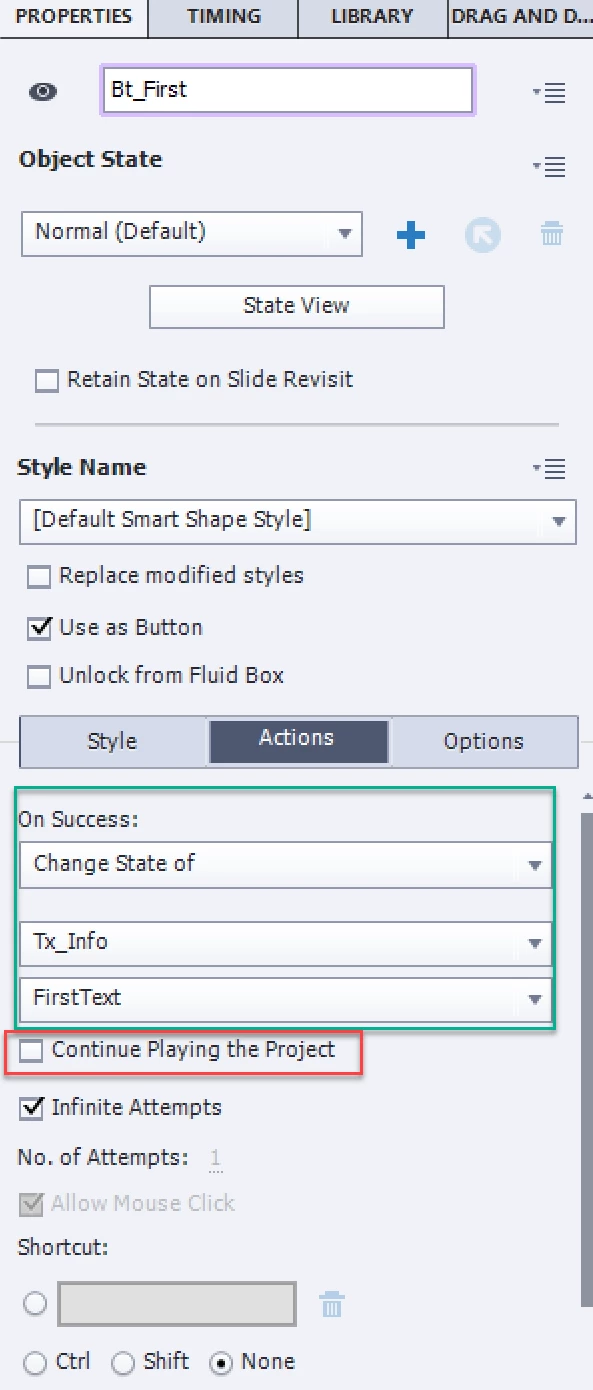
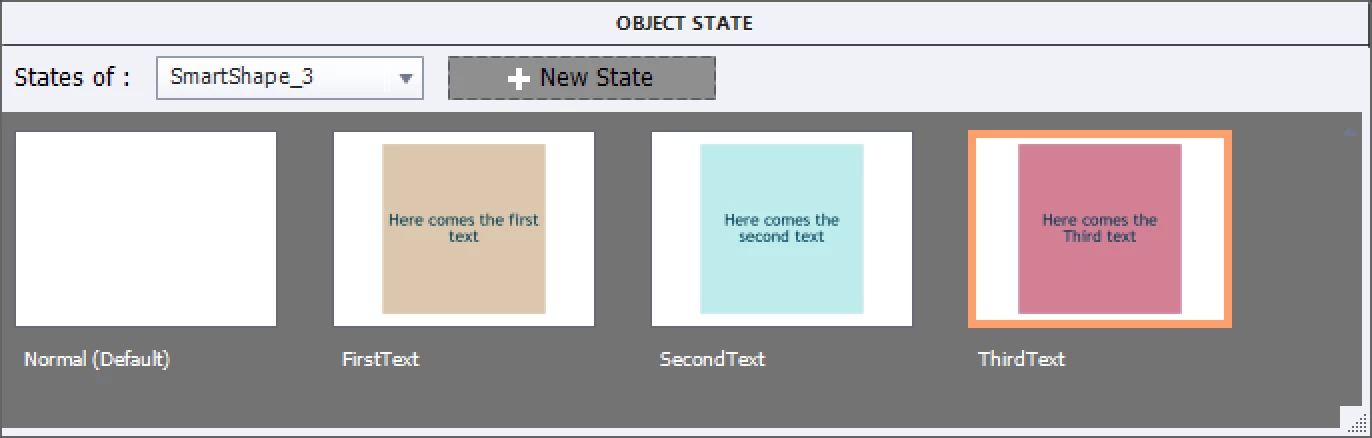
  • Create a shape that will be the text container. Set Alpha = 0 and Stroke width = 0. That <will be the Normal state. I will label that shape 'Tx_Info'.
  • Open Object State panel (State view button for the shape). Add as many states as you need for the texts. Give them a name that make it easy to find them later. Add text in the states.
  • For each of the buttons use this command: Change State of Tx_Info to ......     where ...... is the name of the state you want to show.

1 reply

Lilybiri
Legend
February 26, 2018

If you are talking about the default sucess captions, they have a default dureation of 3 seconds. I don't understand why they appear at the same location, unless you duplicated the buttons, but didn't move the success captions? You can change the duration of the caption in its Timing panel.

If you want them to disappear when another caption appears, you need to use another approach, not with the default captions. You will have to create custom text containers, and show/hide them with the actions of the different buttons. I would consider grouping the text containers and use a shared action for the buttons:

    Hide Group

    Show Text

However you don't tell if those buttons have already a function?

Participating Frequently
February 26, 2018

Thanks for the quick response.

I want the text for each button to appear in the same location (but obviously do not want the previous buttons text to still be there). When I click button 2 I want button 1’s text to disappear, does that make sense?

I think I need to try your ‘second approach’ – could you please give me a step by step guide on how to do this? I am using Adobe Captivate 2017.

Thanks,

Tanya

Participating Frequently
February 26, 2018

On Enter is a slide event. Look in the slide Properties panel, Actions tab, where you'll find the On Enter event. If you don't want to use that event, you can also create a text container that has a Normal state that is totally invisible to the user: no fill, no stroke. In that case I would prefer a shape over a caption. BTW: if you use the default settings, the so-called Success Caption is also a shape in most themes.

I use the word text container because you can display text both in a text caption or a shape (my preferences since styling is so much easier). Use whatever you prefer. You can see such a multisttate object that has content when clicking an item in this movie, used as an example for a Fluid Boxes workflow: It is on the third slide (click one of the text items, those are also shape buttons). Sorry, text is in Dutch:

FluidBoxesDemo


Hi Lilybiri - I'm sorry I am being really slow.  Is there a tutorial for how you created slide 3? It is exactly what I want to happen, but I do not know how to get there!