This topic has been closed for replies.
Correct answer RodWard

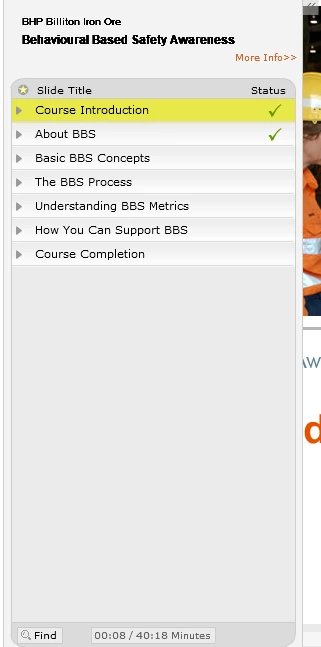
You are showing a picture from a course I created for a client about 10 years ago.  From memory it was created with Captivate 5 or 5.5.

What version of Captivate are you using?

All current versions of Captivate allow you to create a TOC like this.  You just need to go to Project > Skin Editor > TOC Settings and make sure the option is selected to show a TOC.  By default the Status Flag option should be turned on.  If not selected, just turn it on and you should see a TOC that ticks the boxes.  It may look a little different to the TOC in earlier versions because nowadays the focus is on mobile devices, but it should still work.

2 replies

JGSPG_elearning
Participating Frequently
July 12, 2018

Rod, How to do the arrow? That you can open close the navigation for the course?

RodWard
Community Expert
Community Expert
July 12, 2018

In the TOC settings dialog there are two fields for Expand Icon and Collapse Icon.

In earlier versions of Captivate these fields by default were pointing to small GIF files that pointed left and right (depending on whether you were collapsing or expanding the TOC).  However, the current version of Captivate does not by default point to any files.

So if you want to replicate what the earlier TOC icons look like, you will need to just create yourself a couple of small TOC Expand and TOC Collapse GIF files and then set the TOC to use these graphics in that location.  One thing to remember here is that you cannot make these files very large at all.  From memory they had to be only about 20 pixels by 20 pixels.

RodWard
Community Expert
RodWardCommunity ExpertCorrect answer
Community Expert
July 12, 2018

You are showing a picture from a course I created for a client about 10 years ago.  From memory it was created with Captivate 5 or 5.5.

What version of Captivate are you using?

All current versions of Captivate allow you to create a TOC like this.  You just need to go to Project > Skin Editor > TOC Settings and make sure the option is selected to show a TOC.  By default the Status Flag option should be turned on.  If not selected, just turn it on and you should see a TOC that ticks the boxes.  It may look a little different to the TOC in earlier versions because nowadays the focus is on mobile devices, but it should still work.

JGSPG_elearning
Participating Frequently
July 12, 2018

Hello RodWard,  I hope you remember me. Thank you for answering my question.  It's good to know that you're the one created the picture attached.

I'm using Captivate 2017.

I will try this, I'm trying to create my first eLearning now.