


New Participant
April 12, 2022
Question

Option scrip on execute advanced actions its not work :S

  • April 12, 2022
  • 1 reply
  • 253 views

Good afternoon.

I am writing on this blog because I have not been able to solve this problem, not even with the help of Adobe consultants.

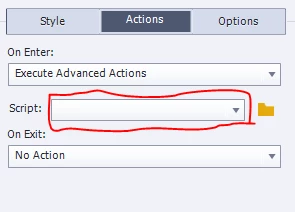
I have created variables with the necessary names and numbers and I have also created several advanced actions, but when I try to execute the advanced actions on a slide or element, the Scripts dropdown menu is blocked and I cannot choose any of my advanced actions.
 

    This topic has been closed for replies.

    1 reply

    Lilybiri
    Brainiac
    April 12, 2022

    Can you show a screenshot of the Advanced Actions dialog box, and open the dropdown list top right?

    Moreover check the exact version number you are using under Help, About Captivate.

    Did you try to clean the Preferences, which could help if Captivate has corrupted.

    New Participant
    April 12, 2022

    Hi Lilybiri


    Thanks for writing

    to answer this question "Did you try cleaning the Preferences, which might help if Captivate has been corrupted?"
    i cleared the program cache, created a new project and put the slides back in, renamed actions, variables and even
    elements, removing spaces and underscores.
    I don't know if there may be another way to clean that information.


    Lilybiri
    Brainiac
    April 12, 2022

    I am still on 11.5, you are on 11.8 but nothing essential has changed.

    That advanced action seems to be very complicated, probably could be streamlined much better, but that is off topic. 

    Apparently you didn't clean the Preferences yet. Close Captivate, find the subfolder 'utils' under the installation folder and run the CleanPreferences... file which is appropriate for your OS. I don't know if you are on Windows or Mac. Your version is needed for the most recent iOS and if you are using a M1 chip on a Mac, but also if you are on Win11.

    Try clearning the Preferences first. Clearing the cache is OK but didn't solve your problems. Copy/paste to a new project could solve corruption in the file, but you need to find the corrupted slide/object/action in that case.