


lindav86892
Participant
March 25, 2020
Question

Can Captivate 2019 import Powerpoint slides without crashing?

  • March 25, 2020
  • 1 reply
  • 1504 views

If Captivate cannot successfully import a Powerpoint presentation and convert it into a Captivate file, then why is the option available?  I am using the trial version. After two weeks of failure, I am ready to give up.

Since I am working from home for now, I have the time to practice turning a Powerpoint into an elearning training class.

I will not purchase the software if it does't work for my purposes.

I am posting to the Community because customer support will not respond to questions about a trial version.

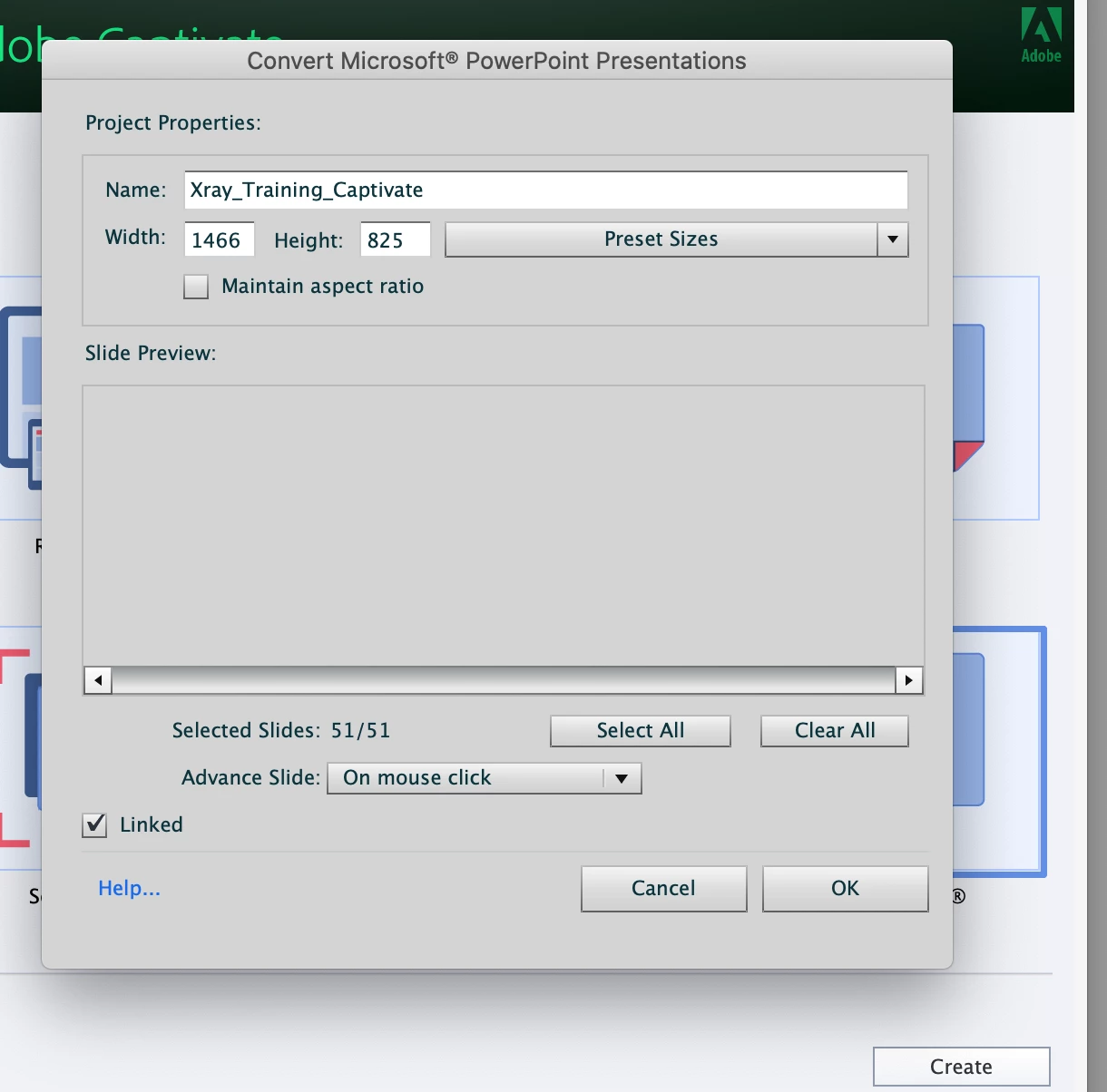
I was hoping the newest version fixed that problem. Below is a photo of where it freezes in the process.

Thanks.
 

    This topic has been closed for replies.

    1 reply

    Lilybiri
    Legend
    March 25, 2020

    If you only want a PPT converter,  not a full-featured eLearninng authoring tool, you'd better look at a PPT plugin like iSpring or Adobe Presenter. PPT conversion is not the strongest feature of Captivate. Why you don't want to keep the aspect ratio when importing is bit of a mystery to me... 

    lindav86892
    Participant
    April 2, 2020

    Hello,

    In response to your comment above: Since the screen froze there, I couldn't change anything or move forward.

    I did finally find the solution on a community posting for a previous version.

    Answer: Save your Powerpoint file as a .ppt (not.pptx) BEFORE you try to import it into Captivate.

    Although techinically Captivate is upposed to convert the file for you before importing it, it did not work. The screen froze during the process (see screenshot above).

    Conclusion: Importing your powerpoint slides is not that useful because they are not editable. Most of the graphics and special features are lost. So for my large, complex powerpoint presentations (e.g. 50 and 85 slides) with animations, it is not worth my time to redo them from scratch. My work will purchase Storyteller 3 for this purpose.

    However, I will create a new presentation from scratch on a different topic to test the software before I commit to purchasing it.  TIP: Watch the tutorial on Lynda.com (now part of Linked in. Captivate is NOT intuitive and the tutorial made all the difference.


    Note: Creating e-learning is not my job and I am an amateur. However, I am resisting using plain powerpoint slides as e-learning courses for safety compliance training. This is definitely a do-it-yourself effort.

    RodWard
    Community Expert
    Community Expert
    April 3, 2020

    One slight correction:  Captivate has never truly 'converted' PPT slides and objects into Captivate slides and objects. What it does is simply turn the PPT slides into static images that are then used as a background for the Captivate slides.   The PPT slide deck actually gets encapsulated inside the CPTX file and can be edited (after a fashion) from within Captivate.  You can also maintain a linkage to the original PPT file outside of the Captivate file and perform updates.  It's known as 'round-tripping'.


    However, the fact that 'conversion' doesn't really happen is a distinction that many Captivate users are not aware of when they purchase the software, and I have some sympathy for them because the Adobe marketing blurb about Captivate tends to gloss over how this approach will severely limit the e-learning designer's authoring process. 


    Some other apps such as Storyline and iSpring do indeed convert PPT slides into native objects that can then be edited in their own application.  But then it's a one-way trip and you cannot go back the other way to convert their project into a PPT again.