New Participant
February 28, 2019
Answered

When printing to a PDF from Word bookmarks are duplicated

  • February 28, 2019
  • 4 replies
  • 9719 views

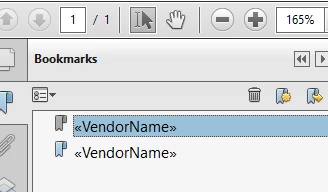
When printing to a PDF from Word the bookmarks are duplicated, this is a new issue and has only been happening for the last few weeks.

I have tried several things to stop this from happening and still yet there they are.

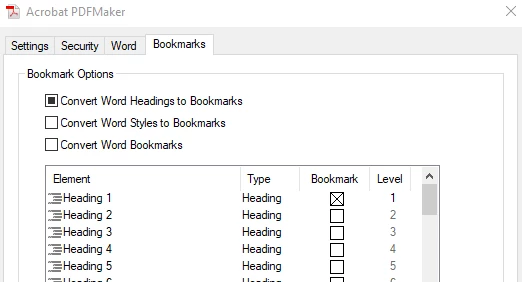
I have set the bookmarks to be only Heading 1 and still the same problem.

I have checked for hidden bookmarks, same problem.
This topic has been closed for replies.
Correct answer helikopeter

I have the same issue lately, even with a newly created document with only headings. Sometimes if I uncheck the "structure tags for accessibility" during export, it will create bookmarks normally but not with more complicated documents. Word had an update in February, so I guess that's what introduced this bug.

4 replies

New Participant
November 27, 2019

None of the solutions presented here worked for me.

I was only able to solve this by installing my old MS Word 7.

New Participant
October 7, 2021

Two years have passed since the last comment. I am on version 2109 for Word and I too have this problem. How has this gone so long without a fix? This thread has one comment marked as an answer, but I think that gives the illusion that this is fixed or there is a workaround when in reality, there isn't.

New Participant
January 5, 2022

I too am on Word 2019.  When I save a 280 page document as a PDF, it duplicates the whole document.  So if I scroll down through the bookmarks, my document restarts though the bookmarks shown are completely different.  What worked for me is similar to what they say, try this... Go to File, then Save As.  Do not go to Save as PDF. Select the folder where you want it saved. When the window opens to save, change the file type to PDF.  You can leave optimization set to Standard.  Then click Options.  For mine, under Include Non-Printing Information, "Create Bookmarks Using" was not selected.  I selected it and left it set to Headings.  Miracle of miracles, this worked like a charm.  Hopefully you've found this out since October.  Worst case, better later than never.  Hope this helps.  

New Participant
April 6, 2019

My thanks to Helikopeter! I finally got my Office updated to build 1903 and that fixed my problem.  Microsoft kept telling me I was on the latest build but when I insisted on getting to build 1903 everything started working properly!

Way to go Helikopeter!!!!!!!!!!!

New Participant
April 2, 2019

I also started getting duplicate bookmarks on or about March 4, 2019! Most of my problem bookmarks are in triplicate!


I have not been able to find a solution to this problem!


I have contacted both Adobe (once) and Microsoft (many times) but have not found a solution.   I believe it has to be a Microsoft problem but they will not accept it as a bug!


My document is now a 689 page book that I have successfully published over 350 times in PDF format from a word document by using 'save as' and selecting pdf format and indicating that I want bookmarks by using headings!


Any help would be greatly appreciated!


[email removed]


New Participant
April 2, 2019

Go to Save As, This PC, Choose save as type PDF, Options, Chose create bookmarks using Headings and you should be good to go.

helikopeterCorrect answer
New Participant
March 11, 2019

I have the same issue lately, even with a newly created document with only headings. Sometimes if I uncheck the "structure tags for accessibility" during export, it will create bookmarks normally but not with more complicated documents. Word had an update in February, so I guess that's what introduced this bug.

New Participant
March 11, 2019

Thank you so much, I was not selecting Save As but was going to File, Save as Adobe PDF and it wasn't giving me all of those options.