


joeh87907460
Inspiring
September 17, 2018
Answered

Dimension doesn't render images as shown.

  • September 17, 2018
  • 1 reply
  • 4930 views

I have been trying to learn dimension. I loaded a dodecahedron .obj file put a different texture on each face of it. Put in a background of the Texas capitol building. This is what it showed in dimension before rendering:
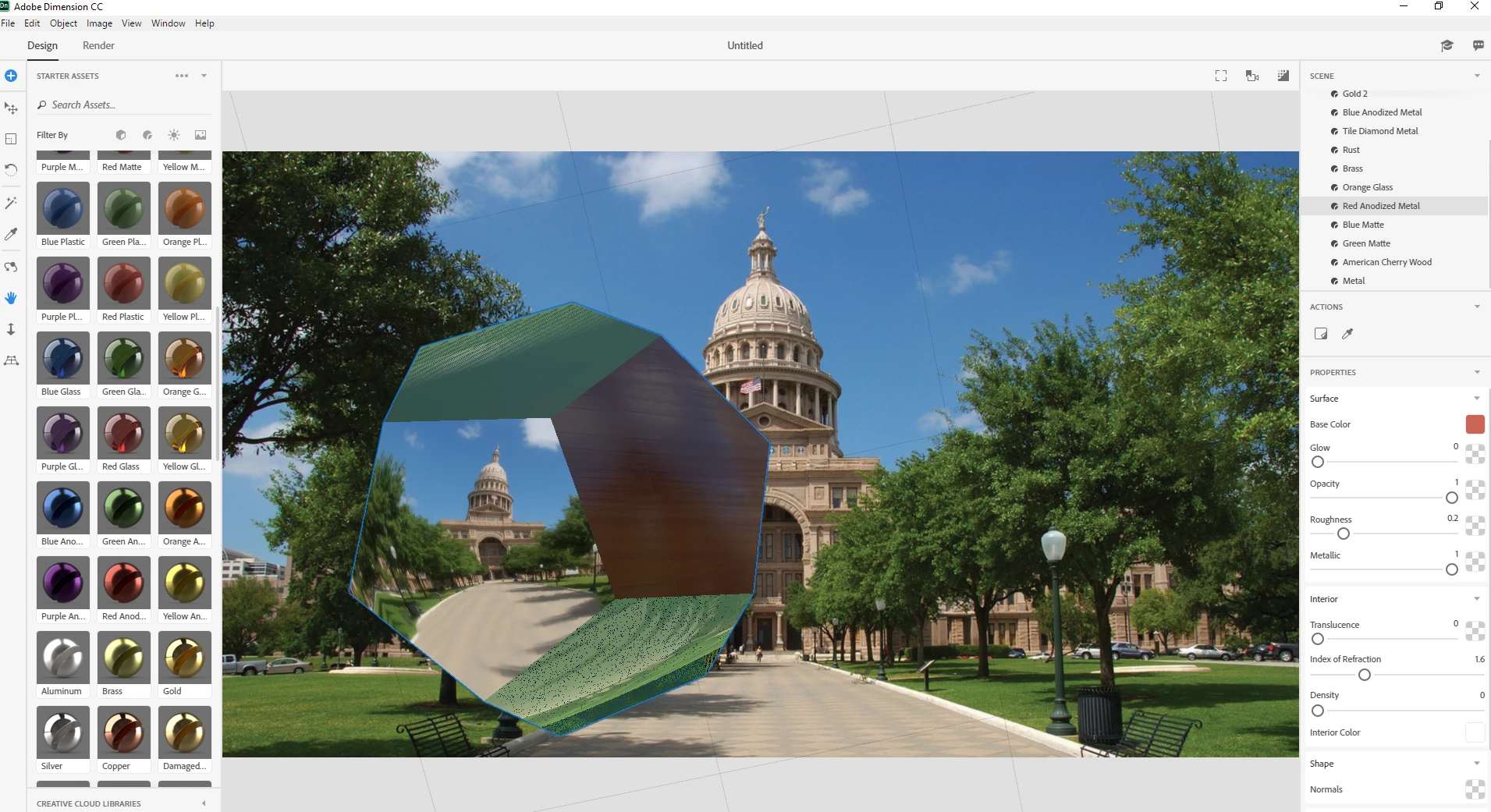
That is what I was expecting it to look like after rendering it to a .png No such luck with that!

I set the render to high, then rendered it. It took 9 minutes and 20 seconds to render with all 8 cores pegged out 100% on a Ryzen 2700X. 16GB of memory, with only 7.9 GB of memory being utilized.  Raised the temp on it too, to 81C... The GTX 1070 with 8GB of memory was hardly utilized, from 2 to 4% occasionally spiking to 14%. And after all that time waiting for it to render, this is what I got:
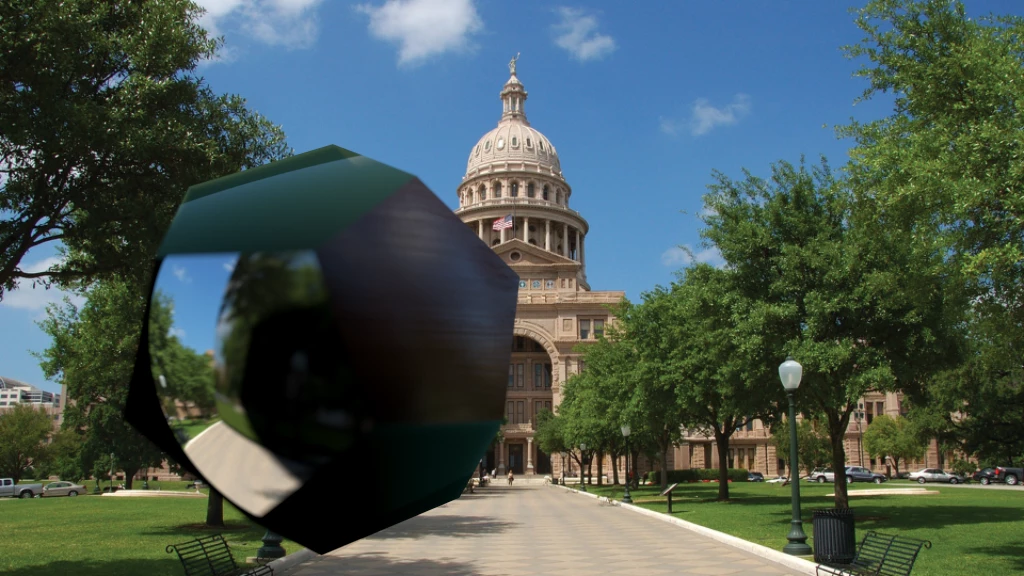
Not hardly what I was expecting. Doesn't look anything like the one in the screenshot above. And to think I waited 9 minutes and 20 seconds for that blurry blob to render... I was expecting it to look EXACTLY like the screenshot above. Can anyone tell me why? Can anyone shed any light on what to do to make it look EXACTLY like the one in the screenshot?

I'd like to fully learn and use this program, but if rendered results are no better than this then I don't think I'd want to waste any more time with it. Please tell me it is capable of better results than this and point me in the right direction!

Thank you,

Joe
This topic has been closed for replies.
Correct answer joeh87907460

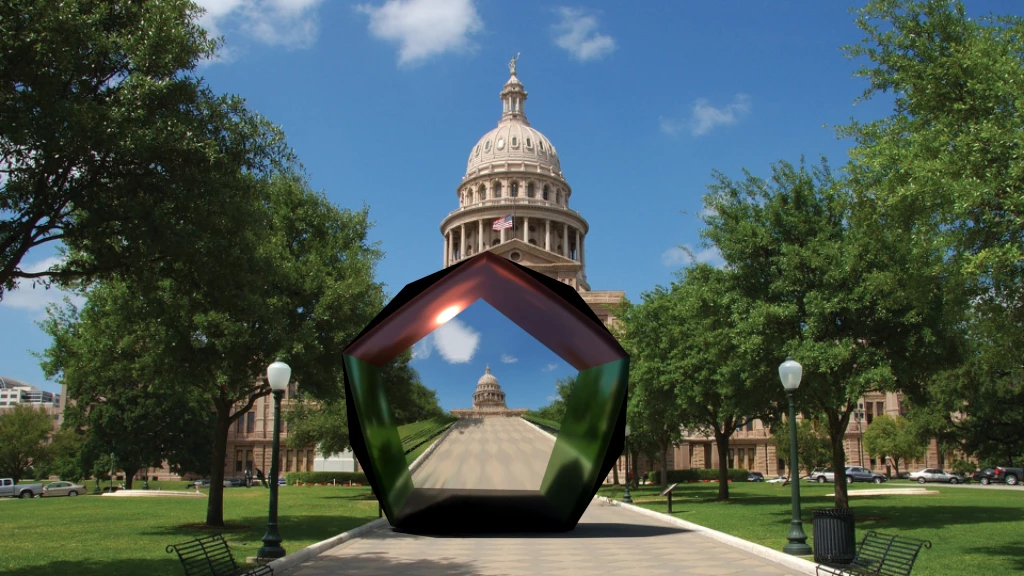
Here is the rendered image. Same file as the first one. The first time I rendered it to png file it took 9 minutes and 20 seconds. This time it took only 1 minute and 11 seconds. Both renders was at the High setting. The only difference is I changed some of the face textures and lowered the blur to 0, then finally figured out that I needed to click the "Match Image" button.

1 reply

JeanetteMathews
Adobe Employee
Adobe Employee
September 17, 2018

Please note that the interactive canvas in Design Mode is a rough preview only and can't show some effects like reflections, focus (depth of field), translucency, etc.  In design mode, I highly recommend turning on the Render Preview window to get an accurate idea of what your image looks like while designing.

It looks to me like maybe your focus setting is too blurry.

  • Turn on the Render Preview window
  • In the Scene panel select the environment
  • In the Properties panel change the focus blur and set focus point

Here's a screenshot illustrating the focus and how it isn't displayed in the main canvas but is in the render preview.

joeh87907460
Inspiring
September 17, 2018

Thank you Jeanette for the reply and tips. I set the blur to 0 and that helped some. But I still can not make it show the same in the render preview as in the design mode. I changed the focus point to several different places with no better results. Here are a couple of screenshots of the test file I'm working on.

Design mode:

Render preview, full size:

How can you make something in design mode and have it render out exactly as it appears in design mode? I understand about it being a rough preview of what your making, but you can see by the comparison of the two screenshots I uploaded that there is a lot more difference between the two than just a rough preview. They look nothing like each other.

Thank you for trying to help! I appreciate it!