eobatycki
Participant
November 30, 2017
Answered

How do I find out the dimensions of a surface?

  • November 30, 2017
  • 3 replies
  • 3920 views

I have limited experience with 3d modeling, I've only done the basics in SketchUp and Photoshop in the past.

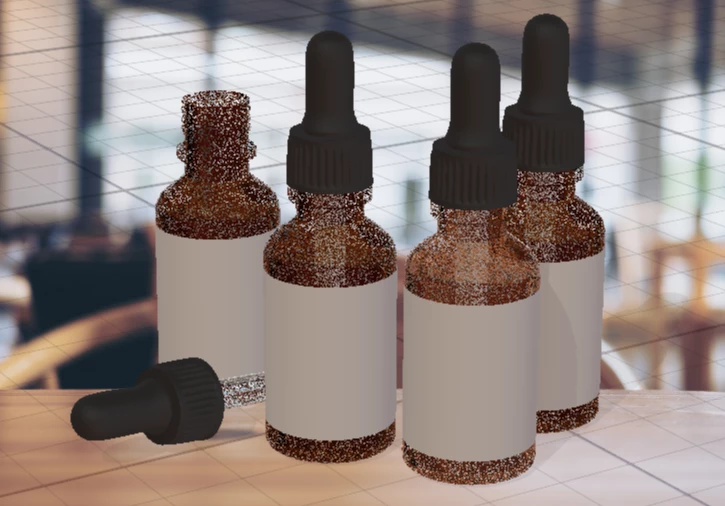
I purchased a dropper bottle 3d model for a rough concept I'm working on. I get that I can just drop an image onto the label (a separate surface layer) and I can scale it, but I want to save my image to the right dimensions to cover the whole label. I'm having trouble finding out what the dimensions of the label are, where do I find that out? I could just guess and keep re-saving the image in different sizes until it fits okay, but I'd rather avoid this practice especially for the future! And ideally I would design it with a bit of a bleed so that it covers the whole label nicely. The tutorials I've seen so far just show dropping a logo on the bottle, but I need to show a little more product information than that

This topic has been closed for replies.
Correct answer JeanetteMathews

This is an interesting topic and something that the team is working on making much easier.  There really isn't a set resolution, only an aspect ratio and it's abstracted in 3D.  3D models are made of polygons (what you see in 3D) and are flatted into 2D layouts (called UVs, similar to dielines for printing).  The UV is what determines the size and layout of the image.  Currently you can't view these in Dimension so there's no way to locally get something the absolute correct size.

  • You can open the OBJ in Photoshop to view the UV guides.  I included some brief steps in this topic on how to do that (Re: Die-cut surfaces possible? )
  • We're working on improving this more directly in our next update.

3 replies

JeanetteMathews
Adobe Employee
JeanetteMathewsCorrect answer
Adobe Employee
January 31, 2018

This is an interesting topic and something that the team is working on making much easier.  There really isn't a set resolution, only an aspect ratio and it's abstracted in 3D.  3D models are made of polygons (what you see in 3D) and are flatted into 2D layouts (called UVs, similar to dielines for printing).  The UV is what determines the size and layout of the image.  Currently you can't view these in Dimension so there's no way to locally get something the absolute correct size.

  • You can open the OBJ in Photoshop to view the UV guides.  I included some brief steps in this topic on how to do that (Re: Die-cut surfaces possible? )
  • We're working on improving this more directly in our next update.
Inspiring
December 1, 2017

Seeing as Dimension only works using ratios as dimensions (daft, but will be sorted I think) you'll be wanting the ratio of you label

'1' will be the height and the length is the circumference of the bottle (Pi)

So set your label artwork the the ratio of 1:3.142 (eg 10 x 31.42mm)

eobatycki
eobatyckiAuthor
Participant
December 1, 2017

You know what, when I was typing out my question I had originally put dimensions / ratio Ratio would be helpful since the 3D model size is determined by the canvas size.

Wouldn't I need to know the diameter of the bottle to get the circumference?

Ussnorway7605025
Legend
December 1, 2017

eobatycki  wrote

Wouldn't I need to know the diameter of the bottle to get the circumference?

no... as long as the X Y and Z have the same values then your bottle will be correct

Ussnorway7605025
Legend
November 30, 2017

the image you use for decal will be whatever dimensions it was when you saved it to your cc library (or where ever you got it)... Adobe Dimension doesn't really use dimensions (sounds weird right) but its the image resolution that matters for decal work