


New Participant
April 16, 2021
Answered

Integrating Adobe PDF Tools with Microsoft Power Automate (CANNOT FIND BASE 64 ENCODED PRIVATE KEY)

  • April 16, 2021
  • 2 replies
  • 8255 views

I reached the free trial quota for the integration which was 1000 uses. I just subscribed with a 5 cent per use charge since I don't have enough time to talk to a sales rep about increasing the quota.


I want to integrate PDF tools with microsoft power automate. I have all credentials such as the client id, client secret, technical account, etc, BUT I do not have the Base-64 encoded Private Key, I NEED this to integrate.
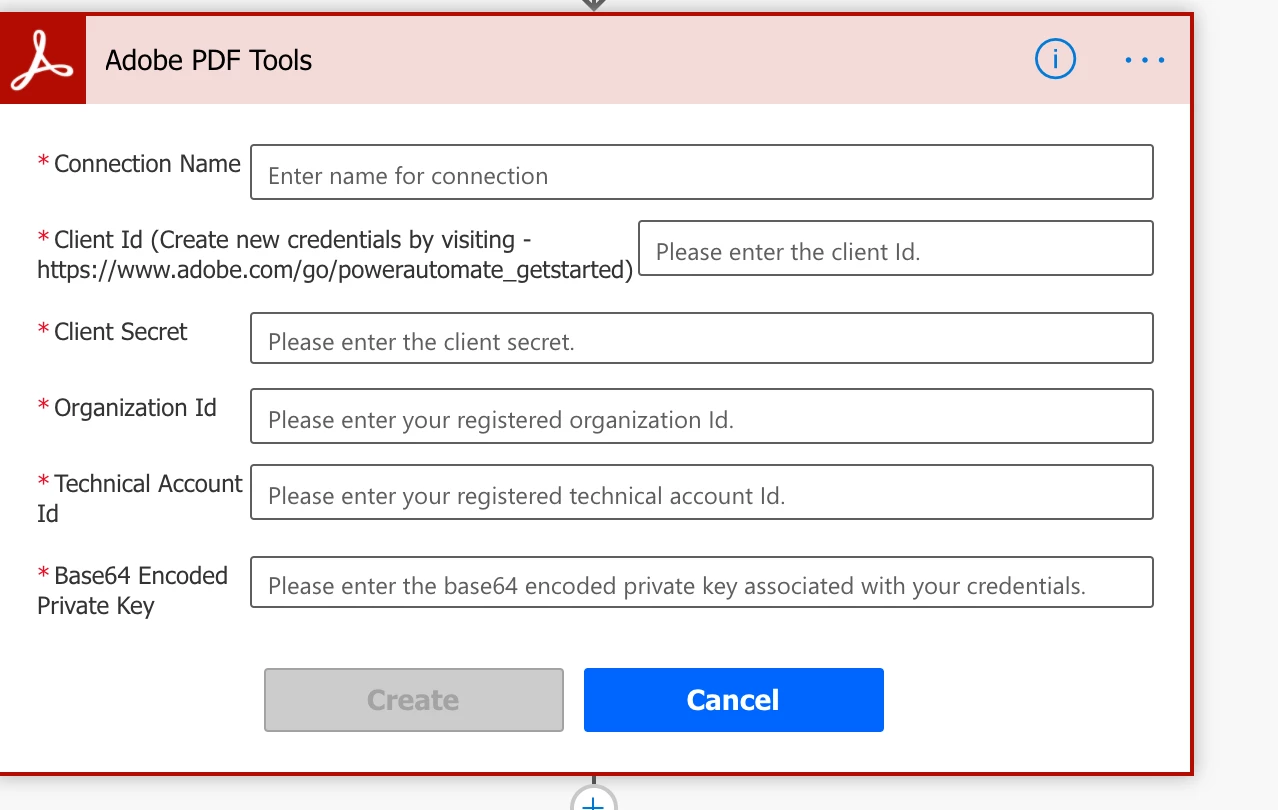
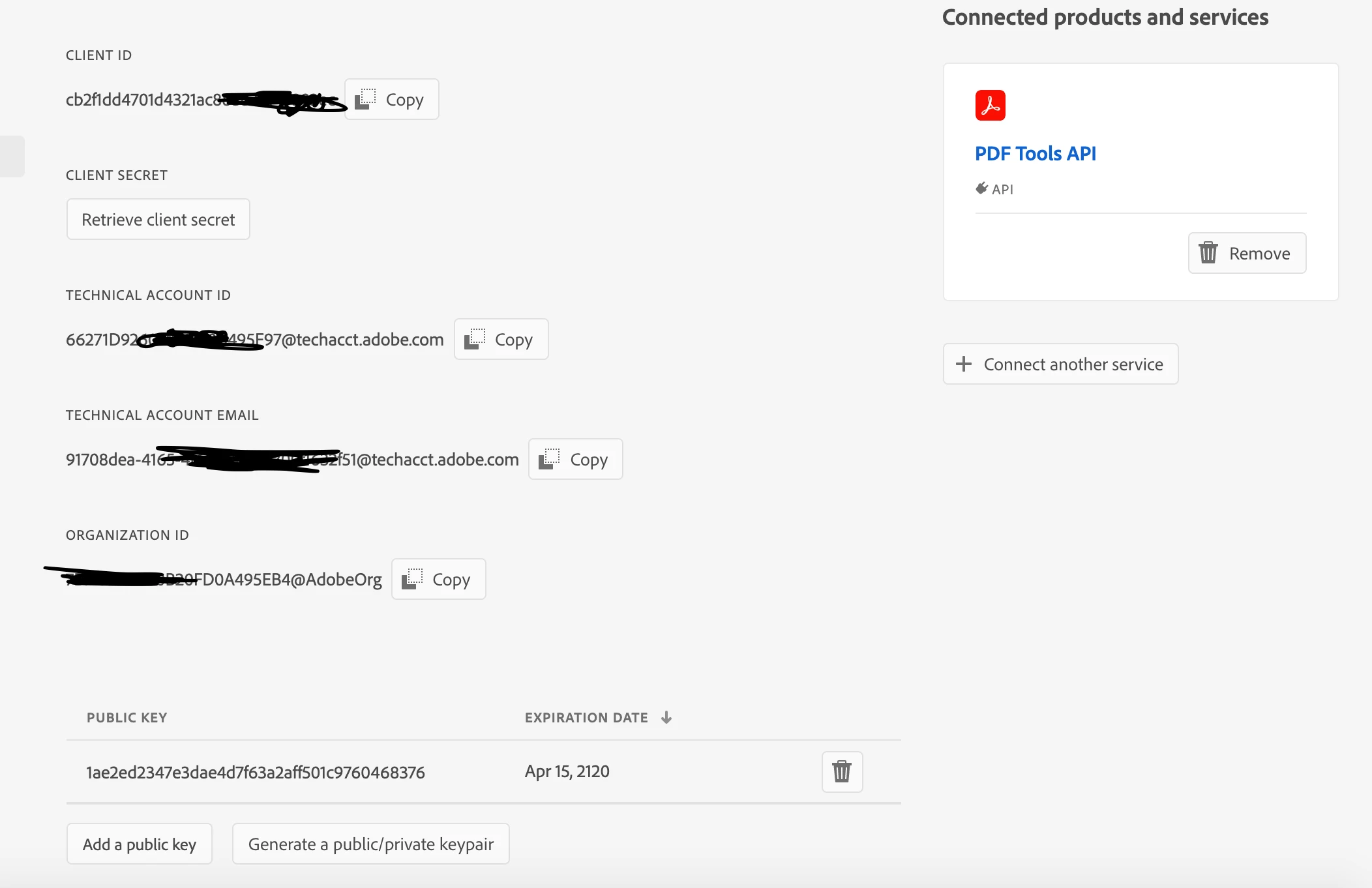
 

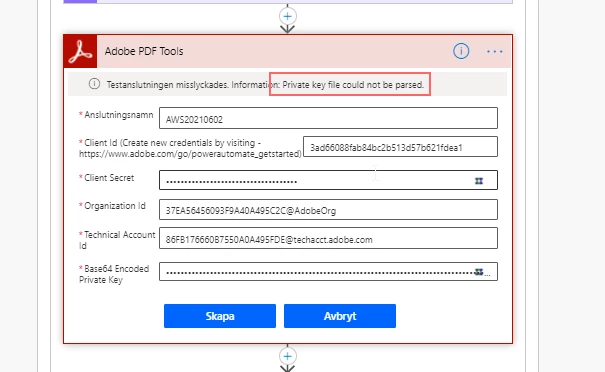
I can copy and past all these things to microsoft power automate.... BUT NO Base 64 encrypted private key. I have a downloaded zip with some info, but it the info in the downloaded zip does not match the info presented on my main projects screen for the specific API. 
This topic has been closed for replies.
Correct answer Phil5C04


Adobe support had a look at this for me.  The fix was to cancel teh AWS subscription, create a new one and try again.  Worked 🙂

2 replies

Ben Vanderberg
Community Manager
Community Manager
May 10, 2021

When you create credentials, it will download a ZIP file with the private.key and the pdftools-api-credentials.json files. If you open both of those in your text editor, you will see the values you need to enter into Power Automate. If you open the Private Key file, copy the entire contents of that file into the Private Key field. That should allow you to authenticate.

New Participant
May 11, 2021

Thanks Ben.  It seems to authenticate ok, just when the Flow runs it times-out.  Almost like the link to the paid AWS subscription is broken.  Setup with another trial to check it was not something in Flow, new trial worked fine.

Might go back to drawing board and register for a new AWS subscription and try again.

Shame as the process works very well.

Joel Geraci
Community Expert
April 16, 2021

In the Manage Connections settings of Power Automate, edit your connection.


When the dialog first opens, the Client Secret and Base64 Encoded Private Key will be empty.

Click in one of the fields. You'll be prompted to enter your password and then both fields will populate.

Click into a field again to expose the actual value. 

Ben Vanderberg
Community Manager
Community Manager
April 18, 2021

If you use this URL to create your PDF Tools key using this link, it will provide your key in Base64. Otherwise, if you create it from Adobe.io, you will have to encode your private key you downloaded and convert it to base64.