


Inspiring
Oct 12, 2019 6:43 PM UTC
Answered

Can't seem to install any Application - Need IT Admin Permission Mac

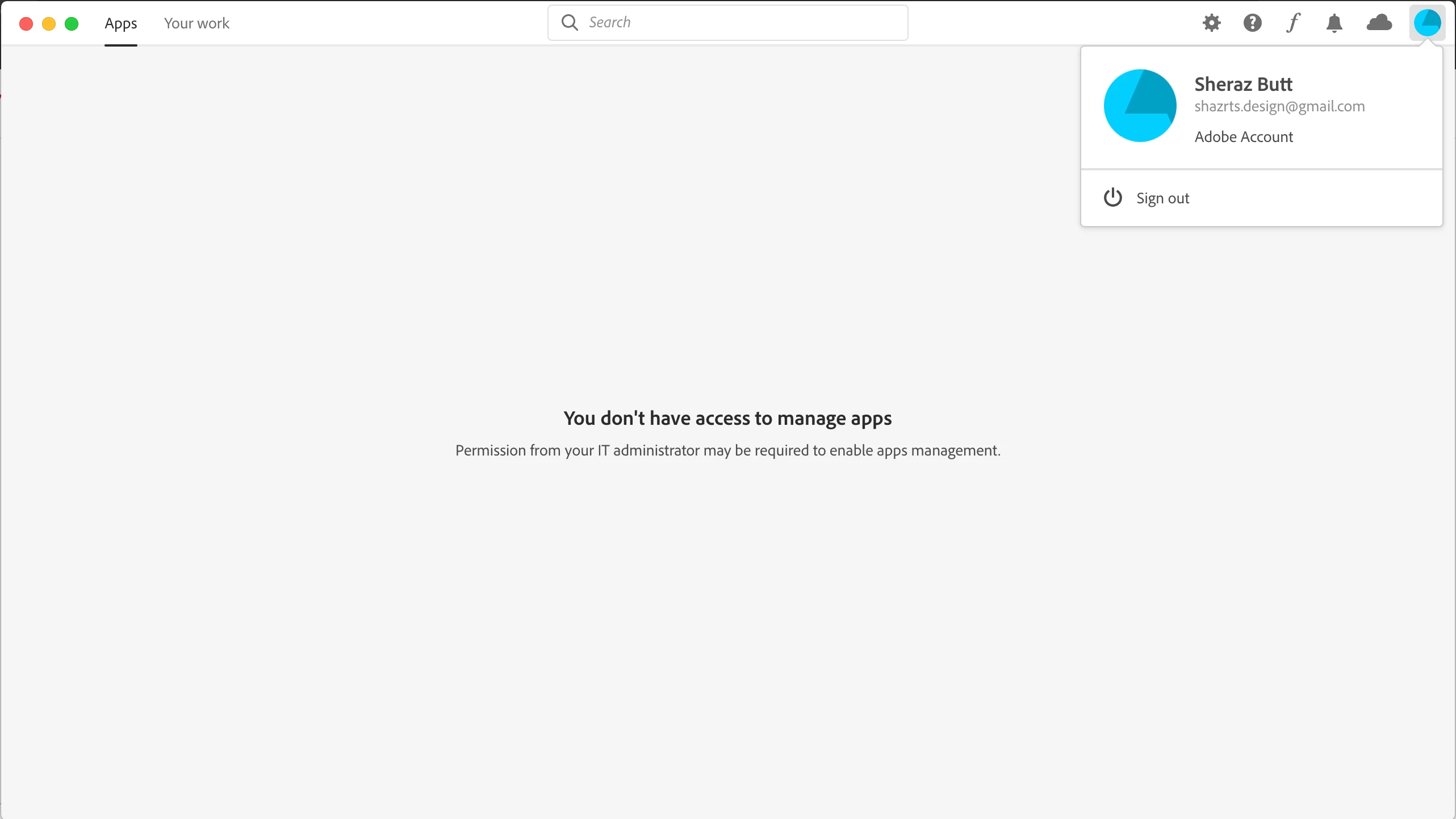
I need to install Adobe XD but the creative cloud desktop app won't let me install because apparently I don't have the access to manage applications. This is so weird because this is my personal laptop. How can I not have the access on my own laptop. The error further states "Permission from your IT Administrator may be required to enable app management".

Attaching the screenshot for proof. Please help me asap as I have a project pending and the deadline is approaching me like a rocket at this stage. Thanks !!

UPDATED

FOUND THE SOLUTION. THANKS TO ADOBE CUSTOMER SUPPORT TEAM

First of all you need to close all adobe processes from activity monitor and also ensure that creative cloud application is closed.

After closing processes, you need the access the following file if you are using macOS. 
/Library/Application Support/Adobe/OOBE/Configs/Serviceconfig.xml

Open it and then change values "false" to "true" and then save the file. 

Now you will be able to install apps from creative cloud application.
ShazrtsCorrect answer
Inspiring
Oct 15, 2019 8:54 PM UTC

FOUND THE SOLUTION. THANKS TO ADOBE CUSTOMER SUPPORT TEAM

First of all you need to close all adobe processes from activity monitor and also ensure that creative cloud application is closed.

After closing processes, you need the access the following file if you are using macOS. 
/Library/Application Support/Adobe/OOBE/Configs/Serviceconfig.xml

Open it and then change values "false" to "true" and then save the file. 

Now you will be able to install apps from creative cloud application.


28 replies

Participant
Sep 22, 2024 10:48 AM UTC

and if i am using win on pc?


Translate
kglad
Community Expert
Community Expert
Sep 22, 2024 2:00 PM UTC

@anat_0093 


Windows: C:\Users\<user name>\AppData\Local\Adobe\OOBE
NOTE: C:\Users\<user name>\AppData is hidden by default. To unhide see bottom of https://helpx.adobe.com/creative-cloud/kb/unknown-server-error-launching-cc.html for info on unhidding

Translate
Participant
May 26, 2022 12:29 AM UTC

I got through to OOBE but then when I opened it there wasn't Configs. just TextEdit. How do I fix that? 

Translate
Participant
Nov 12, 2021 5:12 PM UTC

But how about in laptop? "You may need to request permission from your IT administrator to use this app or service"

Translate
Participant
Aug 11, 2021 8:28 AM UTC

i cant find the configs and i set the mac finder yet notjing shows

Translate
Participant
May 30, 2021 1:11 PM UTC

i could not find the config folder in my mac 


Translate
Nancy OShea
Community Expert
Community Expert
May 30, 2021 7:04 PM UTC

I believe it's hidden by default.  Set Mac Finder to show hidden files/folders.


Translate
Nancy O'Shea— Product User & Community Expert
Participant
Aug 17, 2020 7:43 PM UTC

Thanks for sharing this. Just a quick note that you may have to sign out and sign back in to get the apps to appear.

I also find it very frustrating that we have to do things like this to use Creative Cloud and hope that this is fixed in the future.

Translate
Participant
Apr 28, 2020 1:13 PM UTC

I am having the same issue.


Tried fixing it the aforementioned way, however I cant edit the config file as I keep getting the error message that I dont have permission to edit it.


Did you have similar problems?

Translate
Nancy OShea
Community Expert
Community Expert
Apr 28, 2020 6:01 PM UTC

Hi abraham.zsolt,

Are you a Teams / Enterprise member?  Contact your IT dept for assistance.


Individual members need a computer user profile with Administrative level permissions.   If you don't know what that means, Google "file permissions on _______ (your operating system)."


Translate
Nancy O'Shea— Product User & Community Expert
ShazrtsAuthorCorrect answer
Inspiring
Oct 15, 2019 8:54 PM UTC

FOUND THE SOLUTION. THANKS TO ADOBE CUSTOMER SUPPORT TEAM

First of all you need to close all adobe processes from activity monitor and also ensure that creative cloud application is closed.

After closing processes, you need the access the following file if you are using macOS. 
/Library/Application Support/Adobe/OOBE/Configs/Serviceconfig.xml

Open it and then change values "false" to "true" and then save the file. 

Now you will be able to install apps from creative cloud application.


Translate
Participant
Nov 19, 2019 11:13 AM UTC

I tried this solution but my computer says I don't have permission to edit the file... what should I do now? How could I edit the file?

Translate
Tacafy大尉
Legend
Oct 13, 2019 2:57 PM UTC

Shazrts, good evening.
I also have a Creative Cloud for Teams account, so I tried to log in but I can see Apps as usual.
It may not be due to your Teams account because you may have a new email address registered.

Uninstall it once with this procedure (you can also delete Adobe-related files that can not be deleted with a normal uninstaller) and then install again, or if it does not improve, create a separate administrator account for mac. I'd like to try it out.

Use the Creative Cloud Cleaner Tool to solve installation issues

Translate
Participating Frequently
Oct 12, 2019 9:04 PM UTC

Your screenshot actually looks like something that would pop up from a Teams or Enterprise Adobe account. So, even though you may be on a personal laptop, your account may need those priviledges because of the type of account it is.

Translate
ShazrtsAuthor
Inspiring
Oct 13, 2019 7:39 AM UTC
I have never used a teams or enterprise adobe account. Quite weird !!
Translate