Egan Solo
Inspiring
April 13, 2015
Answered

FrameMaker typesetting versus Word Typesetting

  • April 13, 2015
  • 2 replies
  • 1250 views

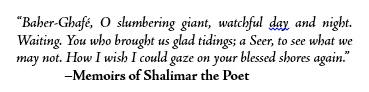
I am using FrameMaker 12.0 with Adobe Jenson family of fonts. I am moving a high fantasy novel from Word over to FrameMaker. Currently, the typesetting in word seems tighter than in FM. Please look at these two images:
Here is the same text in FrameMaker:

While FM does a better job in spacing the first line, it seems to me that Word does a better job for the next two lines. In particular, Word manages to keep the text in 3 lines where FM needed 4. Also, the "Bold" in the author portion of that text in Word appears bolder than in FM.

Due to these differences, the first chapter of the novel requires one more page in FM than in word...

Any pointers on how to control, improve typesetting in FM?

Thanks,
This topic has been closed for replies.
Correct answer Arnis Gubins

Hi Arnis,

  First of all, thank you so much for putting up with me! This goes to show how much of a beginner I am when it comes to using FM!

  Alright: here are the answers to your questions:

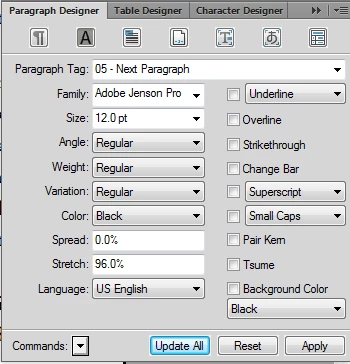
1. Font tab:

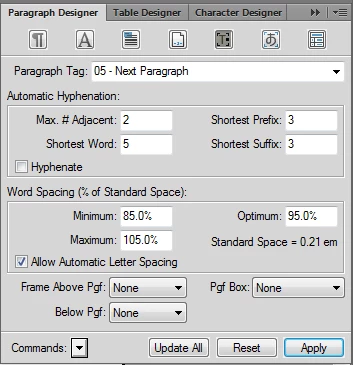
2: Advanced tab:

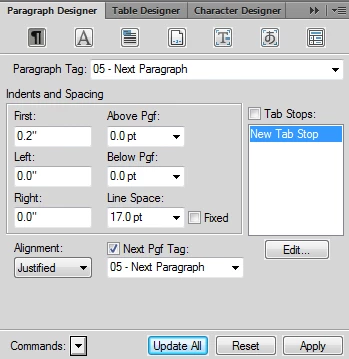
3: para tab (just in case):

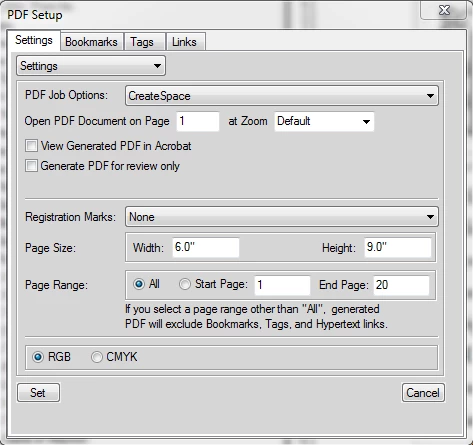
4: pdf options:


Try clearing out the tweaks that you've done:

Font tab:

Set Stretch back to 100% (this is actually distorting the individual letter forms)

Enable Pair Kern

Advanced tab:

Turn OFF the "Allow Automatic Letter Spacing"

Set Optimum Spacing to 100%

Give yourself some more flexibility in the word spacings: Min 60-65% ; Max: 115-125%

The "CreateSpace" joboption is a custom one, so you need to ensure that the Font options specify that all fonts are to be embedded and to "Cancel job" if embedding fails.

2 replies

Inspiring
April 13, 2015

Don't forget also that both Word and FrameMaker base their displays on

the selected print driver. So if you've got your desktop laser printer

selected for Word and Adobe PDF selected for FM, onscreen formatting,

line breaks, etc. are likely to come out slightly different. Even

changing your default printer in FM from Adobe PDF to HP LaserJet can

change the line breaks in your document, without any font changes.

And a 96 ppi monitor cannot display anything as accurately as an output

device that prints at 300 or even 2540 dpi. So, even with kerning turned

on, the on-screen spacing of words and characters is not going to be

exactly the same as your final output-- though the line breaks should be

the same.

FrameMaker even has a setting in maker.ini which can change the way

characters display on screen:

DisplayUsingPrinterMetrics=On

When set to On, FM tries to get character spacing and line length close

to what will actually print, with a trade-off that text is very slightly

less clear. When set to Off, FM tries to make the characters clearer on

screen (by fitting them better to the pixels), and gives less attention

to spacing. So appearance of spacing between characters and accuracy of

the line length become less trustworthy. Characters may bump against

each other and, if I recall correctly, setting to Off may even make

lines in justified text appear not to justify-- even extending past the

right border. Everything will print properly kerned and justified,

though. The printer's metrics will alwyas be used for printing,

regardless of this setting in maker.ini. The setting is only a choice

for on-screen viewing.

Arnis Gubins
Inspiring
April 13, 2015

Just adding to Mike's comments, the default setting for FM12 is to have the DisplayUsingPrinterMetrics set to ON (so you shouldn't have to fiddle with this component). But all else should be kept in mind and that's also why it's recommended to always have the AdobePDF printer instance as your default printer for any FM session. There is a (freebie) utility from Sundorne Commications that will automatically do this for you. See: Sundorne Communications - SetPrint

Egan Solo
Egan SoloAuthor
Inspiring
April 14, 2015

Mike and Arnis:

Thank you very much for your advice. My printer for FM is set to the Adobe pdf printer. I spent several hours fiddling with the spread and the distance between words parameters. I have managed to get a pdf from FM that is truly close to the one I produced with Word, with a couple of exception. I'll showcase one of them in the hope you guys might be able to shed some insight.

Here are two fragments from my book. The first one is from FM and the second from word (I do mean output)... please take a close look at the double lls in the fragments. The first fragment is produced by FM. See how the double "lls" in the words "medallion," "small," and "metallic" are spread apart?

Here is the same fragment (shorter version) from the pdf from word:

Much more pleasing to the eye, don't you think? I am not sure why FM is not kerning the lls properly.

Be that as it may, is there a tip you might be able to provide me to fix this? I thought of creating a special character tag with spread set to -10% and apply it to the first "l" in each doublet but that's a manual process which is error prone and tedious. I couldn't figure out how to do this using the Find and Replace tool. I tried to use regexp to search for (l)l in the hope that FM will pick up on the proper parametric search and pick only the first "l" but this did not work. I am a bit stumped here...

Thanks,

Arnis Gubins
Inspiring
April 13, 2015

Do you have kerning (Pair Kern) turned on in the paratag Default Font section? Have you changed the defaults on the Advanced tab for Word Spacing controls?