Amitoj, thank you for the clarification.
I have understood:
1. I may define with Distiller a certain job option and yes this job option is shown as preset in the PDF related STS settings in FrameMaker. My tests show: I'll have to use the option "add PDF settings" in Distiller so that the job option is shown in FM PDF settings dialog.
2. FM uses standard, compatibility and image settings from the defined job option.
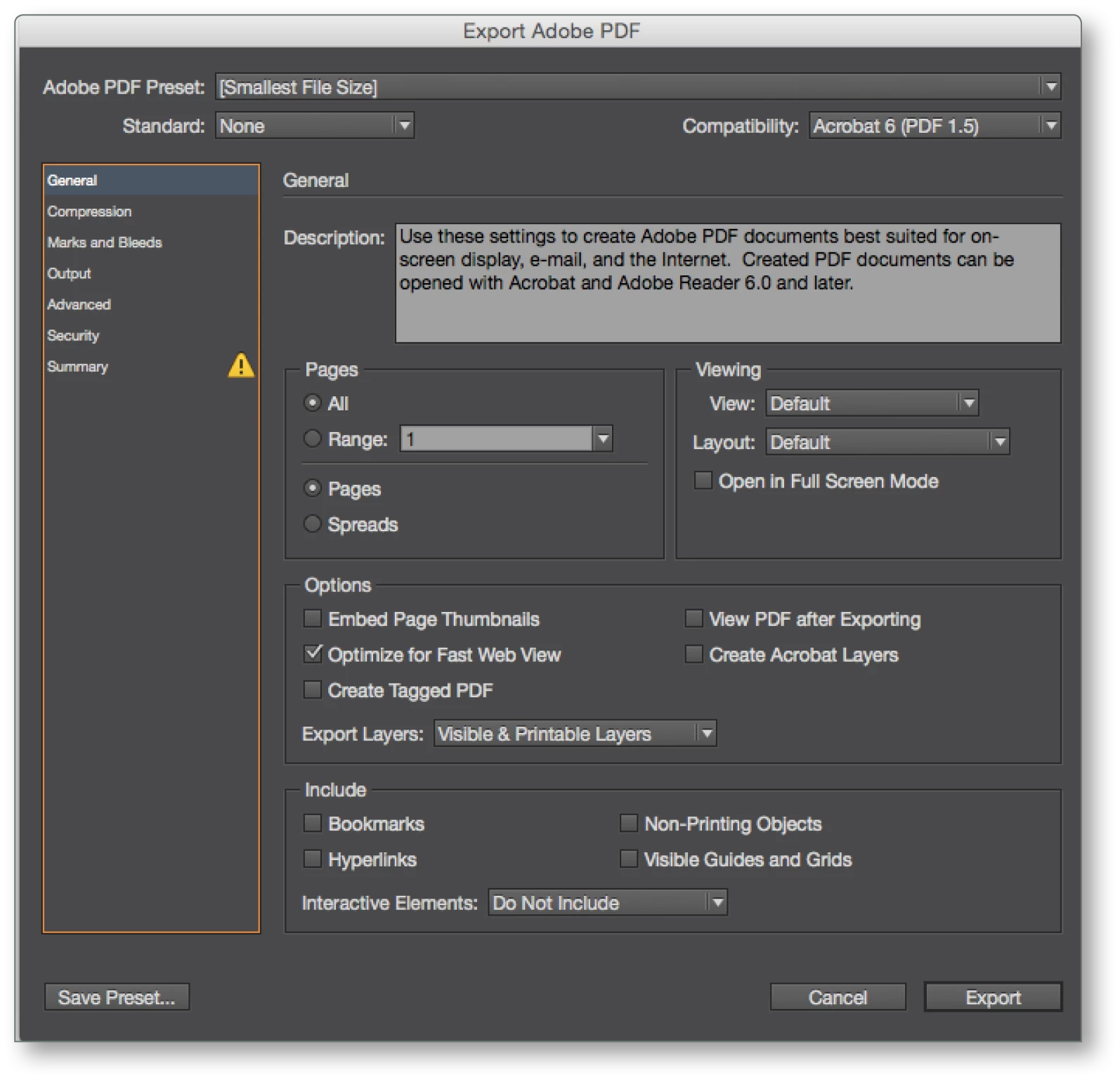
That's o.k. but I don't understand why you didn't implement a dialog similar to the one in InDesign for editing the PDF settings.
3. This dialog would make the process much clearer.
Only to show presets without explaining how to change them and not to explain what kind of values are taken from the (Distiller) job option makes the process quite unclear.
"For color space we have by default enabled to use AS-IS and not force fit and convert to a particular color profile."
And this is what I don't understand: this would be the best solution only if I could define my different color models in FrameMaker. But FrameMaker uses internally CMYK values only for colored FM objects. So we need a new color model in FrameMaker: that's what I expect from a professional software: my color model and my profile should be kept or converted under my control and yes typically "left unchanged" in the PDF and for me RGB is, of course, the most important color model.
But as we need a CMYK2RGB conversion for FM colors in the converted PDF this is missing in the new process. You already explained you will change that in the next update. But the resulting RGB color values must remain the same as defined as RGB values in FrameMaker. As FrameMaker uses CMYK values only we need the same - technically may be wrong - mapping between CMYK and RGB as shown in FrameMaker and not  as shown in InDesign.
Hi Dieter,
Even though it may not be shown as you see RGB/CMYK value as InDesign but it works in the same way. In InDesign you define the default color space for document itself. For now, if you would like to generate RGB pdf, you could check the distiller option which will generate RGB pdf. We do plan to have this addressed in the upcoming update (few weeks away).
Thanks
Amitoj Singh



 AdChoices