Inspiring
August 24, 2018
Answered

How can I create an RGB PDF in FrameMaker 2019?

  • August 24, 2018
  • 2 replies
  • 3100 views

In FM 2017 there was an option to choose RGB or CMYK in the PDF Settings. I can't find this setting in FM 2019 and my documents appear to be output as CMYK as the colours no longer look correct. The same file output as PDF from FM2017 with the option set to RGB looks correct in terms of the colour space.

This topic has been closed for replies.
Correct answer Amitoj

Amitoj, thank you for the clarification.

I have understood:

1. I may define with Distiller a certain job option and yes this job option is shown as preset in the PDF related STS settings in FrameMaker. My tests show: I'll have to use the option "add PDF settings" in Distiller so that the job option is shown in FM PDF settings dialog.

2. FM uses standard, compatibility and image settings from the defined job option.

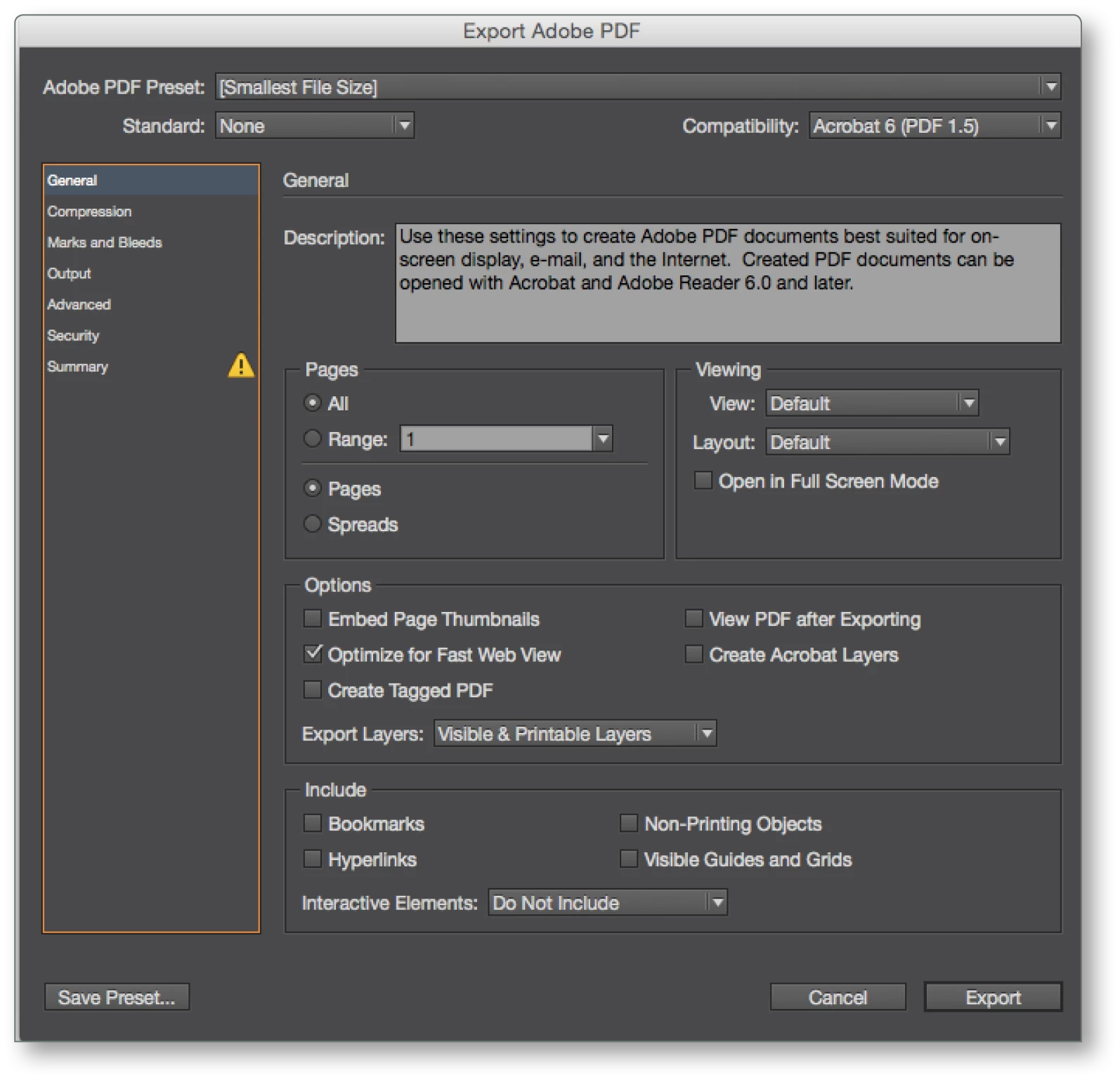
That's o.k. but I don't understand why you didn't implement a dialog similar to the one in InDesign for editing the PDF settings.

3. This dialog would make the process much clearer.
Only to show presets without explaining how to change them and not to explain what kind of values are taken from the (Distiller) job option makes the process quite unclear.
"For color space we have by default enabled to use AS-IS and not force fit and convert to a particular color profile."

And this is what I don't understand: this would be the best solution only if I could define my different color models in FrameMaker. But FrameMaker uses internally CMYK values only for colored FM objects. So we need a new color model in FrameMaker: that's what I expect from a professional software: my color model and my profile should be kept or converted under my control and yes typically "left unchanged" in the PDF and for me RGB is, of course, the most important color model. 

But as we need a CMYK2RGB conversion for FM colors in the converted PDF this is missing  in the new process. You already explained you will change that in the next update. But the resulting RGB color values must remain the same as defined as RGB values in FrameMaker. As FrameMaker uses CMYK values only we need the same  -  technically may be wrong - mapping between CMYK and RGB as shown in FrameMaker and not as shown in InDesign.


Hi Dieter,

Even though it may not be shown as you see RGB/CMYK value as InDesign but it works in the same way. In InDesign you define the default color space for document itself. For now, if you would like to generate RGB pdf, you could check the distiller option which will generate RGB pdf. We do plan to have this addressed in the upcoming update (few weeks away).

Thanks

Amitoj Singh

2 replies

Inspiring
October 8, 2018

The latest update to FM 15.0.1.430 adds an 'RGB' option to the PDF options in the publish pod - this appears to work correctly so I am now able to use the internal PDF engine.

Thanks!

Bob.

Arnis Gubins
Inspiring
August 24, 2018

If you are using the Publish pod route for PDF, then this directly writes to PDF using the colour as defined in the colour menu. If you want RGB colours, then you must define the colours in RGB.

If you print to the PDF printer instance, then this still follows the old postscript output & distill route, which should create RGB from CMYK colours depending upon your joboptions file settings.

Inspiring
August 24, 2018

I have checked the definition of the colours in the Views > Color > Definitions menu and even created new colours using the RGB model but it still appears to be converting them to CMYK when I export the PDF using the Publish pod.

Setting the 'Primary Output Purpose' in the PDF output settings between Print and Online doesn't make any difference either - the PDF always has CMYK colours it seems.

Is there another 'document color mode' menu or setting somewhere I have missed?

Participating Frequently
September 4, 2018

Hi Dieter

Just to share more details here. I responded on the other forum where you had posted similar question.

a) The PDF output let you define so-called PDF presets. These should be the same as the Distiller job options, otherwise, I don't see any sense in these names. The documentation doesn't explain what these presets really do, this is another showstopper.

do you mean these presets that are defined here

these are same presets whose values are read and used. Currently we are using standard, compatability and image settings. For color space we have by default enabled to use AS-IS and not force fit and convert to a particular color profile.

b) These presets should define if a color is left unchanged or converted to another color space.

Sure, by color do you mean text/polygon color or you mean image colors. For images, we take them as-is. the EPS issue is being fixed and would be available in an update very soon (few weeks away). For text/polygon, we will add an option because at times user may want to use either RGB or CMYK. Should be available in update 1.

c) Save as PDF uses the current setting in PDF output options (as far as I understand)

In lnDesign, you can edit these presets. I thought for FrameMaker you add and edit these presets as Distiller settings even if you don't use Distiller, otherwise once again I don't understand at all what these presets are good for.

there are many values in the job option and i dont think that all the value pairs from job options are taken in the indesign pdf generation workflow. Similarly in case of FrameMaker, we have many more pdf setting values that we use so we are saving those in sts. What we picking from job option are standard, compatibility and image settings.

c) But obviously, PDF conversion in FM 2019 seems not to be influenced by the presets and the option Primary Output Purpose (online or print) - online sets the following: Page Size values are not relevant and are not made available for editing (you only regonize this because units for page size are greyed out with option online.

So the pdf conversions settings seem to be completely unclear in FM 2019 and not documented!

d) CMYK-EPs files are always converted to sRGB by the new PDF conversion process.

We are working an update for some of these (including option to choose location where to Save PDF via Save as PDF option). Should be out in a few weeks.

Thanks

Amitoj Singh


Amitoj, thank you for the clarification.

I have understood:

1. I may define with Distiller a certain job option and yes this job option is shown as preset in the PDF related STS settings in FrameMaker. My tests show: I'll have to use the option "add PDF settings" in Distiller so that the job option is shown in FM PDF settings dialog.

2. FM uses standard, compatibility and image settings from the defined job option.

That's o.k. but I don't understand why you didn't implement a dialog similar to the one in InDesign for editing the PDF settings.

3. This dialog would make the process much clearer.
Only to show presets without explaining how to change them and not to explain what kind of values are taken from the (Distiller) job option makes the process quite unclear.

"For color space we have by default enabled to use AS-IS and not force fit and convert to a particular color profile."

And this is what I don't understand: this would be the best solution only if I could define my different color models in FrameMaker. But FrameMaker uses internally CMYK values only for colored FM objects. So we need a new color model in FrameMaker: that's what I expect from a professional software: my color model and my profile should be kept or converted under my control and yes typically "left unchanged" in the PDF and for me RGB is, of course, the most important color model. 

But as we need a CMYK2RGB conversion for FM colors in the converted PDF this is missing  in the new process. You already explained you will change that in the next update. But the resulting RGB color values must remain the same as defined as RGB values in FrameMaker. As FrameMaker uses CMYK values only we need the same  -  technically may be wrong - mapping between CMYK and RGB as shown in FrameMaker and not as shown in InDesign.

