Known Participant
October 25, 2023
Answered

How to delete all blank pages from Adobe Frame Maker Book?

  • October 25, 2023
  • 4 replies
  • 694 views

How to delete all blank pages from Adobe Frame Maker Book. While saving the book, I noticed that there are several unecessary blank pages in the book . Please guide to supress those blank pages.  

    This topic has been closed for replies.
    Correct answer Barb Binder

    Hi Amit:


    Select the files you want to modify in the book window (it might be the entire book, but it also might just be the second and subsequent chapters), then, right, click and choose pagination and set it up as follows and the update your book. 
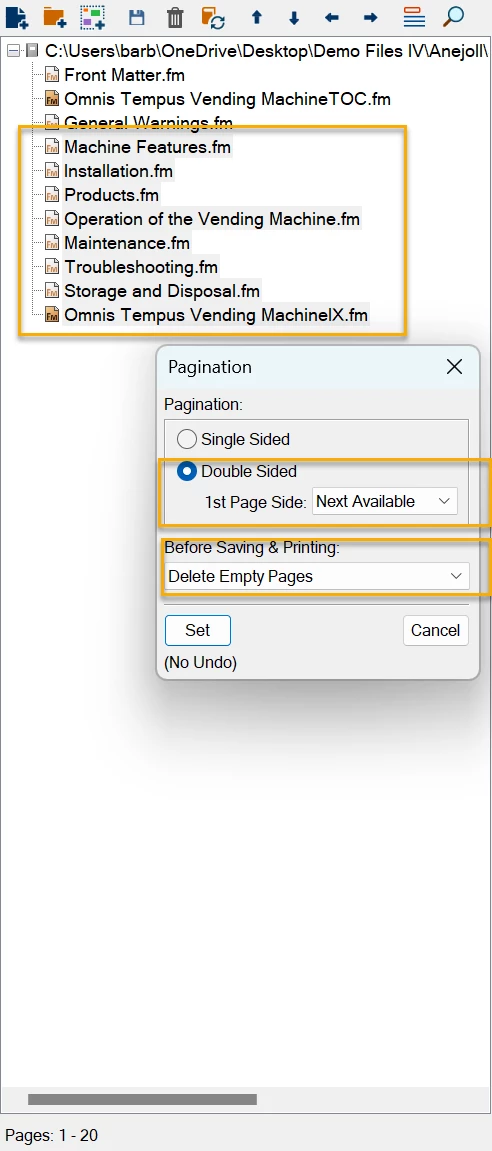


    But then you need to check your master pages. If you're using a custom first master page (likely designed for a right page), you need to make sure that you assign a custom left master page to the chapters that begin on a left page or your page numbers are going to be on the wrong side when you output your book. 


    ~Barb

    4 replies

    Barb Binder
    Barb BinderCorrect answer
    Adobe Expert
    October 26, 2023

    Hi Amit:


    Select the files you want to modify in the book window (it might be the entire book, but it also might just be the second and subsequent chapters), then, right, click and choose pagination and set it up as follows and the update your book. 


    But then you need to check your master pages. If you're using a custom first master page (likely designed for a right page), you need to make sure that you assign a custom left master page to the chapters that begin on a left page or your page numbers are going to be on the wrong side when you output your book. 


    ~Barb

    Known Participant
    October 28, 2023

    Thank you very much Barb! This worked.

    Barb Binder
    Adobe Expert
    October 25, 2023

    Hi Amit:


    When you set up your book, you decide if you want chapters to begin on the next available page, or the next right page (or next left page, though this one is rarely selected). 


    If your book is set to have each chapter begin on the next right page, and if the previous chapter ends on the right page, FrameMaker, it will automatically add a blank left page to make sure that this works. In publishing, right pages are always odd page numbers, and left pages are always even numbers.


    For example:


    Chapter 1 is 10 pages. 

    Chapter 2 is set to begin on the next right page: it will begin on page 11. 


    but if

    Chapter 1 is 9 pages.

    Chapter 2 is set to begin on the next right page: it will begin on page 11 and Fm will add a blank page 10 to the end of chapter 1 so that it can.


    Most books are set up this way, but I have one client that is very concerned about the page count, and in that particular job, I set up each chapter to begin on the next available page.


    Chapter 1 is 9 pages.

    Chapter 2 is set to begin on the next available page: it will begin on page 10 and will be a left page. 


    ~Barb

    Bob_Niland
    Adobe Expert
    October 25, 2023

    There's also the question of why the blanks are seen as a problem. For print workflow, sheets of paper always have two sides, so even if all of the above are turned off, odds are 50:50 that the final interior page of any random book will be blank.

    In my work, I tend to embrace the issue rather than fight it, and use an AMP tweak that causes no-content pages to sport:
    No Further Content For This Page

    at page center, with page# & header-footer content left visible.

    Bob_Niland
    Adobe Expert
    October 25, 2023

    If any component .fm file is in double-sided mode, but only has content for an odd number of pages, its trailing blank page cannot be removed.

    Paragraph Format Pagination properties specifying Start [Top of L/R page] can also cause a preceding blank page that cannot be removed.

    Be sure to View ▼ Text Symbols & Borders to verify that any blank page really is blank.


    As a hack, blank pages can be removed in a PDF editor later in the workflow, but this is less than optimal stewardship.

    Inspiring
    October 25, 2023

    Are these pages all at the end of chapters or also in the middle of chapters?

    Known Participant
    October 25, 2023

    End of the chapter.
