



How to scroll the CSS Rule definition pop-up window?
Hi All,
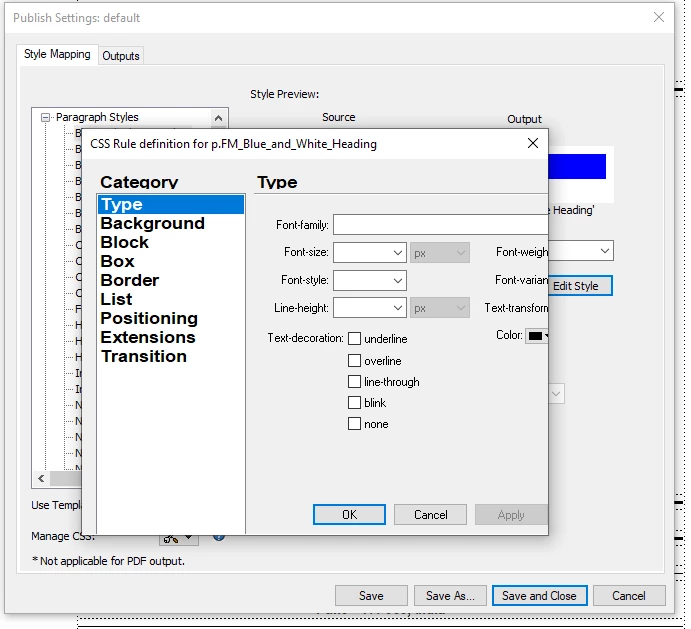
I want to change the settings of CSS rule definition file for Framemaker 2019. This command is located here: Publish > Responsive HTML5 > Setting File > Edit > Style Mapping > Paragraph Style > [select paragraph style to edit] > Edit Style. Clicking the Edit Style button displays a pop-up window "CSS Rule definition for p.FM_[name of the selected paragraph style]." Please see the attached screenshot.
- How do I scroll on the right for viewing and editing the various settings?
- Am I correct in understanding that the effect of the changes in .CSS file can be seen only after the HTML5 output is created? Is there an easier and more direct way to edit the CSS file and view the result?
FM2019 installed on another computer shows scroll bars to view the complete CSS rule definition pop-up window.
I am running Win 10 with the latest updates and a fresh FM 2019 installation of version 15.0.0.393. I normally have 125% scale for fonts (old age approaches...) in Windows 10 settings. I have tried with the default 100% font size setting, but the CSS rule definition pop-up window does not allow scrolling to view the complete area.
Please suggest how I can scroll/view the complete window for setting CSS rule definition.
Thanks in advance for your help,
Regards,
Apurva
 AdChoices