spencer_rugaber
Participant
June 21, 2016
Answered

Page Numbering and Table of Contents

  • June 21, 2016
  • 3 replies
  • 5088 views

I have a Book containing 23 document files. The document files contain page numbers in the footers.

One of the document files is a generated table of contents (TOC). Unfortunately, the generated page

numbers in the TOC do not match the page numbers in the files. Here are the particulars:

  • The title page, in a file by itself, is unnumbered
  • The frontmatter, spread across five files uses lower-case roman (i-xvi)
  • The body text in the remaining 17 files is numeric (1-243)
  • The generated Table of Contents uses cardinal numbers from the book as a whole. For example,
    Chapter I is numbered correctly in the footer starting with page 1. However, in the TOC it is listed
    as starting on page 19 because it is the 19th actual file in the book. I have set the document numbering
    properties for this file to start at 1, and the Page Numbering properties for the book as a whole to
    be "Continue"
  • The style of the TOC entries is correct. That is, the frontmatter uses lower case roman, and the
    chapters use Numeric

I have tried regenerating the TOC, but this didn't help.

Does anyone have suggestions on what the prescribed way of doing this is?
    This topic has been closed for replies.
    Correct answer Barb Binder

    Unfortunately, in my version of FrameMaker, if the book file is open but the individual file is not open, then the format menu does not appear. It only show up if I go ahead and open the file.

    I have to believe that there is some way to do this, and I vaguely recall building page-numbered books

    with this version of FM in the past. But I can't seem to get it working now.

    Can either of you think of a work-around?

    Thank you Arnis and Barb for sticking with me on this.


    Ok, I kept reading and here's what I found:

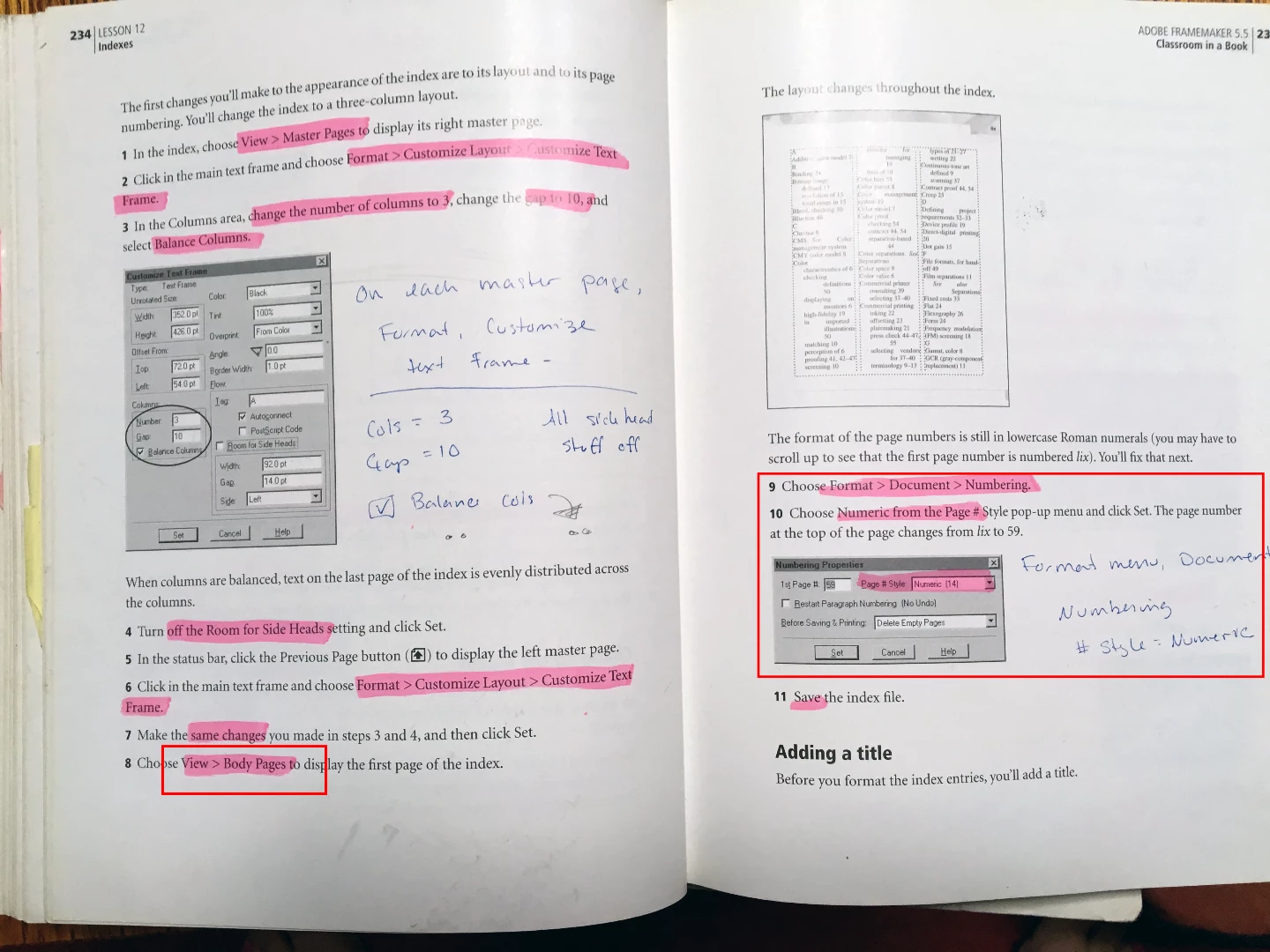
    Set the numbering style in the document, not in the book like we've been telling you. Format > Document > Numbering. Pick arabic or numeric. Repeat for the various chapters.

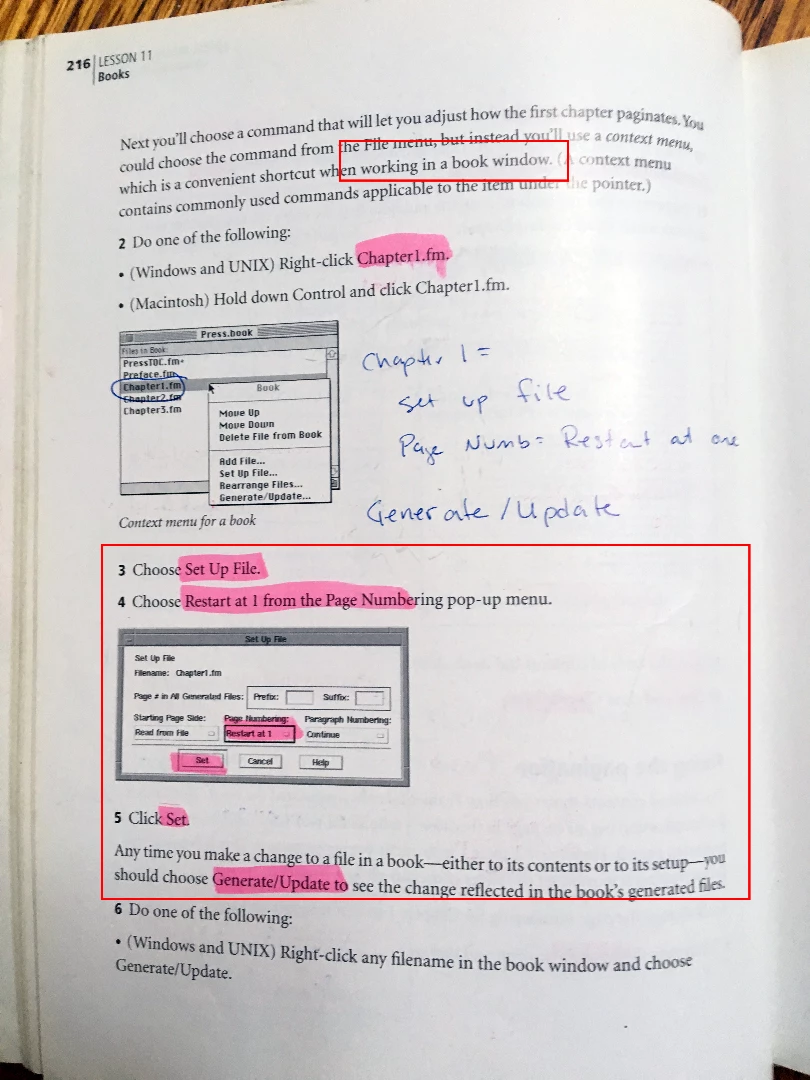
    Save and close chapters. In the book file, right click each chapter and choose Set up XXX. This is where you tell the book to continue page numbering or restart at 1.

    Once this is done, update your book. From there, if there are issues, we are relying on the Fm logic we are using every day and any one of us can help you resolve it.

    3 replies

    Barb Binder
    Community Expert
    Community Expert
    June 21, 2016

    Spencer:

    In the book window, right+click each file and choose Numbering:

    Click the Pages tab to set the Page # and Format.

    • Front matter is roman, the first chapter starts on page one. Second and subsequent front matter chapters stay roman, but Continue Numbering from Previous Page in Book. Repeat for each front matter chapter.
    • When you get to the first body chapter, change the format to Numeric, and First Page # to 1. Select the second and subsequent chapters with a click, Shift click: keep the style numeric and Continue Numbering from Previous Page in Book.

    When you think you are done, select all of the chapters and check the numbering on the bottom row of the book window to confirm that it is correct.

    ~Barb at Rocky Mountain Training
    spencer_rugaber
    Participant
    June 21, 2016

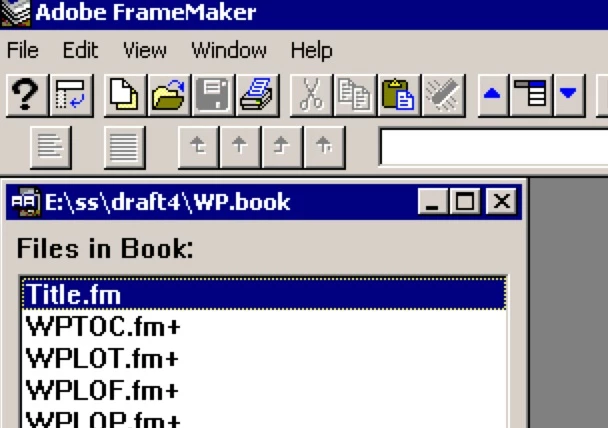
    Thanks for the detailed reply. I think that my problem is that I have an old version of FM (5.5) and it only offers me the following choices:

    Note that there is no numbering option.

    Can anyone suggest how I can fake things in a version this old (other than buying a new version )?

    spencer_rugaber
    Participant
    June 22, 2016

    Ok, I kept reading and here's what I found:

    Set the numbering style in the document, not in the book like we've been telling you. Format > Document > Numbering. Pick arabic or numeric. Repeat for the various chapters.

    Save and close chapters. In the book file, right click each chapter and choose Set up XXX. This is where you tell the book to continue page numbering or restart at 1.

    Once this is done, update your book. From there, if there are issues, we are relying on the Fm logic we are using every day and any one of us can help you resolve it.


    That did it. Thanks for persevering.

    Arnis Gubins
    Inspiring
    June 21, 2016

    You have to set all of the numbering properties for each file of the book in the Book file.

    Set file 2 to start at page 1.

    Set file 3 to also start at page 1.

    Set the rest to continue numbering from previous.

    spencer_rugaber
    Participant
    June 21, 2016

    Thanks Arnis. Can you help me to do what you suggest? When I select a file in in the Book and then choose Set Up File... I am given only the following choices.

    However, if I Cancel and then open a Chapter from the Book file and choose Format->Document->Numbering,

    I am given the following choices, which is what I have used:

    I don't see any way that I can set the 1st Page # and Page # Style directly from the Book file.

    Do you have any suggestions?

    Jeff_Coatsworth
    Community Expert
    Community Expert
    June 21, 2016

    I believe numbering rules of the book override the numbering rules of the doc.