LinSims
Community Expert
February 19, 2021
Answered

PDF Bookmarks out of order for multiple flow document

  • February 19, 2021
  • 4 replies
  • 1633 views

This is the first time I've tried to work with multiple flows, so it's entirely possible I've missed something obvious.


Pertinent information:

Windows 10 Pro (Build 1909, OS Build 18363.1316) (Yes, I know it's a few releases behind, but updating from here bolluxed my Acrobat DC Pro beyond belief)

FrameMaker 2020 (16.0.1.817)

Acrobat DC Pro (2021.001.20138)


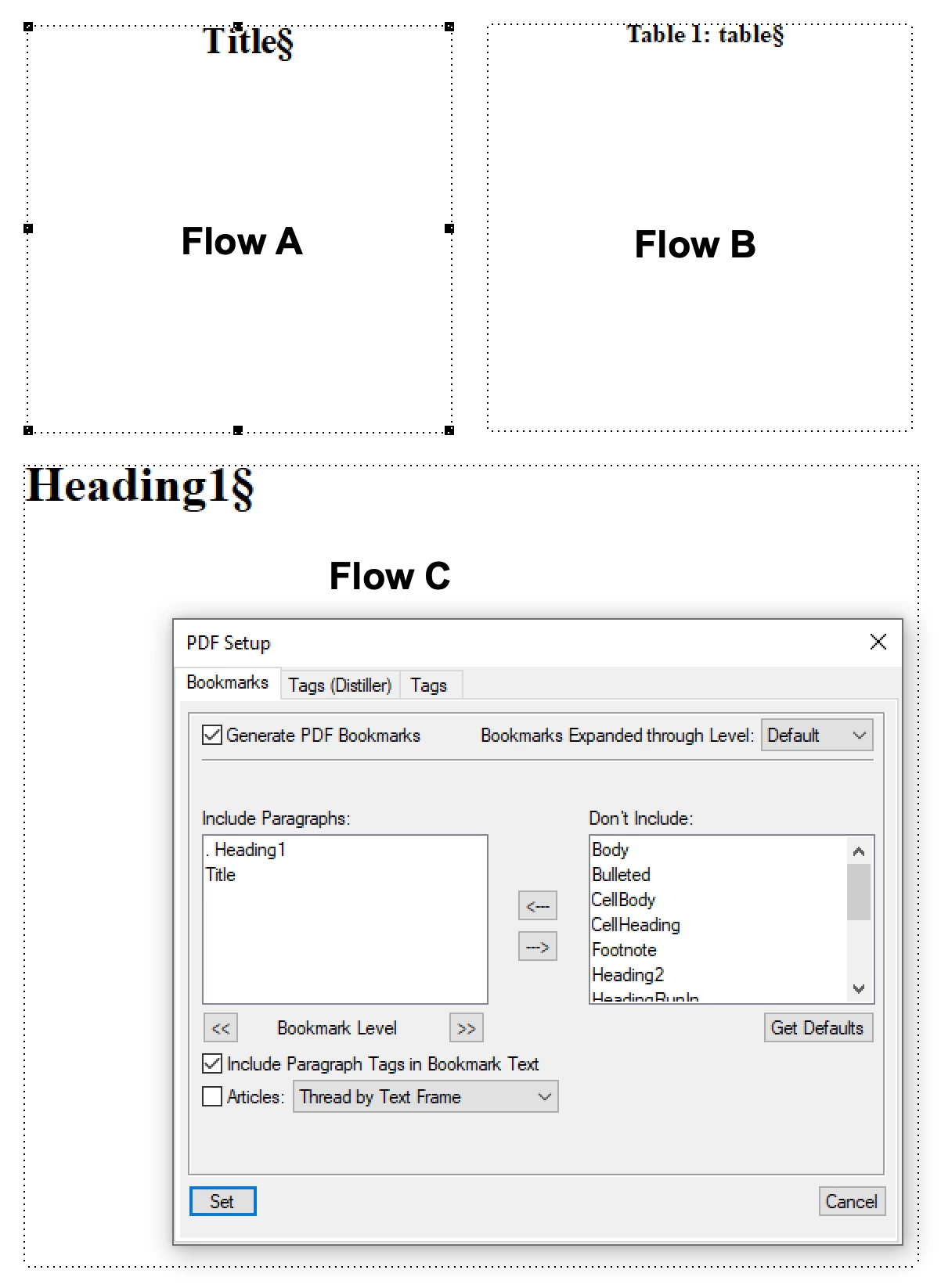
This is my current setup for the first page of our new Field Bulletin template. The letters indicate the Flow Tags. Flows A and B are disconnected because they appear only on the first page and because I do not want the information in them to flow into the other frames. Flow C is the main flow. 
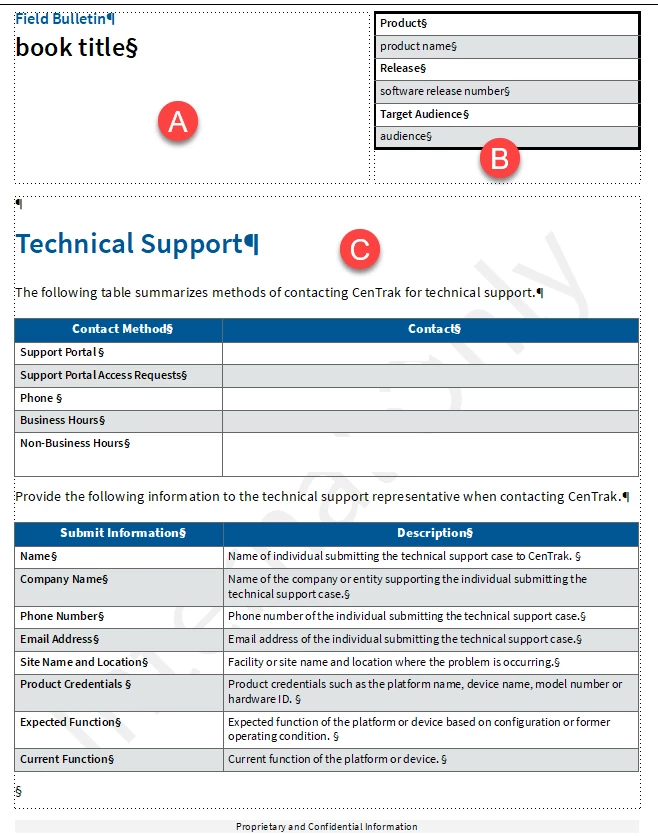

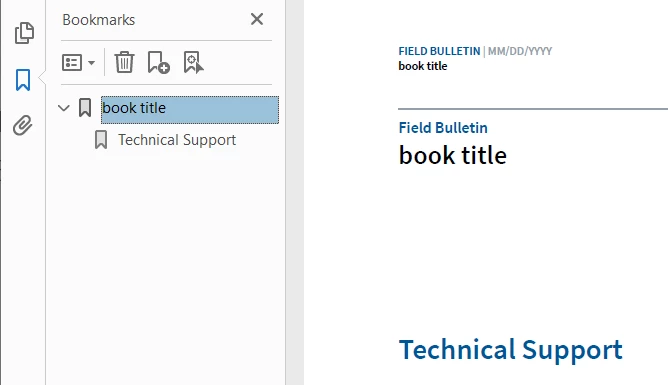
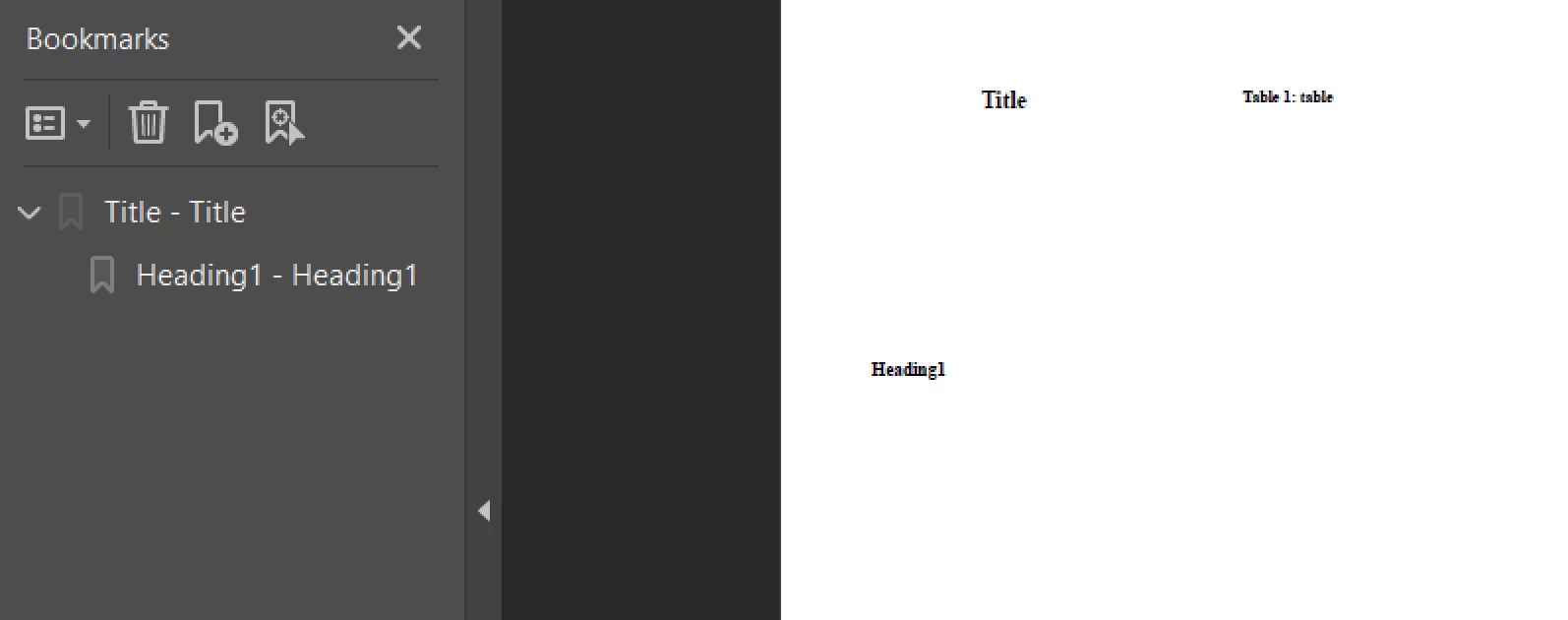
As you can see, I have the book title (it's a variable) in Flow A, and it is tagged with H1 Heading 1. I have the text "Technical Support" in Flow C, and it is tagged as H2 Heading 2. When I generate the PDF, this is how the bookmarks are set up



But this is what I want them to look like (obviously):
 

I've tried to set the PDF to generate both by Articles: Thread by Text Frame (hoping it would follow the Flow labels) and also Articles: Thread by Column, which was the recommendation I found here.
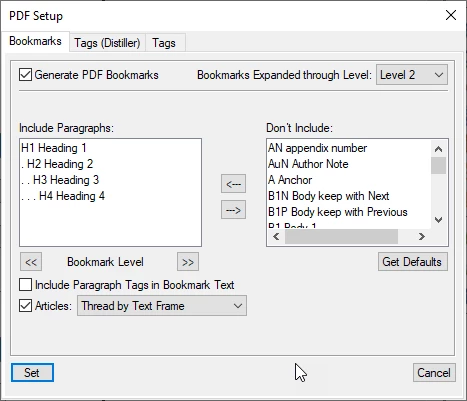
Both choices resulted in having the heading tag for the book title appear after the heading tag for the Technical Support. 


What am I doing wrong? Yes, I know it's an easy fix in Acrobat DC Pro, but it shouldn't need to be fixed.


Side note: Originally, Flow C was Flow A, Flow A was Flow B, and Flow B was Flow C. I renamed them because I thought that might be why the bookmarks weren't coming out in order (that is, Acrobat was moving from A to B to C), and since Technical Support was in Flow A (at the time), it was being processed first. Alas, changing the flow tags didn't change the PDF results. Also, weirdly, they are showing at the same hierarchy level in the PDF bookmarks pane, despite being setup to indent in FrameMaker.
This topic has been closed for replies.
Correct answer Barb Binder

My 2¢:


While I certainly agree this can be done in a single flow, I had a suspicion it was a stacking order issue, and was able to confirm it.


Example 1

On the master page, I resized the exisiting template frame (flow A) to match the top left small frame. Duplicated it, renamed it Flow B and matched the top right small frame. Duplicated it, renamed it Flow C and sized to fit the large frame. Added content to the body pages, set the PDF setup and saved as PDF. Bookmarks worked as expected.


Example 2

On the master page, I resized the exisiting template frame (flow A) to match the large bottom frame, renamed it Flow C. Drew the top left small frame, renamed it Flow A. Drew the top right small frame, named it Flow B. Added content to the body pages, set the PDF setup and saved as PDF. Bookmarks look like yours.


~Barb

4 replies

LinSims
LinSimsAuthor
Community Expert
February 20, 2021

For anyone still interested, I did try the multi-column format suggested by @Bob_Niland, but it won't work unless you use the original text frame split into two even-width columns on the master page using the Object Properties, Number of Columns settings. 


I did try creating a two-column layout with unequal-width text frames using the directions here, but this doesn't work because they're really two separate frames. I'd forgotten FM doesn't allow you to have multi-width columns.


It occurs to me that I can greatly simplify my life if I use a two-column table with no visible borders for the column containing the title and borders and shading for the product information, and my only excuse for not thinking of this earlier is a complete brain lock-up. It's not like I haven't used that solution before!


Thanks, @Barb Binder and @Bob_Niland for the suggestions and the detective work. There's always something to learn about this program and people to learn from.

Bob_Niland
Community Expert
February 21, 2021

LinSims: … the multi-column format … won't work unless you use the original text frame split into two even-width columns on the master page using the Object Properties, Number of Columns settings.

Yep, but it does allow you to use what is basically the same MP layout for all pages. The body text use In-Col or ACC as needed.

Another hack for this might be to implement top split panels as a table, with visible or invisible borders. It would use the negative spacing trick to be top-aligned, and the empty anchoring para's Pagination would invoke Top of Page, or Top of Right Page, as seems suitable.

LinSims
LinSimsAuthor
Community Expert
February 21, 2021

I actually went with a 3-column table using the negative spacing at the top. The middle column is very narrow (0.15") but ensures that I have a standard gap between the book title and the product information. (0.15" is what I've been standardizing on for the gap between the all the page layout elements and it worked nicely here, too.)


The title/product information is only on the first page, so I don't really need a special master page for it. 


This should have been my first thought—I use tables for this sort of thing all. the. time. I think I went down the rabbit hole because the current template did use separate frames for the title and product information table and it was no end of a nuisance, especially since it had an additional graphic element of a rounded corner "frame" that overlaid the table borders that had to be adjusted for every document. This is much simpler.


On the plus side, I've learned a few more tricks with layouts that might come in handy in the future.

Barb Binder
Community Expert
February 20, 2021

Hey Bob:


You hit the nail on the head. In my experience, multi-flow docs are a nightmare in FrameMaker when you need to adjust the layout later. That why we use InDesign. It was made to handle multi-flow docs.


I don't design multi-flow docs in FrameMaker ever—with the exception of landscape pages in a portrait file—but I certainly encounter them when working with clients. That said, I think Lin could use this layout if she wants to, specifically because the top two flows don't have auto-connect on, and presumably, never will. And if a change occurs down the road, it wouldn't take long to cut the content from those two self-contained frames, paste them into the main flow, and redesign the first page master. Her layout is one of the few exceptions to my rule.


~Barb

~Barb at Rocky Mountain Training
Community Expert
February 22, 2021

I have documents with separate flows for multi-lingual documents.

Sometimes I have to experiment, but usually it works. I really appreciate it that FrameMaker can do this sort of stuff.

These documents are rather short (1 to 4 pages). Therefore I do not need any bookmarks, and that's why I did not encounter Lin's issue.

Barb Binder
Barb BinderCorrect answer
Community Expert
February 20, 2021

My 2¢:


While I certainly agree this can be done in a single flow, I had a suspicion it was a stacking order issue, and was able to confirm it.


Example 1

On the master page, I resized the exisiting template frame (flow A) to match the top left small frame. Duplicated it, renamed it Flow B and matched the top right small frame. Duplicated it, renamed it Flow C and sized to fit the large frame. Added content to the body pages, set the PDF setup and saved as PDF. Bookmarks worked as expected.


Example 2

On the master page, I resized the exisiting template frame (flow A) to match the large bottom frame, renamed it Flow C. Drew the top left small frame, renamed it Flow A. Drew the top right small frame, named it Flow B. Added content to the body pages, set the PDF setup and saved as PDF. Bookmarks look like yours.


~Barb

~Barb at Rocky Mountain Training
Bob_Niland
Community Expert
February 20, 2021

Barb Binder: While I certainly agree this can be done in a single flow, I had a suspicion it was a stacking order issue, and was able to confirm it.

Neat.
Never having used multi-flow, is there any way to deal with what appears to be a major challenge with re-flow?
If any of the various "FLOW x" frames are auto-connected, inserting and deleting content in an auto flow could cause related content to end up off the page of related content.
Back when I chose to implement the 2-col/AAC approach, a key benefit was that everything related on a page stayed together through inserts & deletes of flow content elsewhere, not to mention copy & paste of the instant page content.

Bob_Niland
Community Expert
February 19, 2021

Never having had a case where multiple interleaved Flows was the solution, I have no direct experience with how bookmarks get ordered for PDF gen. So although this might not be super helpful, but…

… why was multi-Flow architected originally here?

That layout appears that it could easily be done as a single Flow A. The side-head table has a number of approaches, perhaps including Apply Master Pages if only needed on some pages.

LinSims
LinSimsAuthor
Community Expert
February 19, 2021

I had originally set Flows A and B up as untagged flows. Unfortunately, that meant the book title (tagged H1 Heading 1) wouldn't show up in the bookmarks panel at all since it was background text. So I tried naming them so they'd be part of the flow of the document, with the results seen. 


As to why the title and the table are in flows separate from the main flow, I need the top of the table to align with the top of the Section number text with the book title immediately below it, and the only way to do that (that I know of, willing to learn different) is to put the table in its own text frame so that neither it nor the book title would be moved vertically if either of them were particularly long. As far as I have been able to find out, there's no way to make text flow around a table so it has to be in its own frame.

Bob_Niland
Community Expert
February 19, 2021

LinSims: … need the top of the table to align with the top of the Section number text with the book title immediately below it …

The souper-sekret negative space trick usually suffices:
Anchoring ¶format has for example -10pt Spacing Below
Table has matching -10pt Margin Above


re: As far as I have been able to find out, there's no way to make text flow around a table so it has to be in its own frame.

It so appears, with the leading candidates being a text frame in anchored frame, or using a 2-column format and some Across-All-Columns tricks.


If that header section needs to be variable height, 2-col w/ the ACC trick might be ideal.
¶FieldBulletin would be In-Column & Top of New Page
¶ProductTableAnchor would be In-Column & Top of Column
¶TechnicalSupport ¶various below it would be Across-All-Columns