


PPI, DPI, and scaling confusion
I have a few questions about scaling a JPEG (or other raster file) in FrameMaker.
One of the other technical writers at my company, who joined our company recently, thought that the sizes of our PDFs were pretty large. He thinks that this may have something to do with the size of the JPEGs in our FrameMaker files. When we started looking at JPEGs in FrameMaker files that I created last year, I became confused.
Here's what I am seeing. Let’s suppose that I want to import a JPEG that is 5 x 2.5” at 300 ppi. I set the W x H x ppi in Photoshop and crop the JPEG.
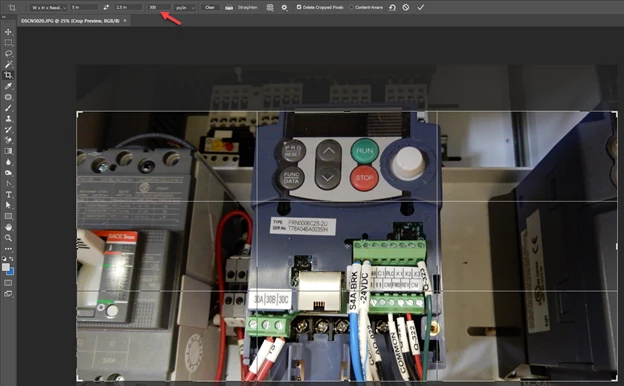
I create a 5 x 2.5” anchored frame in FrameMaker. Then I choose to import the JPEG by reference into FrameMaker.
When FrameMaker imports the JPEG, a window appears to ask about scaling. I choose to scale the graphic at 300 dpi (I'm a little confused about why this isn't ppi, but that's perhaps a tangent).
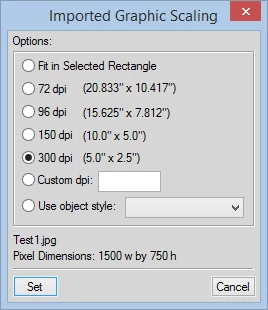
I assume that the JPEG should be 5 x 2.5” in the document. In essence, I don’t want the dimensions or resolution to change when I import it.
However, when I select the Object Properties window, I see that the image is scaled at 24 percent with 300 dpi (again, I thought ppi had to do with scaling, not dpi).

If I change the scaling to 100 percent, my JPEG is now roughly 21 x 10” with unknown dpi.
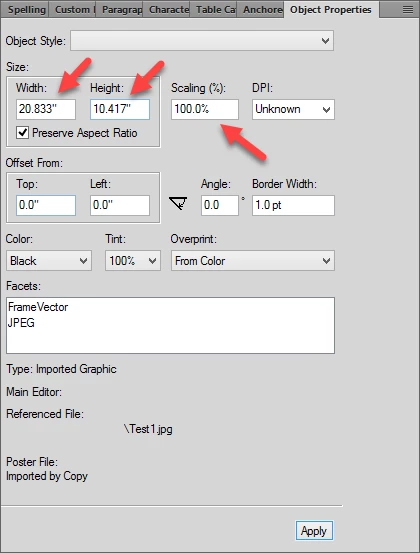
If I want to shrink the JPEG back to 5 x 2.5", I can select 300 dpi from the dropdown (again, I am confused as to why this isn't ppi).
My coworker suggests cropping JPEGs to a smaller size (in this case, 3.54 x 1.76" at 300 ppi), importing those JPEGs into FrameMaker, and then using the scaling to increase the physical dimensions of the JPEGs on the page.
I have three questions:
1. Would my coworker's suggestion reduce the size of the PDFs without reducing image quality?
2. Why is FrameMaker showing the scaling on JPEGs as 24 percent when I import them? Shouldn't that be 100 percent?
3. Shouldn't scaling be affected by ppi settings, not dpi?
Thanks in advance for help.
 AdChoices