Inspiring
March 23, 2018
Answered

The Table Designer will not change the background cell color in the header row.

  • March 23, 2018
  • 3 replies
  • 4525 views

FM 2017: the Table Designer will not change the background cell color in the header row. I can change it with the Custom Ruling and Shading but I want to change the Header background color for all of the tables in the document.

This topic has been closed for replies.
Correct answer Dave Creamer of IDEAS

I changed the file to one that has green header rows that persist to the next page.

  • I followed your directions and got another blank green row
  • I select the new row, change the Color and Fill in the Table Designer, click Apply and ... No change
  • I select both green header rows, change the Color and Fill in the Table Designer, click Apply and ... No change

This is the file with the real header rows

https://www.dropbox.com/s/f3fj5yttxyv0qla/Section4-Change%20Requests.fm?dl=0


It is a header row--that's good.

It does have manual (custom) formatting.

I removed the custom formatting and updated the style to work properly.

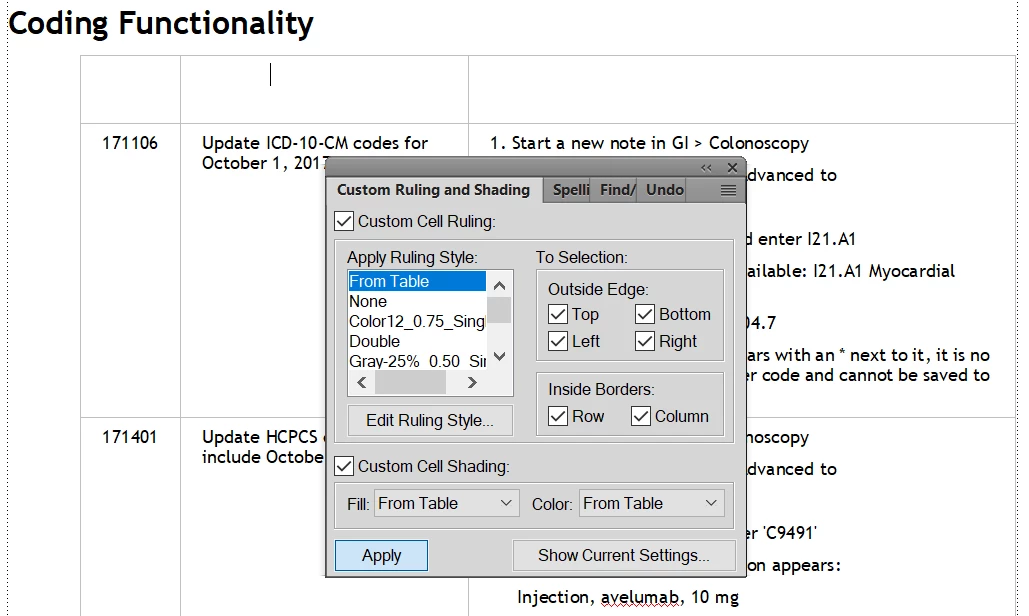
Step one: select header row and set color/shading to table; style settings are set to none, so color disappears
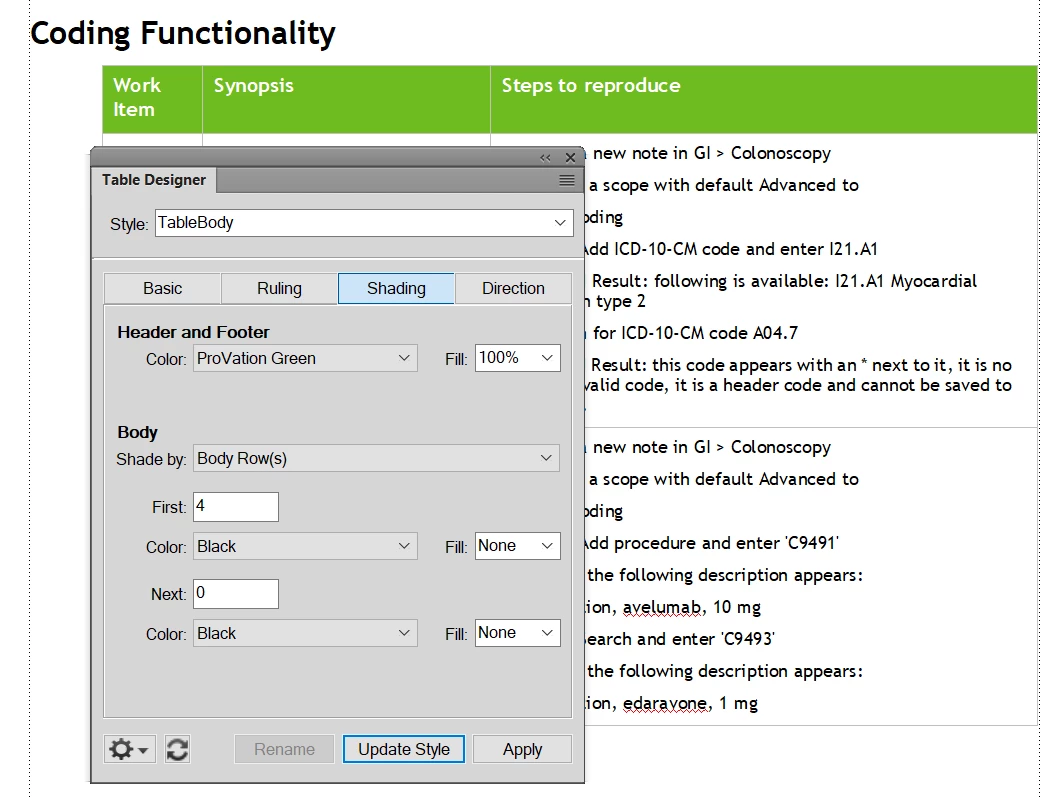
Step two: update the table style as desired:
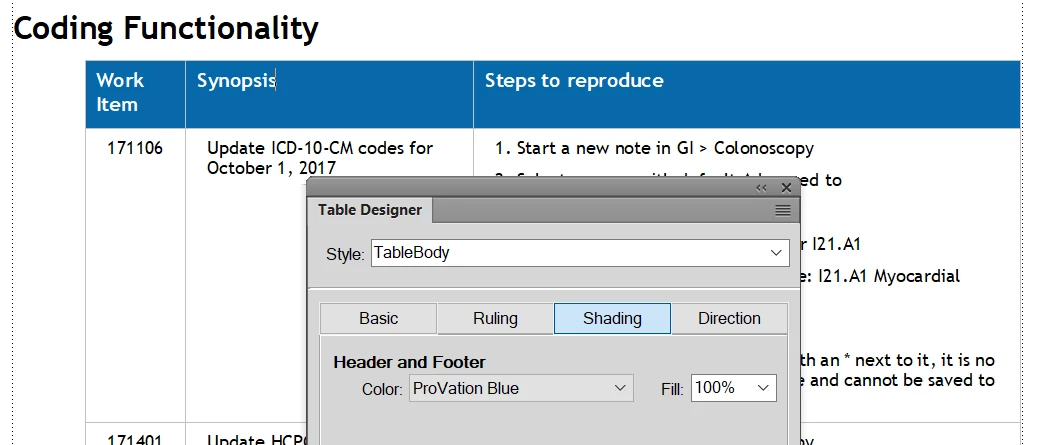
3 replies

Barb Binder
Community Expert
March 24, 2018

Alternatively, Dan, if you do have an actual header row (or rows)—which means either the table originated in FrameMaker or you already added it via the responses above—then it is an override issue.

If you are sure you have already defined header rows and you still can't assign the background color: Select the header row(s) and set the background color to "From Table" in Custom Ruling and Shading.

Two table notes:

  1. Word allows you to designate header rows, but FrameMaker doesn't recognize them, so you have move the text from the body to the header rows after importing, (Adobe FrameMaker: Need Repeating Heading Rows? - Rocky Mountain Training ) and
  2. Tables imported from Word and Excel often come in with formatting overrides, so you have to remove the overrides before you can see the attributes defined in Table Designer. (Adobe FrameMaker: Removing Table Overrides - Rocky Mountain Training )

~Barb

~Barb at Rocky Mountain Training
Dave Creamer of IDEAS
Community Expert
March 27, 2018

Barb--regarding importing Excel files...

I find that direct import of Excel files creates a number of minor issues including Excel RGB colors added to color palette.

I find I get better results exporting the Excel file out as a tab- or comma-delimited file. Frame will import the file cleanly and allow me to apply a table style during import. Also, I can assign certain rows to as Header rows reducing the amount of "double work".

David Creamer: Community Expert (ACI and ACE 1995-2023)
Matt-Tech Comm Tools
Community Expert
March 23, 2018

And continuing on Stefan's suggestion, use your Table menu item to add a row to the Table Header.

-Matt SullivanFrameMaker Course Creator, Author, Trainer, Consultant
Community Manager
March 23, 2018

Do your tables actually have a "real" header row? Or is the first row just a "regular" row?

If it's a true header row, you can change it here:

Inspiring
April 3, 2018

Reply to Stephan,

The Paragraph Format for the table header row is TableHeading. I can only change the background color manually with the Custom Cell Shading option. I suspect that the default settings are buried in the Template files but they were created 10 years ago and I don't how to change them. I have a whole library of documents with the old color scheme and we just went through a branding change. I would like to globally change the color scheme for all of the documents based on the old Template.

Barb Binder
Community Expert
April 3, 2018

See if you can upload this file

https://www.dropbox.com/s/ehaf9e9txgw4alp/Chapter.fm?dl=0


Hi Dan:

1. Those are not "real" header rows in that they do not repeat automatically when the table spans multiple pages:

After I add "real" header rows, they still don't pick up the black color because while you have black defined, the amount is set to None:

Change Fill to a value other than none and it is picked up automatically—but not until I add "real" header rows:

~Barb

~Barb at Rocky Mountain Training


