Doe Johns
Inspiring
December 21, 2017
Answered

Three images in a row and auto-resizable callouts

  • December 21, 2017
  • 1 reply
  • 968 views

Hi. I'm novice with FM and need some help

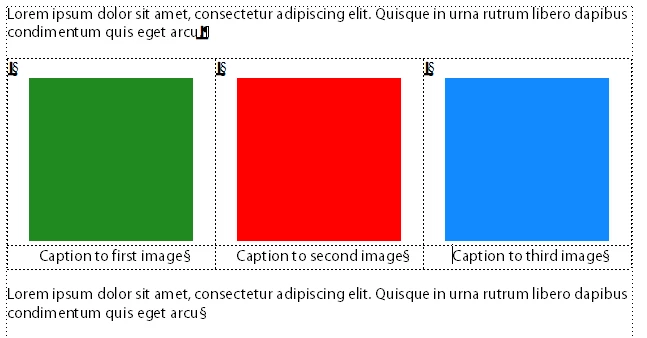
First, I need to understand, is there a way to place tree images in one row, as shown in the picture below:

Second, I need to understand how to create automatically-resized callouts (it should resize only vertically, of course). For example, here is callout which have only one sentence inside it:
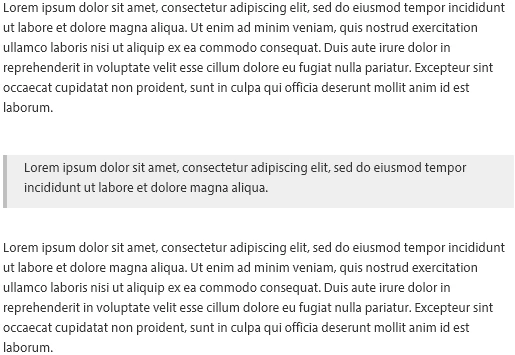
But here - it have more text inside it:
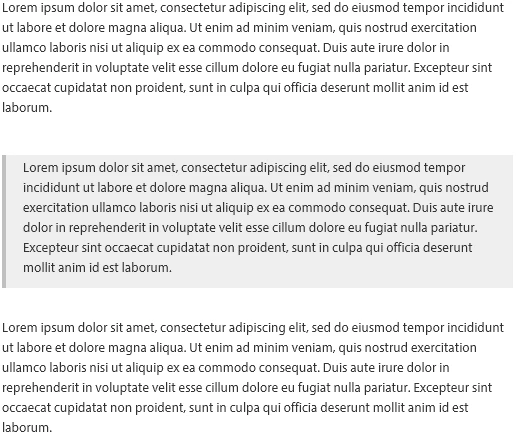
It there way to create it in FM?

This topic has been closed for replies.
Correct answer Ian Proudfoot

Hello John,

I would suggest that tables are the best way to go for both requirements.

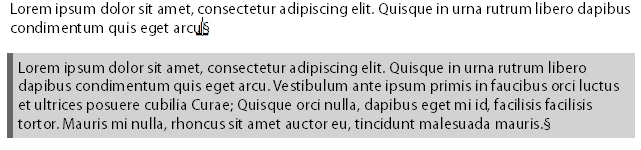
A simple three-column by two row table will work. I'll assume that you are using FM 2017 for the following instructions.

  1. Insert a new table at the chosen position in your document.
  2. Select Table > Insert Table... (Esc ti)
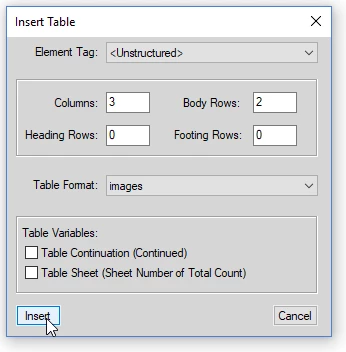
  3. Set the new table to have three columns and two body rows. No heading or footing rows and the Table Format = images*
  4. Insert the table. It should look like this:
  5. You now have a table ready to accept your three images and captions.
  6. Select the entire table and drag to resize the table to fill the page column width.
  7. Add the images and caption text to each cell and it will look like this in FrameMaker:

The call out is done in the same way,but this time use a single cell table. Set the cell shading to a suitable grey and set the left border to a thick darker grey.

The table cells always expand to fit the number of lines of text or size of the image.

* Instructions for creating Table Styles can be found in the FrameMaker online help.

I hope that all works for you?

Ian

1 reply

Ian Proudfoot
Ian ProudfootCorrect answer
Brainiac
December 21, 2017

Hello John,

I would suggest that tables are the best way to go for both requirements.

A simple three-column by two row table will work. I'll assume that you are using FM 2017 for the following instructions.

  1. Insert a new table at the chosen position in your document.
  2. Select Table > Insert Table... (Esc ti)
  3. Set the new table to have three columns and two body rows. No heading or footing rows and the Table Format = images*
  4. Insert the table. It should look like this:
  5. You now have a table ready to accept your three images and captions.
  6. Select the entire table and drag to resize the table to fill the page column width.
  7. Add the images and caption text to each cell and it will look like this in FrameMaker:

The call out is done in the same way,but this time use a single cell table. Set the cell shading to a suitable grey and set the left border to a thick darker grey.

The table cells always expand to fit the number of lines of text or size of the image.

* Instructions for creating Table Styles can be found in the FrameMaker online help.

I hope that all works for you?

Ian

Doe Johns
Doe JohnsAuthor
Inspiring
February 23, 2018

I know, it's very old thread, but as I discovered table rows can't be splitted between pages. For that reason, it's not convenient to use tables for callouts. Probably there is another workaround for it?

Cheers, John.

Ian Proudfoot
Brainiac
February 23, 2018

Hello again John,

What would you expect the layout to look like when the callouts are very long and run over to the next page?

Maybe the table cell could be split automatically using a script? The problem would be defining the rules and repairing the split if the pagination changes. Manual cell splitting isn't worthwhile as it takes to much time to manage.

Ian