


New Participant
July 22, 2021
Answered

Update Book feature does not show LOF chapter for updating

  • July 22, 2021
  • 3 replies
  • 377 views

I am trying to update my front matter/TOC that also contains a List of Tables and a List of Figures. For some reason, the List of Figures chapter is not available in the Update Book dialog.
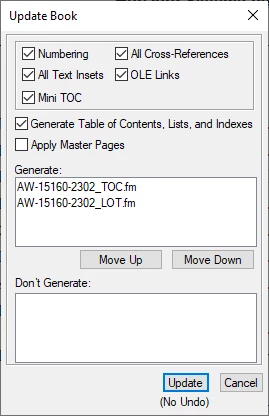
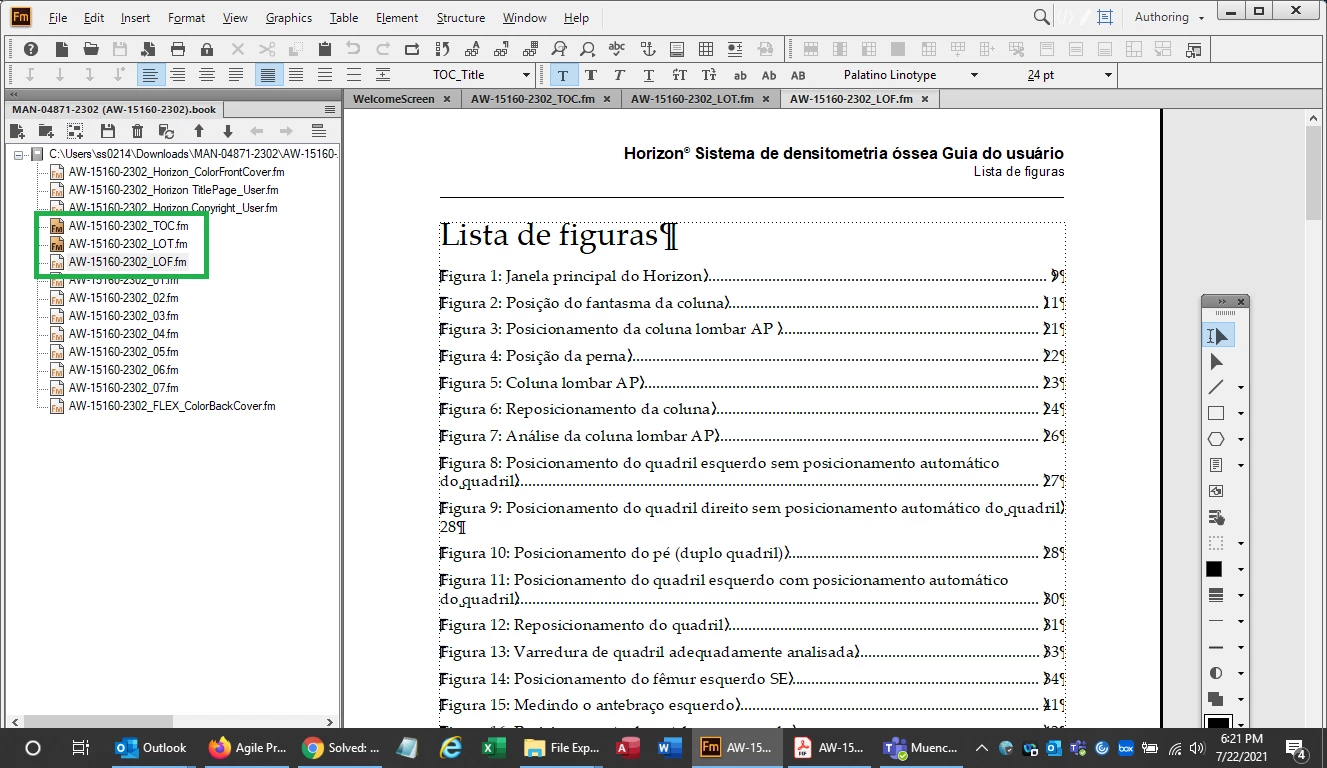
If you look closely at the LOF chapter in the Book view below, you will see that TOC and LOT chapter icons are dark brown, while the LOF chapter it is a slightly lighter. Does the color difference indicate something is not configured properly in that LOF chapter? How do I fix this so it will update?
    This topic has been closed for replies.
    Correct answer Bob_Niland

    That change in icon aspect indicates that the file is no longer Generated.

    What caused that is anyone's guess.

    Perhaps the easiest way to fix it is:

    1. save that non-functional .lof file under a new name (in file manager, not in book)
    2. delete it from the book
    3. instruct FM to create a new LOF with the original name
    4. open the saved copy in FM
    5. import formats to the new LOF (including Reference Pages)
    6. copy any static content from the old .lof Body pages
    7. close the saved copy

    The new .lof should update now

    3 replies

    Barb Binder
    Community Expert
    July 31, 2021

    One more thing... I am probably the only one in the world who is excited that FrameMaker has a last line right indent in development. The feature will specifically address the awkward wrapping on Figura 9. I can't wait!

    https://tracker.adobe.com/#/view/FRMAKER-7310


    ~Barb 

    ~Barb at Rocky Mountain Training
    Barb Binder
    Community Expert
    July 31, 2021

    I have never had it happen to me on one of my jobs, @Bob_Niland, but my suspicion is that a generated file is inadvertently removed from a book and is added back in with Insert > Files and not Insert > List of ... (or equivalent).


    On that note, this was a generated file—you can see the h-link markers at the beginning of each line. A slightly quicker option to restore it would be to delete the file from the book (not the drive) and add it right back in with Insert > List of > Figures. Fm would have used the same name, matched up with the file still on the drive and updated it.


    Both avenues lead to the same outcome: @steves24701230 is back in business. 😊


    ~Barb 

    ~Barb at Rocky Mountain Training
    Bob_Niland
    Bob_NilandCorrect answer
    Community Expert
    July 23, 2021

    That change in icon aspect indicates that the file is no longer Generated.

    What caused that is anyone's guess.

    Perhaps the easiest way to fix it is:

    1. save that non-functional .lof file under a new name (in file manager, not in book)
    2. delete it from the book
    3. instruct FM to create a new LOF with the original name
    4. open the saved copy in FM
    5. import formats to the new LOF (including Reference Pages)
    6. copy any static content from the old .lof Body pages
    7. close the saved copy

    The new .lof should update now

    New Participant
    July 30, 2021

    Thank you Bob - that did it!

    Bob_Niland
    Community Expert
    July 31, 2021

    Thanks for the report. I feared I might have overlooked something, as I don't think I've needed to do a similar recovery in about a decade.


    I'm also wondering if any of our experts have ever documented just what it is that causes a component file to get recognized as Generated. Perhaps an alternative fix might be some simple MIF hack in the .book file.