Inspiring
January 19, 2019
Answered

What do I need to do to include the comment markers as comments in the PDF?

  • January 19, 2019
  • 1 reply
  • 1741 views

Hello,

I'm using FM 2015 (TCS) and have inserted quite a few comment markers in the book's files. When generating the PDF I expected to see these comments as comment notes in the PDF file, but this isn't the case. None of these comment markers appear. (There is no condition applied to these markers and there's no problem in generating a LOM with these comments.)

Are there any specific settings that need to be enabled to include these comments in the PDF output in their actual context?

Will greatly appreciate any advice.

Thanks, Donna
This topic has been closed for replies.
Correct answer Barb Binder

Hi Donna:

The Hypertext marker box is just an updated version of the Marker box. In earliest versions they were combined.

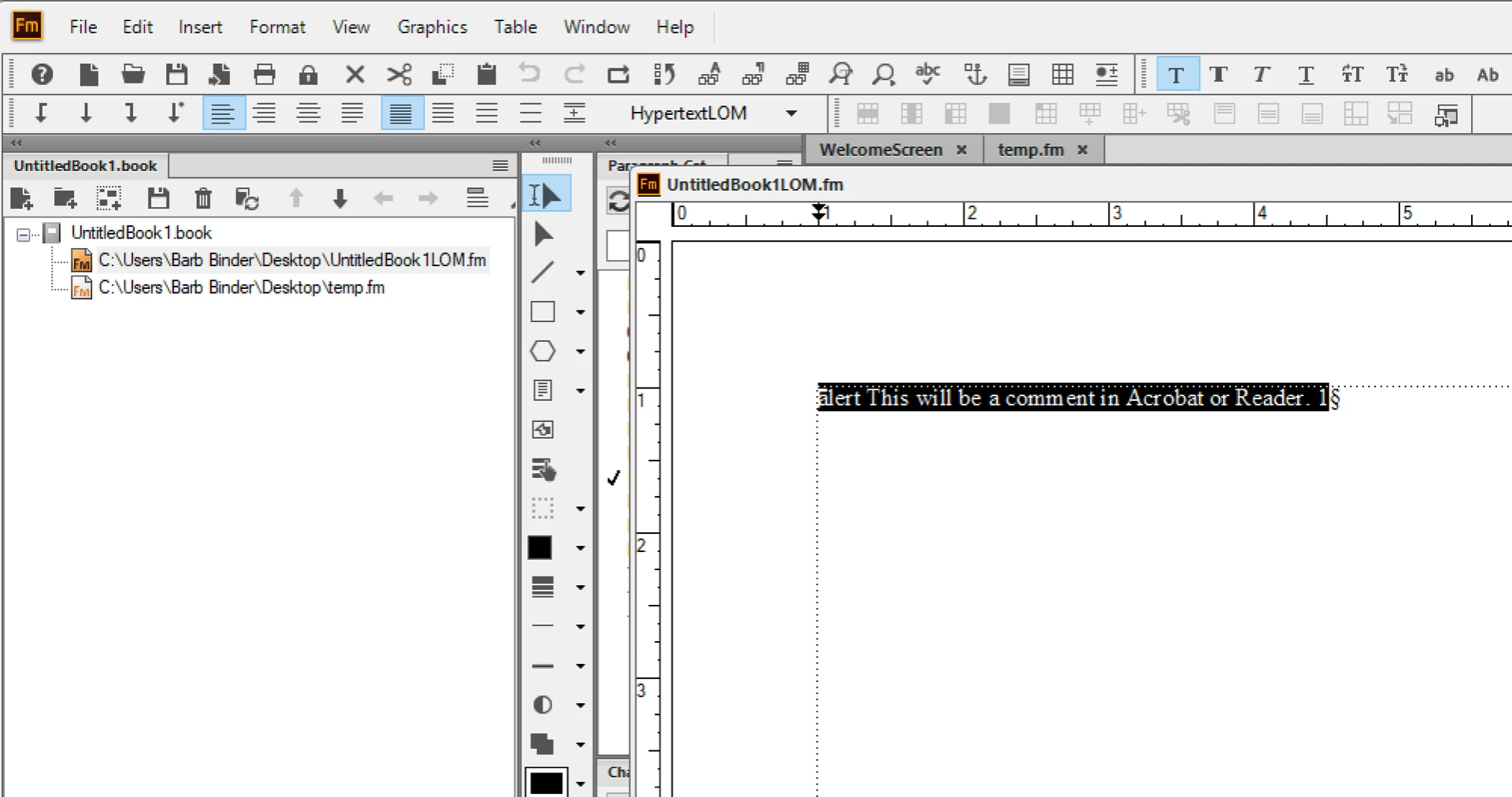
So, you can just paste "Alert " (no quotes but you need that space) in front of the existing marker text. (Probably quicker if you edit the .mif file.)

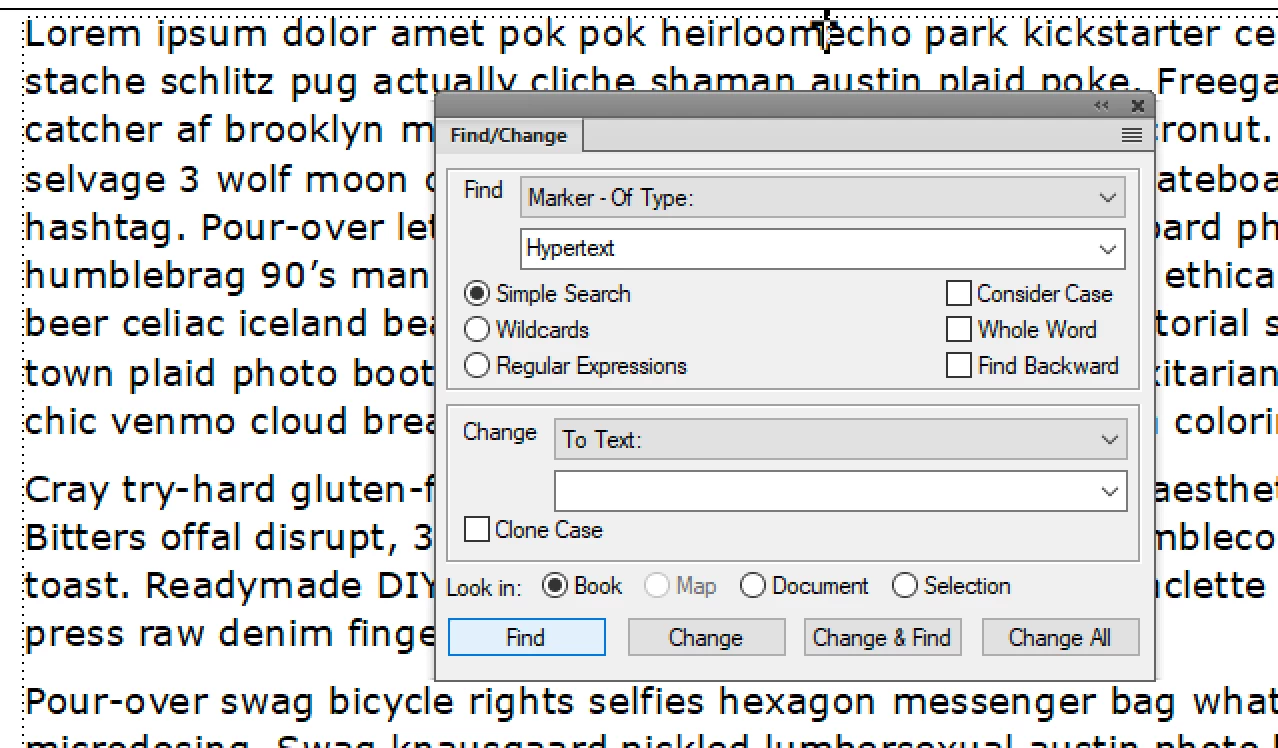
And you can still generate a list of markers, just pick Hypertext.

Same thing for removing them later, but be careful that you just remove the alert hypertext markers if you have others in the the book.

~Barb

1 reply

Barb Binder
Community Expert
Community Expert
January 19, 2019

Hi Donna:

FrameMaker alert markers convert to Acrobat sticky notes.

Is that what you did, and is this what you were hoping for? Or did you use the Comment condition tag—which would simply show your comments inline when the tag is visible, and hide them when the tag is hidden?

~Barb

~Barb at Rocky Mountain Training
udonnaAuthor
Inspiring
January 19, 2019

Hi Barb and thanks for the prompt reply.

The result that you attached is indeed what I was hoping for, but I used the Marker pod and selected the Comment type:

which didn't give the desired result. So IIUC, the way to create sticky note comments in Acrobat is to use Hypertext (Command = "Alert").

That's a pity, as for a marker I can generate a list of markers to make sure I remove them all.

What's the common practice of removing all alerts?

Thanks again, Donna

Barb Binder
Community Expert
Barb BinderCommunity ExpertCorrect answer
Community Expert
January 19, 2019

Hi Donna:

The Hypertext marker box is just an updated version of the Marker box. In earliest versions they were combined.

So, you can just paste "Alert " (no quotes but you need that space) in front of the existing marker text. (Probably quicker if you edit the .mif file.)

And you can still generate a list of markers, just pick Hypertext.

Same thing for removing them later, but be careful that you just remove the alert hypertext markers if you have others in the the book.

~Barb

~Barb at Rocky Mountain Training