Sheena Kaul
Community Manager
Community Manager
September 20, 2019
Question

Get to know Adobe Fresco

  • September 20, 2019
  • 5 replies
  • 9154 views

Adobe Fresco is our new drawing and painting app built for touch and stylus devices to help creatives unleash their creativity wherever inspiration strikes. With Adobe Fresco on your iPad, the world is your studio. 

New to Fresco? Check out this quick tutorial to get started:


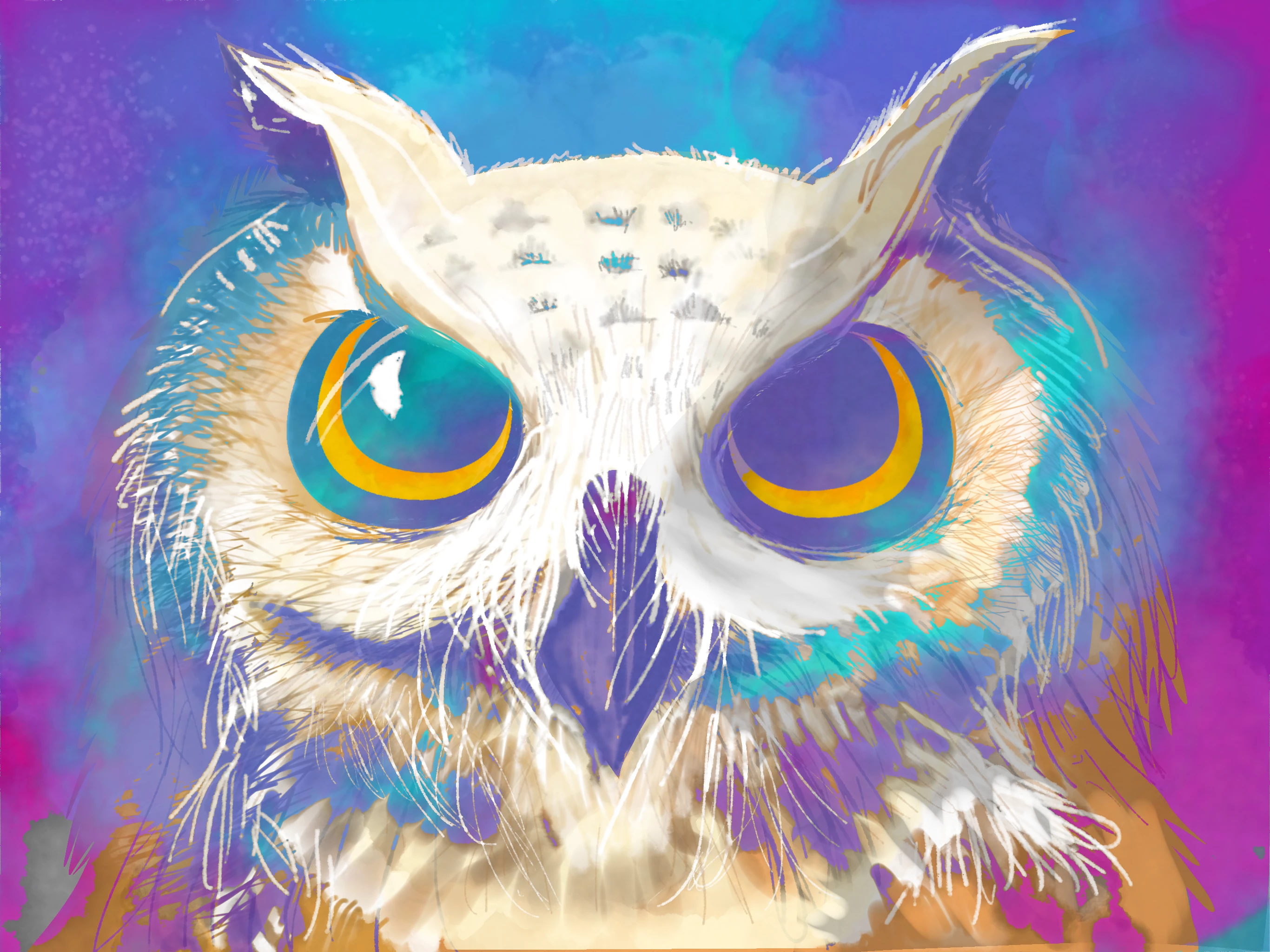
Let’s try to create an artwork using the 
water color brush as per the steps given
 by our Designer, Parichay: 

  1. Import any reference image. In this case, Owl. 
  2. Tap Pixel Brush Tool > Sketching> Pencil. Select the size and color as per your drawing. 
  3. Draw the picture using the pencil brush selected.

     

  4. On a new layer, use selection Tool to define areas where you want to fill color. For this step, you can choose any brush as per your choice.
  5. Tap Live Brush Tool > Watercolor> Water Soft Brush and adjust the size, flow and color as per your drawing. Again, you can select any watercolor brush as per your requirement to fill in the colors in the drawing.  

  1. Result:

  2. Show us what you created by posting here.  

    See what more can you draw in Fresco: https://helpx.adobe.com/fresco/using/what-is-adobe-fresco.html

    Need more help? Let us know by posting here. 

  3.  


This topic has been closed for replies.

5 replies

jay-rene
New Participant
October 9, 2019

Hello! I cannot find how to import a reference image. 

Michael J. Hoffman
Community Expert
Community Expert
October 9, 2019
Hi jenicac, just tap the Picture icon below the eye dropper tool.
jay-rene
New Participant
October 9, 2019
Thank you!! Don't know how I missed that.
pseudoarmadillo
New Participant
October 6, 2019

Hiya!  Downloaded it last night, imported all my favourite brushes and so far I’m impressed... quick question, though - is it possible to cut/copy/paste a selection? I haven’t been able to find any info on how to do it. 

Michael J. Hoffman
Community Expert
Community Expert
October 7, 2019
Yes, you can copy/paste a selection... in a roundabout way. Create your selection, and add a mask. Then, copy and paste the whole layer. Finally, if desired, delete the mask from the original layer.
New Participant
November 25, 2019

Thanks for this answer! Doesn't it seem like an odd oversight to not offer the thing that people do ALL the time in an app like this? What is Adobe thinking?

Theresa J
Community Expert
Community Expert
September 25, 2019

After working with the pencil brush I decided to do a complete painting, limiting myself to the oil brushes. It took a while to get a handle with the mixer and opacity settings. I spent a lot of hours on this, but I enjoyed every minute of the process and am happy with the result. I'm working on my second oil painting now, and feeling much more comfortable with the oil paint brushes.

Sue Garibaldi
Community Manager
Community Manager
September 26, 2019
Theresa. Are you posting this work on Behance? If not, please do and tag it with Adobe Fresco. Thanks. Sue.
Theresa J
Community Expert
Community Expert
September 25, 2019

When I first opened Fresco I was a little overwhelmed by all the brush options. I couldn't seem to do anything but play around with everything, scribbling marks on the canvas. So I decided to limit myself to just the pencil and this is what I drew. I love the ability to draw sharp detailed lines, or smudgy marks for shading. It's just like working with a real pencil.

Community Expert
September 24, 2019

I'm anxious to see what people can do with this app 

Sheena Kaul
Community Manager
Community Manager
September 24, 2019
Hi Dave, I'm excited too! Do show us what you create on Fresco! 🙂