Inspiring
July 18, 2022
Answered

Moving brushes or renaming library

  • July 18, 2022
  • 1 reply
  • 820 views

I recently imported two photoshop crosshatching brushes into fresco.  Is there a way I can move them together into another library of brushes that I imported or create a library name to put these brushes into.  Right now they are two single brushes.  I know I can't delete brushes but I like to have the ability to move them to a separate library.


Ballina

This topic has been closed for replies.
Correct answer oftenatplay

Creative Cloud Libraries are not application specific like Procreate, they are part of the Creative Cloud and accessible from all of your applications.

You can manage the contents of your libraries with the Creative Cloud application. This works on a desktop or with the app on a tablet. You can also manage Library contents with Creative Cloud web using a browser, however I prefer using the app. 

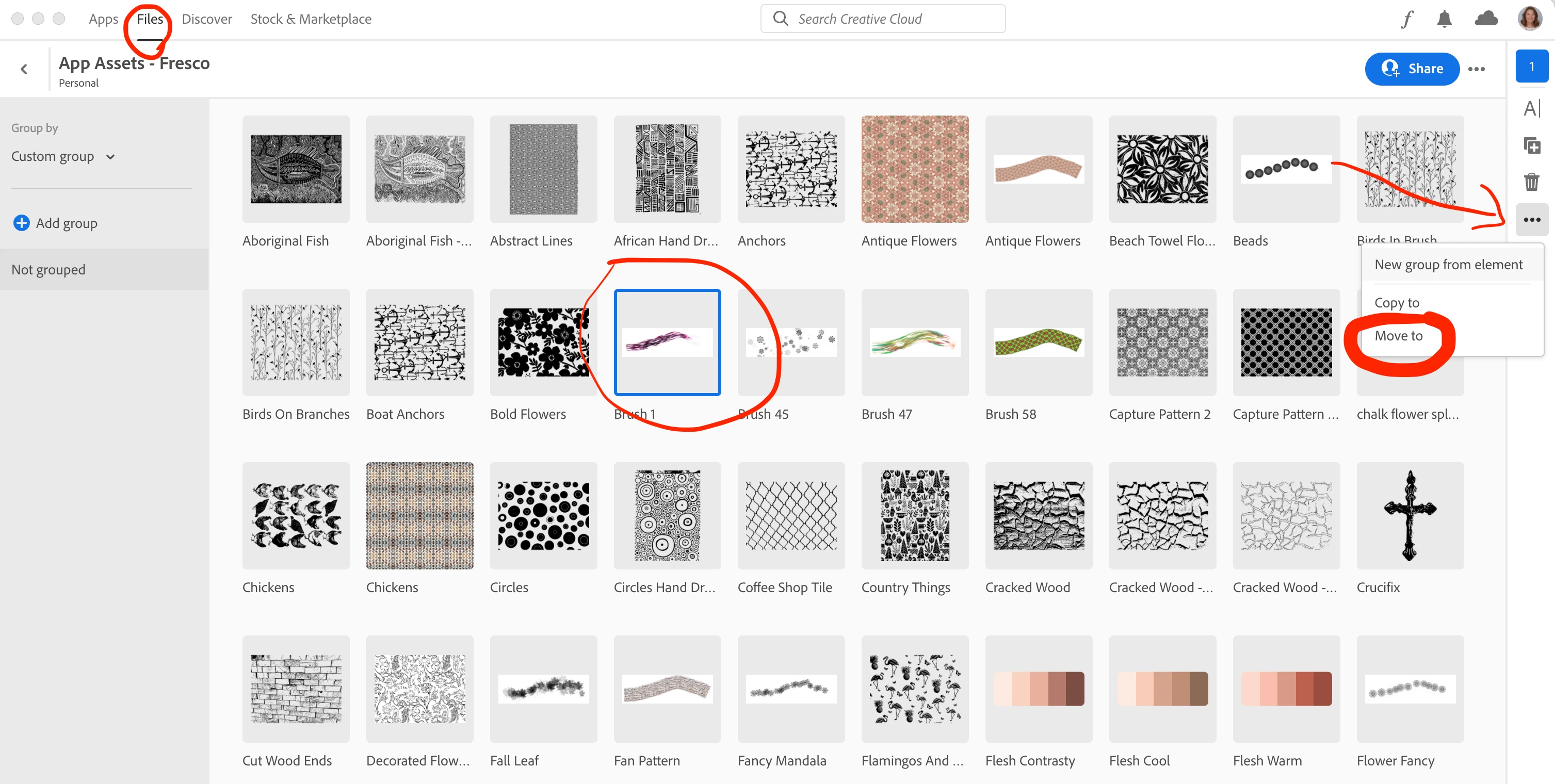
This screen capture is from Creative Cloud on my Macbook.

1. Click Files, then choose Libraries.

2. Open a Library to find the brush.

3. Click on the brush to select it,

4. Then click the 3 dots more options on the right side of the screen. This is where you find the move to option. Use this to move the brush to a different library.

Thank you,   That worked I was able to move the brushes to another folder

1 reply

Sjaani
Community Expert
July 18, 2022

If you sign into your create cloud through the website? Then open the Files area (assets.adobe.com)  You can move, rename or even delete brushes through that.

Inspiring
July 19, 2022

I cannot move theose two imported brushes to another library.  I can only create a subgroup on one but then I can't move the other brush to that subgroup.  I can rename, duplicate or permanently delete them.    I haven't used the libraries very much in photoshop CC and I just started working with them to try and get them into adobe Fresco.  I tried to copy those brushes in Adobe Photoshop CC library to another established library and I can't. 

  In procreate I have no problem moving brushes, copying them and moving them to another folder, creating a new brush set name or deleted any that I imported that are not original brushes and going into brush studio to change them or creating dual brushes.  

  I have not used photoshop cc for digital painting as I have primarily been using procreate.  I like Adobe Fresco live watercolor brushes and I have been trying to educate myself on the software.  Its come a long way from 2019 when i last tried the software.  I imported Kyles concept brushes into Fresco but when I checked in PS CC they were in a library but not in my pscc brushes.  If I tried to use a concept brush in PSCC  I had to select it from the library (I had not imported those brushes to PS CC.  

I also had pixel Comic images in a library in ps cc - they did not show up in adobe fresco but they appeared in my ipad creative cloud library.  I was able to download the original file and then copy it to photos and then bring it into fresco.  

While there is significant help for libraries for adobe photoshop when I clicked on the link for FR on libaries there was just a brief section on colors.  The only other comment I can think of that might help if adobe wants to try and increase the volume of users in Fresco is to work with current fresco artists to develop more tutorials.  I can find 100's of procreate tutorials in Skillshare, on youtube, etc but not many on Fresco.  I'm going to Behance and Kyle Webster, and adobe Go Live, but many of those tutorials do not show what brushes are used, layers changes, etc.  Adobe Fresco is like a poor cousin to Procreate. 


Theresa J
Community Expert
July 19, 2022

Creative Cloud Libraries are not application specific like Procreate, they are part of the Creative Cloud and accessible from all of your applications.

You can manage the contents of your libraries with the Creative Cloud application. This works on a desktop or with the app on a tablet. You can also manage Library contents with Creative Cloud web using a browser, however I prefer using the app. 

This screen capture is from Creative Cloud on my Macbook.

1. Click Files, then choose Libraries.

2. Open a Library to find the brush.

3. Click on the brush to select it,

4. Then click the 3 dots more options on the right side of the screen. This is where you find the move to option. Use this to move the brush to a different library.

