Participating Frequently
January 29, 2019
Answered

add blank space around text

  • January 29, 2019
  • 2 replies
  • 7089 views

Hi all,

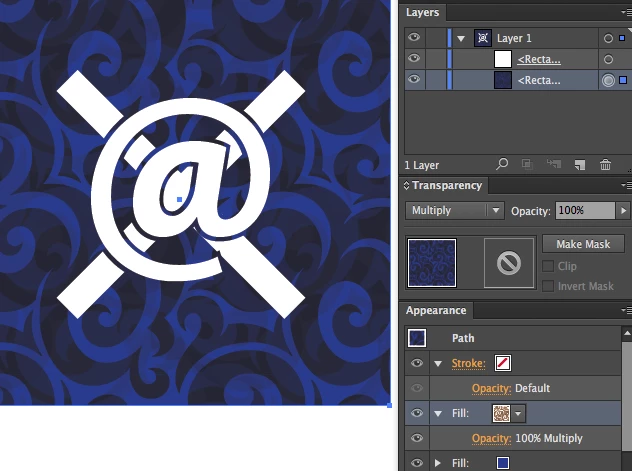
I'm using AI 2015 CC. I have a design with white text over some white lines in a kind of an "X" for a t-shirt design. I'd like the text to have a transparent outline around the letters, so they do not blend in with the lines that are supposed to appear as being behind the text.

How can I do that?

Thank you
    This topic has been closed for replies.
    Correct answer rcraighead

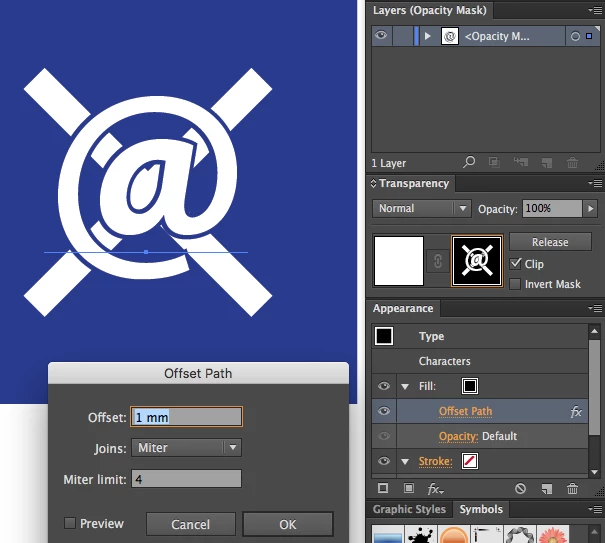
    One way would be to set your artwork (white lines and text) as a "Opacity Mask" on a white rectangle. This would allow the text to remain fully editable on the mask. Add a Black Fill Attribute on top of the Character Attributes in the Attributes Panel and assign an "Effect>Path>Offset Path" to it to create the "transparency" to the rectangle.

    2 replies

    rcraighead
    rcraigheadCorrect answer
    Legend
    January 29, 2019

    One way would be to set your artwork (white lines and text) as a "Opacity Mask" on a white rectangle. This would allow the text to remain fully editable on the mask. Add a Black Fill Attribute on top of the Character Attributes in the Attributes Panel and assign an "Effect>Path>Offset Path" to it to create the "transparency" to the rectangle.

    pranamanAuthor
    Participating Frequently
    January 31, 2019

    rcraighead, thank you, that is exactly what I am looking for. The top image looks very close to my drawing.

    I've been working with someone, and they actually produced the effect, but, they changed some of letter's font sizes. I asked them to correct it and create it without changing the font sizes, but they have not replied to my request, so, I am trying my hand at it.

    In one of the files she sent me, I found a white rectangle to the right of the drawing and dragged it onto that.

    I've selected all and found the "Opacity Mask".

    As for "Add a Black Fill Attribute on top of the Character Attributes in the Attributes Panel", I've found the Attributes Panel, so I think. I've clicked the upper right icon, and see: "Show Overlay Print Only" and "Hide Note".

    Am I close?

    pranamanAuthor
    Participating Frequently
    February 16, 2019

    First question would be how will you print it? Screen printing, foil ...

    What kind of file do you need? Which specifications for the file?

    Depending on the printing process the method needs to be chosen.


    I will be using http://merch.amazon.com​, and they do it print on demand style. Perhaps others, like https://threadless.com/, which I'll look into another time.

    For merch.amazon.com, it has to be 4500px x 5400px.

    I used a png for another shirt: I also have this from them: T-shirt_template-Illustrator-Merch_by_AMZN - Google Drive

    Monika Gause
    Community Expert
    Community Expert
    January 29, 2019

    Can you show a screenshot?