


Participant
April 16, 2020
Answered

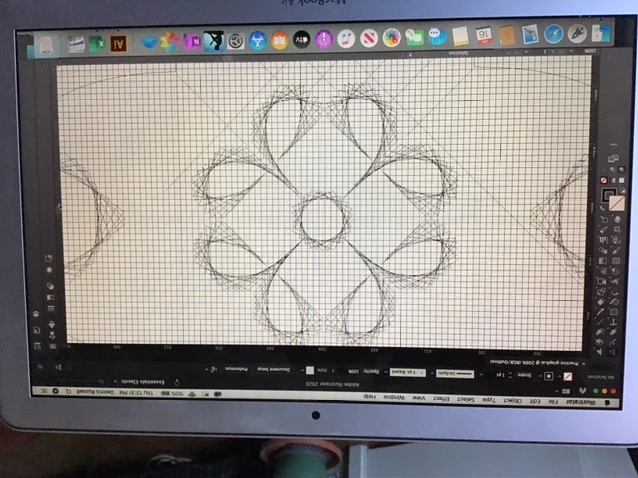
All of the lines in my current drawing suddenly became “spider-like.”
  • April 16, 2020
  • 7 replies
  • 2428 views

I'm new to illustrator. In my current drawing, everything transformed to spider-like lines. See attached photo.   I can not figure out what I have done or how to reverse it. Any advice would be welcome. 

This topic has been closed for replies.
Correct answer Denrussell

Here's the answer: I was in outline mode, which I didn't recognize. All that was needed was to toggle back using Cmd+Y.  Thank you, everyone.

7 replies

pixxxelschubser
Community Expert
Community Expert
April 16, 2020

In this case you should marks the answer from @Monika_Gause also as correct answer.

😉


Glad we could help.

pixxxelschubser
Community Expert
Community Expert
April 16, 2020

😉

Like I wrote in my first answer:

Quote:"… Perhaps you have one or more transform effects in your document. But like I said before: It's only a speculation …"

DenrussellAuthorCorrect answer
Participant
April 16, 2020

Here's the answer: I was in outline mode, which I didn't recognize. All that was needed was to toggle back using Cmd+Y.  Thank you, everyone.

Legend
April 16, 2020
  1. To capture the entire screen, press Command-Shift-3. The screen shot will be automatically saved as a PNG file on your desktop with the filename starting with “Picture” followed by a number, example Picture 1, Picture 2, and so on.
  2. To capture a portion of the screen, press Command-Shift-4. A cross-hair cursor will appear and you can click and drag to select the area you wish to capture. When you release the mouse button, the screen shot will be automatically saved as a PNG file on your desktop following the same naming convention as explained on the first tip above.


You may have done some of the things suggested. Another option is that you ave applied a Transform Effect and each stroke is keeping and using thhose multiple copies creatd by the effect. If that were the case, Open the Appearance panel and in the side menu, choose: Clear Appearance or Reduce to Basisc Appearance as the path you draw kepps using that transform multiplier effect.

pixxxelschubser
Community Expert
Community Expert
April 16, 2020

An addition.

You have probably noticed that English is not my native language.
I meant: check if you are in outline mode. In older versions this is a "toggle button" - in newer version activate: Preview on GPU

pixxxelschubser
Community Expert
Community Expert
April 16, 2020

@Denrussell

Please give Monikas advice a try:

check at first

menu: View --> Outline Mode


If that not help - give a good visible screenshot (and please not as "stamp" like before")

Monika Gause
Community Expert
Community Expert
April 16, 2020

You know how to make a screenshot?

Looks like you're in outline mode and a brush has been expanded.

pixxxelschubser
Community Expert
Community Expert
April 16, 2020

I'm relativ sure you did not mean the background grid.


But I'm not sure what you really mean.

Please explain a bit more in detail.


One shot into darkness:

Maybe you draw ONE line and dozens of lines appears? If that is the behaviour:

  • select one path
  • open the layers Panel (the selected path should be visible in the panel)
  • open the appearance Panel
  • Create a new screenshot and show it please.


Perhaps you have one or more transform effects in your document. But like I said before: It's only a speculation.


Participant
April 16, 2020

Not the grid lines... correct.  The drawing that looks like a flower, and the other drawn, had a substantial thickness, two points or more. Now, they are what you see... I have selected a line segment and tried changing its properties. Nothing changes. I tried drawing a new 2pt  line segment (and some others). The new segments appear, where I drew them but they are like the others.