


josephw32923546
Participating Frequently
February 8, 2018
Question

Any way of image tracing with a really smooth result?

  • February 8, 2018
  • 5 replies
  • 12244 views

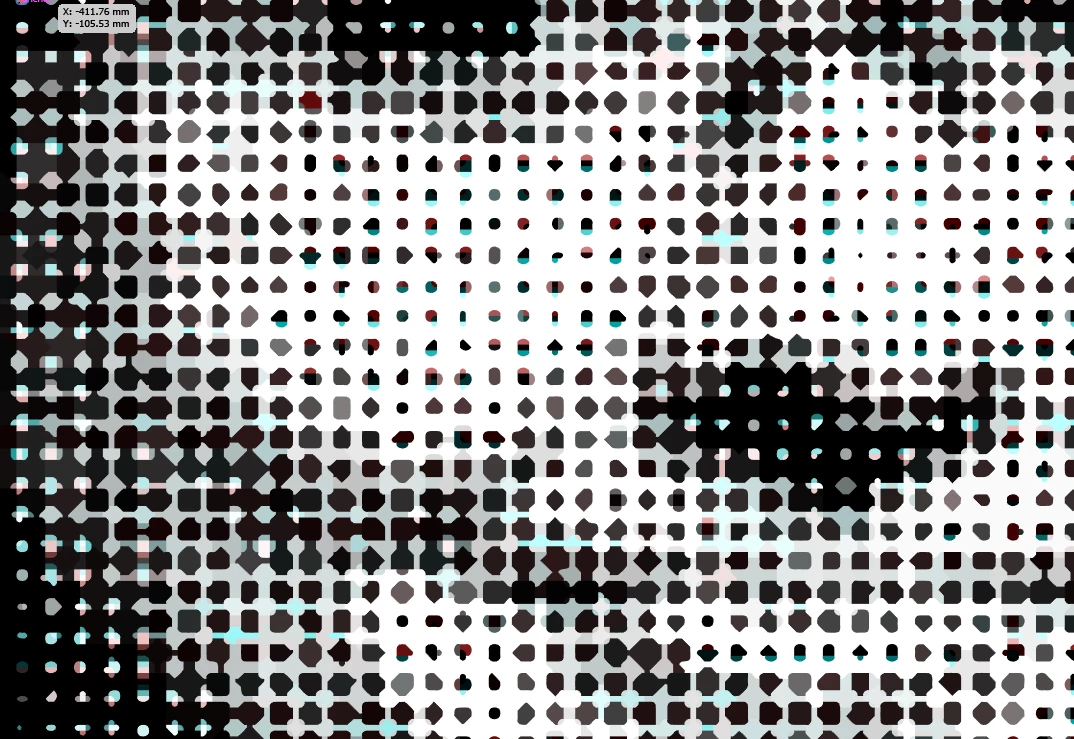
Hi guys - I'm trying to get a halftone image traced out so its a vector shape, but I can't find any options for tracing that actually have a nice clean, smooth result - everything ends up distorting the image really badly, no matter what Image Trace options I use - see screen shots below. Is there no way of exporting the smooth halftone image out as an accurate vector shape??

    This topic has been closed for replies.

    5 replies

    Ray Yorkshire
    Participating Frequently
    June 25, 2018

    This has turned into a confusing thread, as off course,  half tones effect and image trace are two different things,

    Half toning something then tracing the result is a poor workflow. as a perfect circle is one of the shapes auto  tracing hates.

    Ton Frederiks
    Community Expert
    Community Expert
    June 25, 2018

    I think you can get very good results when the resolution before tracing is high.

    But this thread is confusing indeed, I have not a clue what post 14 was about.

    Community Expert
    June 20, 2018

    I'm not meaning to sell competitors' products, but there are a couple of other options.

    Astute Graphics Phantasm plug-in generates vector halftones within Adobe Illustrator. There are numerous options with the effect. Phantasm has some other features, like adjusting colors or converting color artwork into duotones (monotone, tri-tone, quad-tone too).

    The latest version of CorelDRAW (version 2018) has a new "Pointillizer" filter that can generate clean vector halftones and color pointillism effects. The effects can be created using circles, squares or custom shapes (the custom shapes cannot be compound paths though). Source images for the pointillism effects can be pixel-based images or vector objects.

    Theresa J
    Community Expert
    Community Expert
    February 8, 2018

    I was going to suggest that you try using the Adobe Capture mobile application on a phone or tablet, but I don’t think you will get any better results that Ton or Tromboniator created in Illustrator.

    tromboniator
    Community Expert
    Community Expert
    February 8, 2018

    This is what I got using the High Fidelity Photo setting, with no further adjustments.

    And, just so you know it's vector:

    I don't think it'll get better than that.

    Participating Frequently
    June 20, 2018

    I had been using this technique with great results for a while, but since the last update, the image trace options leave an absolute mess, no matter which choice is used.  Anyone else running into that problem?

    For example:

    This first image is my simple pixellated image.  It used to be when I traced it, then expanded it, I'd get lovely little circles which I could then color at will.  This was great for shading vector artwork for printing on fabric.  Below this image are just a few of the results of the tracing options since the last update; there seem to be no good options now!  Notice that Adobe is filling the spaces with a white or grey to make a solid object.

    For such a basic need, I just don't understand why, over all these years, Adobe doesn't make this task easier...maybe someone with more experience will show us the way!

    Thanks, all!

    Legend
    June 20, 2018

    If what you linked her is the actual image you are tracing, it's not very clean, and you can't expect a trace of it to be cleaner than the original was. 

    Ton Frederiks
    Community Expert
    Community Expert
    February 8, 2018

    I get a good result with your image, using the default settings Black and White.

    Ray Yorkshire
    Participating Frequently
    February 8, 2018

    You .will never get it perfect

    Maybe try the original image in The Rasterbator it saves as Vector pdf

    https://rasterbator.net