


Participating Frequently
June 16, 2022
Answered

Blend distance relative to object size

  • June 16, 2022
  • 5 replies
  • 1285 views

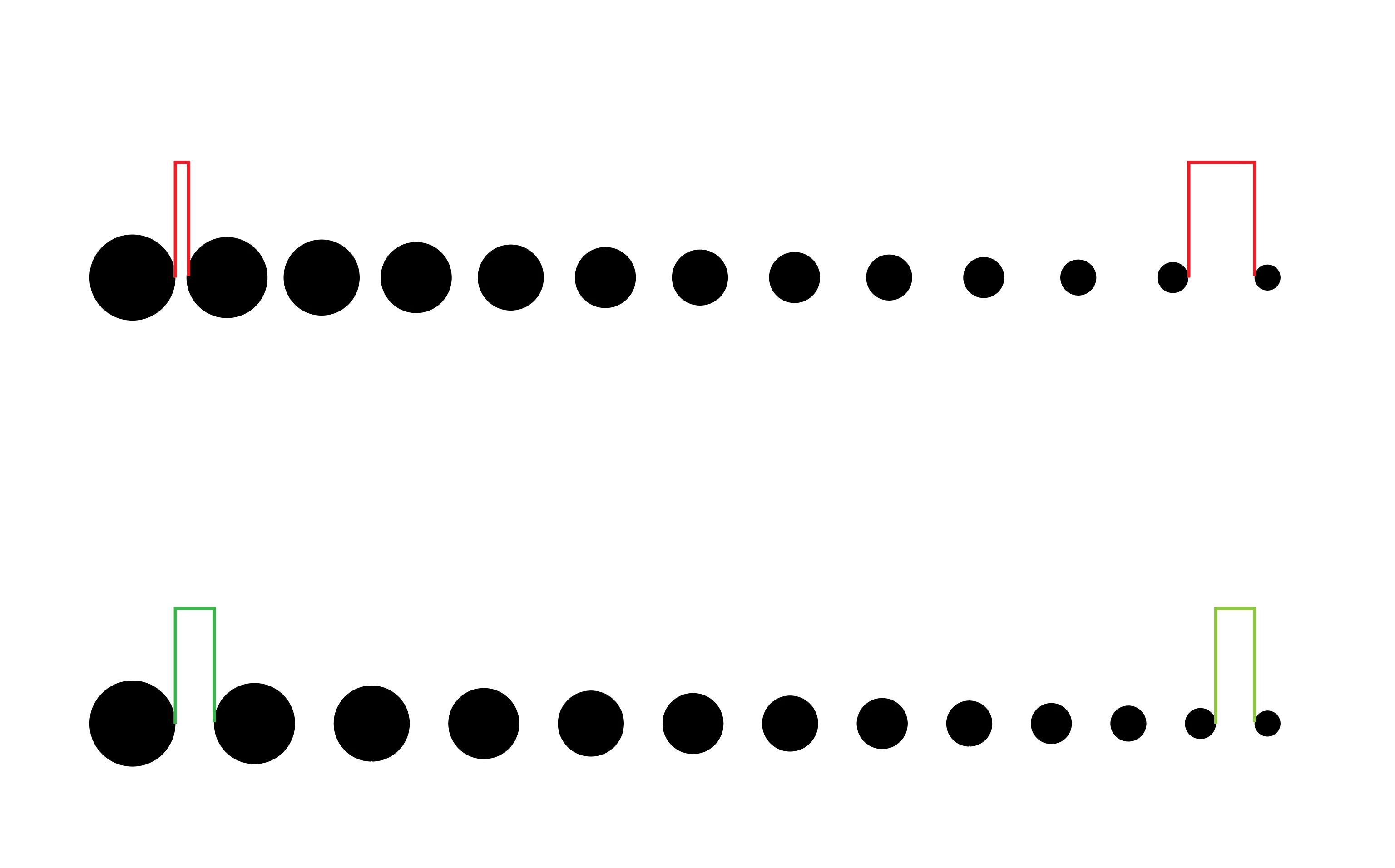
I am trying to get a blend out of objects that fluently increase in size, however I would like to keep the distance in between the same. Currently when selecting " Blend Options/Specified Ditance" it takes the center of each object as a reference, when de objects increase in size this ditance stays the same.
The only way to create the same ditance from the edges of each object is to expand the blend and use the "Align/ Distribute spacing"  action which doiesn't allow me to specify the distance.
is there a way to specify the distance in between blending objects?
This topic has been closed for replies.
Correct answer Mario Arizmendi

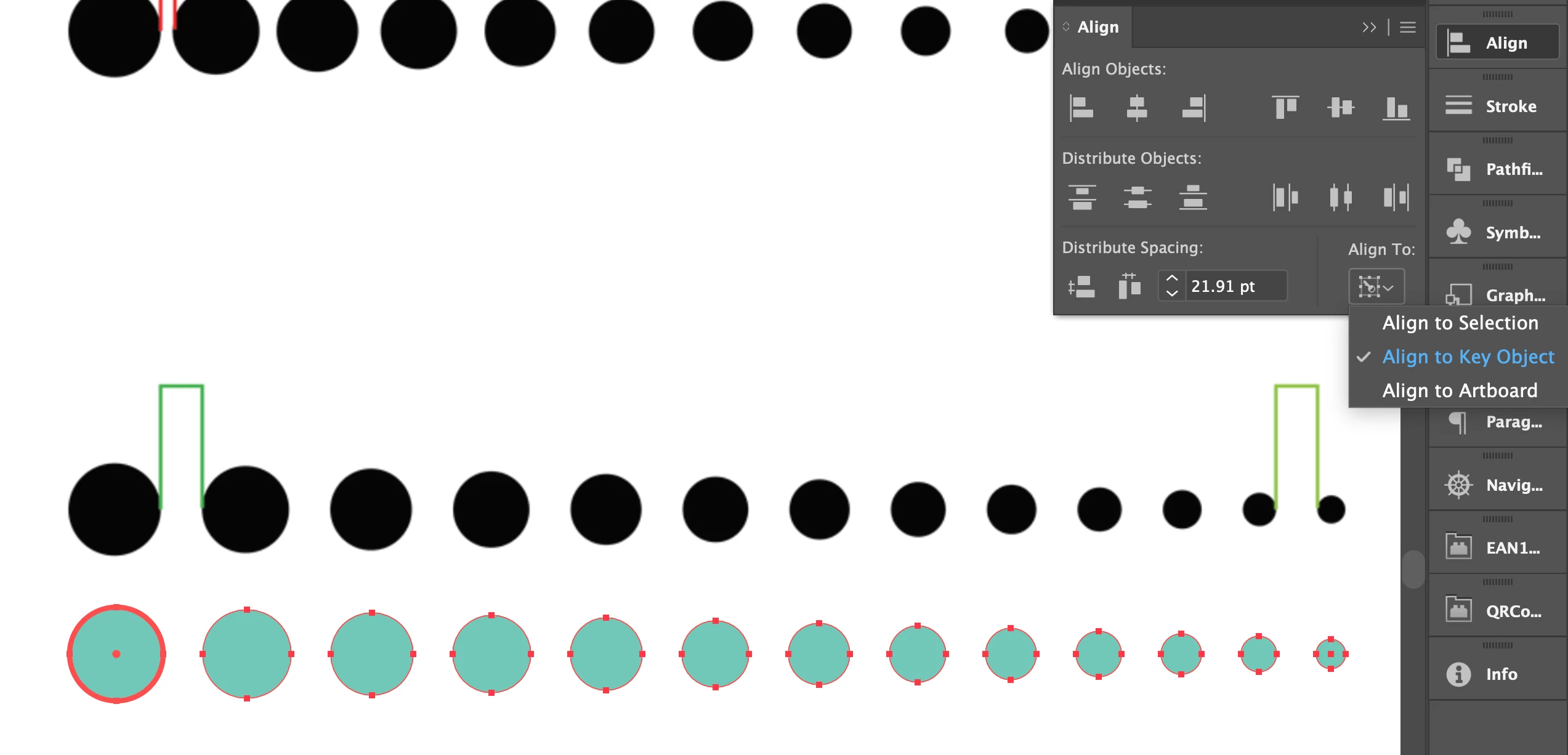
As Ton suggested, you can:

  1. Expand the blend
  2. Ungroup
  3. Keep all selected and then click over the first element to set the key object
  4.  Set align to key object preference
  5.  Enter the desired value
  6.  Click Horizontal distribute space
  7.  Done


5 replies

Met1
Brainiac
June 16, 2022

A blend has a start point and an end point - a specific length - a specific gap between objects requires a fluid length.

I can't see how you can do both, unless the math is exactly right for a specific situation.

Participating Frequently
June 17, 2022

I have worked with other programs (I believe it was Rhino) that had a option like a blend, it recognised the shape and size of the blend objects in between and allowed to specified the distance in between these objects without expanding the blend.
If the distances of objects did not match the total distance of the start point and end point it just changed the start and end points distance by moving these.

Mario Arizmendi
Mario ArizmendiCorrect answer
Brainiac
June 16, 2022

As Ton suggested, you can:

  1. Expand the blend
  2. Ungroup
  3. Keep all selected and then click over the first element to set the key object
  4.  Set align to key object preference
  5.  Enter the desired value
  6.  Click Horizontal distribute space
  7.  Done


Monika Gause
Community Expert
June 16, 2022

That's what he's doing already.

Met1
Brainiac
June 16, 2022

And it works, I'm not understanding what the problem is. Unless this is a precursor to a more elaborate blend on a curve for example.

Jacob Bugge
Community Expert
June 16, 2022

tone,


Until the requested feature is implemented, or till the end of time, whichever occurs first, you can:


1) Start out with a more widely spaced Blend of dereasing circle size (enough to ensure alternating circles in the following, you can deselect and ShiftClickDrag one of original circles with the Direct Selection Tool to adjust);

2) Add a corresponding Blend with a constant circle size equalling the desired Spacing and with one less Step;

3) Centre Align the two Blends, Release both and Ungroup both;

4) Distribute Spacing with 0 distance;

5) Delete the Spacing size circles.


Click Here to see in Chrome 


This must be doable with a script or an action.


Scripting friends?


Action friends?


Kurt Gold
Community Expert
June 16, 2022

Probably one could hammer some actions together, Jacob, but at the moment I think that Ton's suggestion is just a straightforward way to go.


I'm not quite sure why tone claims that Horizontal Distribute Spacing wouldn't allow to specify the distance. It actually does allow it, unless I miss some special requirements.


Kurt Gold
Community Expert
June 16, 2022

I can imagine that "doiesn't" is a double negative in Dutch, Jacob. Therefore Ton retracted.


I can also imagine that I'm completely wrong, of course.


Ton Frederiks
Community Expert
June 16, 2022

You could expand the blend and ungroup it and use Horizontal Distribute Spacing in the Transform panel.


Monika Gause
Community Expert
June 16, 2022